example
264 TopicsA Full 60-Minute 360° Escape Room Built in Storyline
This project started during a one-month workation in Portugal. I was staying in a beautiful little house overlooking the surfers’ beach in Arrifana. It wasn’t one of those empty, soulless vacation rentals – the house had so much character. The decorations on the walls especially caught my attention because some of them almost looked like clues waiting to be solved. So, alongside my client projects, I started building something just for fun. I had wanted to experiment with Storyline’s 360° feature for a long time. I also wanted to see just how many triggers I could possibly squeeze into one project. 😉 Spoiler: There’s one slide with around 300 triggers. Can you guess which one? But most of all, I had always wanted to build a proper digital escape room – not just a few simple puzzles connected by a Next button, but something challenging enough to give you that satisfying “YES! I figured it out!” feeling. The scenario is simple: You’re a freelancer in Portugal with an important online meeting coming up. There’s just one problem: the internet isn’t working. Time to explore the house... How it works I deliberately chose a very open structure. There is no fixed order in which you have to solve the escape room. Instead, there are several interconnected paths, puzzles, items, and chains of events you can discover and work on simultaneously. The house also changes depending on what you’ve already discovered or which items you’ve found. And there might even be a second version of the house you can unlock... But I probably shouldn’t say too much about that. 😉 Behind the scenes One of my biggest design challenges was connecting traditional Storyline slides and puzzles with the 360° environments without making it feel like you were suddenly leaving the world of the escape room. Another challenge was creating an inventory that worked naturally with the open structure of the game. And then there’s the chick game. That one nearly broke me. It might also break you a little bit. Sorry! But it took me so long to build that there was absolutely no way I was taking it out again. You’ll just have to be fast. 😉 Technically, however, the hardest part wasn’t any individual interaction. It was keeping track of all the puzzles, variables, dependencies, and event chains – and making sure everything still worked logically when players could explore the house in almost any order. I also used sounds, visual details, and hidden clues throughout the environment to help players make connections and notice when something has changed. Making a difficult escape room playable I wanted this escape room to be challenging. The goal was to create something that actually feels rewarding when you solve it. After testing it with both experienced puzzle solvers and beginners, however, I realized that the open structure also makes it harder to connect the clues. So I made a few puzzles slightly more forgiving and added optional hints. You can still try to solve everything completely on your own – but if you get stuck, help is there. The full escape room takes approximately one hour, depending on how quickly you solve the puzzles. I’d absolutely love it if some of you took the time to really play through it – especially fellow Storyline developers and escape-room fans. And I’d love to hear your feedback: What worked? Where did you get stuck? Which interaction did you enjoy most? And, of course... Did you land the project? 😉 https://wifihunt.lernstil.de/en/20Views1like0CommentsMy New “Missed Questions Only” Quiz Format for Rise 360.
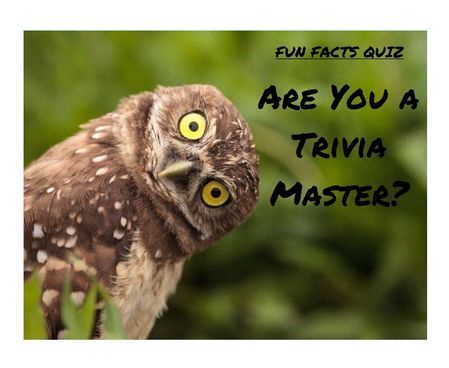
One quiz. Many chances. Zero wasted time Ever wished you could skip the boring parts of a quiz and just focus on what you got wrong? Well, now you can. I’ve created a “Missed Questions Only” quiz — a smarter, faster way to learn. Instead of starting from scratch, you get a second chance only at the questions you missed. No wasted time, no repeating what you already know — just targeted practice that helps you master the tricky stuff and hit that perfect score. It’s like a quiz with a built-in comeback round — your mistakes become your roadmap to success. Ready to turn wrong answers into wins? Give it a try and see how well you know your fun facts. 🔗 Rise Link: https://360.articulate.com/review/content/7126ec89-ff0c-4595-bac3-a0fe5e2c6a26/review 🖥️ Code Block: Copy the code below. 📄 Template: See an example of my template for organizing images, questions, answers, and each JS snippet. <div id="quiz-app"> <div class="quiz-card"> <div class="quiz-header"> <div> <div class="quiz-label">Fun Facts Quiz</div> <h2 id="quiz-title">Quiz</h2> </div> <div class="quiz-status"> <span id="round-badge">Round 1</span> <span id="progress-text">Question 1 of 1</span> </div> </div> <div id="scorebar" class="scorebar"> <div>Correct: <strong id="correct-count">0</strong></div> <div>Incorrect: <strong id="incorrect-count">0</strong></div> <div>Remaining in Round: <strong id="remaining-count">0</strong></div> </div> <div id="question-container"> <img id="question-image" src="" alt="Question Image" style="max-width:100%; border-radius:12px; margin-bottom:16px; display:none;" /> <div id="question-text" class="question-text"></div> <div id="answers" class="answers"></div> <div id="feedback" class="feedback"></div> </div> <div class="quiz-actions"> <button id="next-btn" disabled>Next</button> <button id="retry-btn" style="display:none;">Retry Missed Questions</button> <button id="restart-btn" style="display:none;">Restart Full Quiz</button> </div> </div> </div> <style> /* Same styling as before */ * { box-sizing: border-box; } body { margin: 0; font-family: Arial, Helvetica, sans-serif; background: #f4f7fb; color: #1f2937; } #quiz-app { max-width: 900px; margin: 0 auto; padding: 20px; } .quiz-card { background: #ffffff; border: 1px solid #dbe4f0; border-radius: 16px; padding: 24px; box-shadow: 0 8px 24px rgba(0,0,0,0.06); } .quiz-header { display: flex; justify-content: space-between; align-items: start; gap: 16px; margin-bottom: 18px; } .quiz-label { font-size: 12px; font-weight: 700; letter-spacing: .08em; text-transform: uppercase; color: #2563eb; margin-bottom: 6px; } .quiz-header h2 { margin: 0; font-size: 28px; } .quiz-status { display: flex; flex-direction: column; gap: 8px; align-items: flex-end; font-size: 14px; } .quiz-status span { background: #eef4ff; color: #1d4ed8; padding: 8px 12px; border-radius: 999px; font-weight: 600; } .scorebar { display: flex; flex-wrap: wrap; gap: 12px; margin-bottom: 22px; padding: 12px; background: #f8fafc; border: 1px solid #e5e7eb; border-radius: 12px; font-size: 14px; } #question-image { display: block; /* ensure image is shown */ max-width: 920px; /* maximum width */ max-height: 300px; /* maximum height */ width: 100%; /* scale to container width if smaller */ height: auto; /* maintain aspect ratio */ margin: 0 auto 16px auto; /* center horizontally with bottom margin */ object-fit: contain; /* scale image without cropping */ border-radius: 12px; /* consistent border radius */ background-color: #f3f4f6; /* subtle background color for empty space */ } .question-text { font-size: 22px; font-weight: 700; line-height: 1.35; margin-bottom: 20px; } .answers { display: grid; gap: 12px; } .answer-btn { width: 100%; text-align: left; border: 2px solid #d1d5db; background: #fff; color: #111827; border-radius: 12px; padding: 14px 16px; font-size: 16px; cursor: pointer; transition: .2s ease; } .answer-btn:hover:not(:disabled) { border-color: #93c5fd; background: #f8fbff; } .answer-btn:disabled { cursor: default; opacity: 1; } .answer-btn.correct { border-color: #16a34a; background: #ecfdf3; color: #166534; font-weight: 700; } .answer-btn.incorrect { border-color: #dc2626; background: #fef2f2; color: #991b1b; font-weight: 700; } .feedback { margin-top: 18px; min-height: 28px; font-size: 16px; font-weight: 600; } .feedback.correct { color: #15803d; } .feedback.incorrect { color: #b91c1c; } .quiz-actions { display: flex; gap: 12px; margin-top: 22px; flex-wrap: wrap; } .quiz-actions button { border: none; border-radius: 10px; padding: 12px 18px; font-size: 15px; font-weight: 700; cursor: pointer; } #next-btn { background: #2563eb; color: #fff; } #next-btn:disabled { background: #9ca3af; cursor: not-allowed; } #retry-btn { background: #f59e0b; color: #fff; } #restart-btn { background: #111827; color: #fff; } .final-message { padding: 18px; border-radius: 14px; background: #effaf3; border: 1px solid #86efac; color: #166534; font-size: 18px; line-height: 1.5; } .small-note { margin-top: 10px; font-size: 14px; color: #4b5563; } MeDia (max-width: 640px) { .quiz-header { flex-direction: column; align-items: flex-start; } .quiz-status { align-items: flex-start; } .question-text { font-size: 20px; } } </style> <script> // Questions with imageUrl placeholder (replace URLs with your uploaded Rise 360 images) const fullQuiz = [ { question: "Which animal can sleep standing up?", imageUrl: "https://images.articulate.com/f:jpg,a:retain,b:fff,w:1680,q:90/rise/courses/YLUYT4CI3ckYMonl07a4CHihYXT3CnUJ/z45b6W_xMLJUUJld.jpg", options: ["Horse", "Dog", "Penguin", "Kangaroo"], answer: "Horse" }, { question: "What is the only food that essentially never spoils?", imageUrl: "https://articulateusercontent.com/rise/courses/Kg8aAYIS9RJvSNl0YFM3mOw3o8OQbz5c/MddUJBQTsySlOvqv.jpg", options: ["Rice", "Honey", "Peanut butter", "Chocolate"], answer: "Honey" }, { question: "True or False: Bananas are berries, but strawberries technically aren’t.", imageUrl: "https://articulateusercontent.com/rise/courses/Kg8aAYIS9RJvSNl0YFM3mOw3o8OQbz5c/GSei0ep7BuNe7mfL.png", options: ["True", "False"], answer: "True" }, { question: "What is a group of flamingos called?", imageUrl: "https://articulateusercontent.com/rise/courses/Kg8aAYIS9RJvSNl0YFM3mOw3o8OQbz5c/9bCYyNGee1QQRUWC.jpg", options: ["A flock", "A flamboyance", "A parade", "A bouquet"], answer: "A flamboyance" }, { question: "Which country has more pyramids than any other country in the world?", imageUrl: "https://articulateusercontent.com/rise/courses/Kg8aAYIS9RJvSNl0YFM3mOw3o8OQbz5c/srrP1z5U7J1QaYow.jpeg", options: ["Egypt", "Mexico", "Sudan", "Peru"], answer: "Sudan" }, { question: "Which animal has fingerprints so similar to humans that they can be difficult to tell apart?", imageUrl: "https://articulateusercontent.com/rise/courses/Kg8aAYIS9RJvSNl0YFM3mOw3o8OQbz5c/z32I4pCG_PvYZDUD.jpg", options: ["Chimpanzee", "Koala", "Raccoon", "Sloth"], answer: "Koala" }, { question: "How many hearts does an octopus have?", imageUrl: "https://articulateusercontent.com/rise/courses/YLUYT4CI3ckYMonl07a4CHihYXT3CnUJ/1EOT8Ml6xu2_Lmvd.png", options: ["1", "2", "3", "8"], answer: "3" }, { question: "Which fruit floats in water because about 25% of its volume is air?", imageUrl: "https://articulateusercontent.com/rise/courses/Kg8aAYIS9RJvSNl0YFM3mOw3o8OQbz5c/kRIyy568MhLPiEFd.jpg", options: ["Apple", "Orange", "Grape", "Strawberry"], answer: "Apple" }, { question: "What is the national animal of Scotland?", imageUrl: "https://images.articulate.com/f:jpg,a:retain,b:fff,w:1680,q:90/rise/courses/YLUYT4CI3ckYMonl07a4CHihYXT3CnUJ/Tl89HrMYH0AyvzF2.jpg", options: ["Highland cow", "Golden eagle", "Unicorn", "Red deer"], answer: "Unicorn" }, { question: "True or False: A day on Venus is longer than a year on Venus.", imageUrl: "https://articulateusercontent.com/rise/courses/Kg8aAYIS9RJvSNl0YFM3mOw3o8OQbz5c/WBnprMTKTGmJCPre.jpg", options: ["True", "False"], answer: "True" }, { question: "What is a group of crows called?", imageUrl: "https://articulateusercontent.com/rise/courses/Kg8aAYIS9RJvSNl0YFM3mOw3o8OQbz5c/QhTq5yGSSxZC45ZF.jpg", options: ["A mystery", "A murder", "A mob", "A shadow"], answer: "A murder" }, { question: "What is a group of owls called?", imageUrl: "https://articulateusercontent.com/rise/courses/Kg8aAYIS9RJvSNl0YFM3mOw3o8OQbz5c/d_g79Dx03aWnVP2S.jpg", options: ["A parliament", "A council", "A jury", "A congress"], answer: "A parliament" }, { question: "What is a group of giraffes called?", imageUrl: "https://articulateusercontent.com/rise/courses/YLUYT4CI3ckYMonl07a4CHihYXT3CnUJ/-jRiKJcZZX1mWlfh.jpg", options: ["A tower", "A skyscraper", "A stretch", "A column"], answer: "A tower" }, { question: "What is a group of rhinos called?", imageUrl: "https://articulateusercontent.com/rise/courses/Kg8aAYIS9RJvSNl0YFM3mOw3o8OQbz5c/jilS2EvEMWFQCHLN.jpg", options: ["A crash", "A charge", "A stampede", "A rumble"], answer: "A crash" }, { question: "What is a group of porcupines called?", imageUrl: "https://articulateusercontent.com/rise/courses/Kg8aAYIS9RJvSNl0YFM3mOw3o8OQbz5c/WwtKh0xFKUgG07x1.jpg", options: ["A pricker", "A prickle", "A pincushion", "A spike"], answer: "A prickle" }, { question: "What is a group of zebras called?", imageUrl: "https://articulateusercontent.com/rise/courses/YLUYT4CI3ckYMonl07a4CHihYXT3CnUJ/G-vljexS-nyS4lg3.jpg", options: ["A dazzle", "A stripe", "A blur", "A flash"], answer: "A dazzle" }, { question: "What is a group of hippos called?", imageUrl: "https://articulateusercontent.com/rise/courses/Kg8aAYIS9RJvSNl0YFM3mOw3o8OQbz5c/M-1LbZ5VHqL28Ez4.jpg", options: ["A splash", "A bloat", "A barrel", "A wallow"], answer: "A bloat" }, { question: "What is a group of ferrets called?", imageUrl: "https://articulateusercontent.com/rise/courses/Kg8aAYIS9RJvSNl0YFM3mOw3o8OQbz5c/ob7XOK2dtuA2btB-.jpg", options: ["A mischief", "A trouble", "A business", "A chaos"], answer: "A business" }, { question: "What is a group of ravens called?", imageUrl: "https://articulateusercontent.com/rise/courses/YLUYT4CI3ckYMonl07a4CHihYXT3CnUJ/L6_Yxla0T9t97Qx8.jpg", options: ["An unkindness", "A darkness", "A conspiracy", "A haunting"], answer: "An unkindness" }, { question: "What is a group of bears called?", imageUrl: "https://articulateusercontent.com/rise/courses/Kg8aAYIS9RJvSNl0YFM3mOw3o8OQbz5c/5fA5geB-XbftAeB6.jpg", options: ["A grumble", "A sleuth", "A lumber", "A maul"], answer: "A sleuth" } ]; let currentQuiz = []; let currentIndex = 0; let selectedAnswer = null; let totalCorrect = 0; let totalIncorrect = 0; let roundNumber = 1; let missedQuestions = []; const questionContainer = document.getElementById("question-container"); const questionImage = document.getElementById("question-image"); const questionText = document.getElementById("question-text"); const answersEl = document.getElementById("answers"); const feedbackEl = document.getElementById("feedback"); const nextBtn = document.getElementById("next-btn"); const retryBtn = document.getElementById("retry-btn"); const restartBtn = document.getElementById("restart-btn"); const correctCountEl = document.getElementById("correct-count"); const incorrectCountEl = document.getElementById("incorrect-count"); const remainingCountEl = document.getElementById("remaining-count"); const progressTextEl = document.getElementById("progress-text"); const roundBadgeEl = document.getElementById("round-badge"); function shuffle(array) { const arr = [...array]; for (let i = arr.length - 1; i > 0; i--) { const j = Math.floor(Math.random() * (i + 1)); [arr[i], arr[j]] = [arr[j], arr[i]]; } return arr; } function prepareQuiz(questions) { return shuffle(questions).map(q => ({ ...q, options: shuffle(q.options) })); } function initQuiz() { currentQuiz = prepareQuiz(fullQuiz); currentIndex = 0; selectedAnswer = null; totalCorrect = 0; totalIncorrect = 0; roundNumber = 1; missedQuestions = []; retryBtn.style.display = "none"; restartBtn.style.display = "none"; nextBtn.style.display = "inline-block"; questionContainer.style.display = "block"; renderQuestion(); updateScore(); } function startRetryRound() { currentQuiz = prepareQuiz(missedQuestions); currentIndex = 0; selectedAnswer = null; missedQuestions = []; roundNumber++; retryBtn.style.display = "none"; restartBtn.style.display = "none"; nextBtn.style.display = "inline-block"; questionContainer.style.display = "block"; renderQuestion(); updateScore(); } function renderQuestion() { const q = currentQuiz[currentIndex]; // Show or hide image depending on if imageUrl is set if (q.imageUrl) { questionImage.src = q.imageUrl; questionImage.style.display = "block"; } else { questionImage.style.display = "none"; } feedbackEl.textContent = ""; feedbackEl.className = "feedback"; nextBtn.disabled = true; selectedAnswer = null; roundBadgeEl.textContent = `Round ${roundNumber}`; progressTextEl.textContent = `Question ${currentIndex + 1} of ${currentQuiz.length}`; remainingCountEl.textContent = currentQuiz.length - currentIndex; questionText.textContent = q.question; answersEl.innerHTML = ""; q.options.forEach(option => { const btn = document.createElement("button"); btn.className = "answer-btn"; btn.type = "button"; btn.textContent = option; btn.addEventListener("click", () => handleAnswer(btn, option, q.answer)); answersEl.appendChild(btn); }); } function handleAnswer(button, chosen, correct) { if (selectedAnswer !== null) return; selectedAnswer = chosen; const buttons = document.querySelectorAll(".answer-btn"); buttons.forEach(btn => btn.disabled = true); if (chosen === correct) { button.classList.add("correct"); feedbackEl.textContent = "Correct!"; feedbackEl.className = "feedback correct"; totalCorrect++; } else { button.classList.add("incorrect"); feedbackEl.textContent = "Incorrect."; feedbackEl.className = "feedback incorrect"; totalIncorrect++; missedQuestions.push(currentQuiz[currentIndex]); } updateScore(); nextBtn.disabled = false; } function updateScore() { correctCountEl.textContent = totalCorrect; incorrectCountEl.textContent = totalIncorrect; remainingCountEl.textContent = currentQuiz.length > 0 ? Math.max(currentQuiz.length - currentIndex - (selectedAnswer ? 1 : 0), 0) : 0; } function goNext() { currentIndex++; if (currentIndex < currentQuiz.length) { renderQuestion(); updateScore(); } else { showRoundResults(); } } function showRoundResults() { questionText.textContent = ""; answersEl.innerHTML = ""; feedbackEl.textContent = ""; questionImage.style.display = "none"; nextBtn.style.display = "none"; if (missedQuestions.length > 0) { questionText.innerHTML = ` <div class="final-message" style="background:#fff7ed;border-color:#fdba74;color:#9a3412;"> <strong>Round ${roundNumber} complete.</strong><br> You have <strong>${missedQuestions.length}</strong> question(s) to retry. <div class="small-note">Click the button below to retake only the questions you missed.</div> </div> `; retryBtn.style.display = "inline-block"; restartBtn.style.display = "inline-block"; remainingCountEl.textContent = missedQuestions.length; } else { questionText.innerHTML = ` <div class="final-message"> <strong>Congratulations!</strong><br> You have answered all questions correctly. <div class="small-note"> Final score: ${totalCorrect} correct, ${totalIncorrect} incorrect attempts. </div> </div> `; retryBtn.style.display = "none"; restartBtn.style.display = "inline-block"; remainingCountEl.textContent = 0; } } nextBtn.addEventListener("click", goNext); retryBtn.addEventListener("click", startRetryRound); restartBtn.addEventListener("click", initQuiz); initQuiz(); </script>143Views1like3CommentsPersonalized Learning Experience
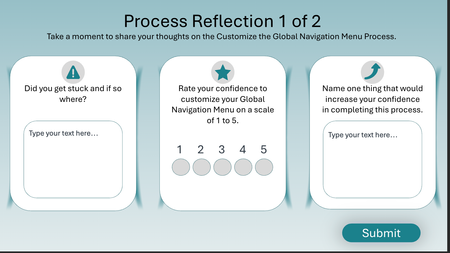
This is just the last three slides in a module. The idea is for the learner to reflect on their experience with the process we just taught and get them thinking about what to do next. https://360.articulate.com/review/content/8610d839-ce0c-429d-8803-241f1e1d4a29/review402Views2likes5CommentsHiring Manager Interview Simulation: A Scenario-Based Final Knowledge Check
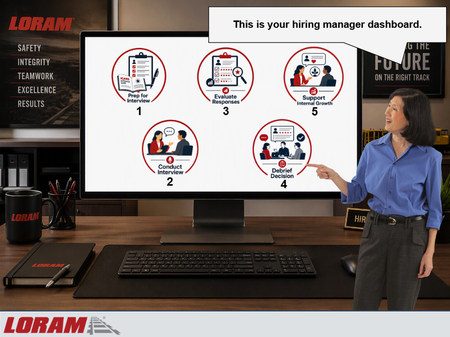
I recently built this scenario-based final knowledge check for the 2nd module in Loram's Talent Acquisition Hiring Manager Training program. Instead of ending the course with a traditional multiple-choice quiz, I wanted learners to apply their knowledge by working through a realistic hiring process from start to finish. In this simulation, the learner takes on the role of a hiring manager at Loram and navigates each stage of the interview lifecycle: - Preparing for the interview using the ICARE Interview Guide - Conducting a behavioral-based interview - Evaluating candidate responses using the STAR method and competency ratings - Participating in an interview debrief discussion - Providing development-focused feedback to an internal candidate The experience is framed as a hiring manager dashboard displayed on a computer screen. Learners interact with different workflow tabs, make decisions throughout the process, and receive coaching from a Talent Acquisition Manager character named Vicki. Incorrect choices trigger consequence-based feedback that demonstrates what can go wrong when interview best practices aren't followed. View this knowledge check here on Review 360: https://360.articulate.com/review/content/831cda88-b5f5-49e3-9567-ce4f38bfb303/review Design Goal My goal was to move beyond knowledge recall and create a practical simulation that mirrors the real hiring decisions Loram managers make throughout the interview process using gamification. I wanted learners to experience the entire interview lifecycle while reinforcing key concepts such as: Structured interviewing Behavioral-based interviewing STAR methodology Objective candidate evaluation Interview debriefs Internal candidate development conversations Consistent and compliant hiring practices Development Notes A few design choices I incorporated: Scenario-based decision making using gamification instead of a traditional quiz Character-driven coaching and feedback Consequence-based remediation for incorrect decisions Progressive workflow that mirrors Loram's actual hiring process Visual dashboard interface to increase immersion Focus on realistic workplace situations rather than obvious right-or-wrong answers Internal and external candidate scenarios to reflect real hiring manager responsibilities Tools Used Articulate Storyline 360 States, layers, variables, and triggers Scenario-based branching Microsoft Copilot AI-generated visual assets Custom dashboard-style interface design What I Learned One of the biggest challenges was balancing realism with brevity. Hiring conversations can be complex, so I focused on creating concise scenarios that still felt authentic in partnership with my subject matter experts and reflected the decisions Loram hiring managers make before, during, and after interviews. I also wanted learners to understand not only what the correct decision was, but why it mattered. The consequence-based feedback allowed me to reinforce concepts like preparation, objective evaluation, documentation, compliance, and employee development in a way that felt more realistic than traditional quiz feedback. I'd love to hear how others approach scenario-based assessments or realistic workplace simulations in their eLearning projects!268Views1like2CommentsSpotlight using JavaScript and Alt Text
I created a spotlight feature, with some help from AI, to focus on specific areas of the screen in e-learning. I didn't create it for spotlight interactive gaming scenarios. I use it for software focal areas. You can add a shape or multiple shapes to your slide and add alt text, and JavaScript on the master slide recognizes the text. It currently works with circles, ovals, rectangles, squares, and rounded-edge shapes. However, I couldn't get triangle or star shapes to work. You can also change other features. For example, you can adjust blur and Mask color and apply them to a button to toggle them on or off. Let me know your thoughts. I provide a step-by-step guide in the downloadable storyline file. Spotlight in Storyline using JavaScript Demo Link106Views1like2Comments3 Copy-Paste Storyline JS Interactions (Confetti, Progress Bar, Timer)
Hey everyone — long-time Storyline builder here. I kept running into the same wall: I wanted confetti on quiz wins, a real progress bar, and timed questions, but every solution I found was either a forum snippet with no instructions or an expensive subscription product. So I built my own set of 10 JavaScript interactions, tested each one by hand in a real Storyline project, and wrote beginner-proof setup guides for all of them (exact variable names, literal click paths, wiring recipes, test checklists — no "figure it out yourself" steps). I'm giving away 3 of them free — confetti burst, course progress bar, and countdown timer: https://ronaldhicks.gumroad.com/l/storyline-js-sampler Each one is a single paste-ready snippet plus plain Storyline variables. No JavaScript experience needed. Works in Storyline 360 and Storyline 3, including LMS/SCORM wrappers. If you find them useful, the full pack of 10 is $19 — but the sampler is free forever, no strings attached. Hope these save somebody an afternoon.153Views1like0CommentsCoded Interactions
I've recently been experimenting with coded interactions in Rise 360 to see how far I can push the interactivity beyond the standard blocks. I've been using GPT to help produce and refine the code, then tweaking and personalising the interactions to meet specific brand guidelines and learning requirements. I'm really happy with the results so far, and it's opened up a lot of possibilities for creating more bespoke learning experiences directly within Rise. There are some limitations I've noticed during testing, particularly around incorporating audio effectively within the interactions and ensuring they remain fully responsive across different screen sizes and mobile devices. I'd be interested to hear from other eLearning developers who are experimenting with coded interactions: What limitations have you come across? How have you approached responsiveness and accessibility? Do you see coded interactions becoming a bigger part of how we build bespoke experiences in Rise? Here's an example I've been working on: https://360.articulate.com/review/content/42e03dcc-6233-4bf0-908e-64d5543c0c7c/review579Views5likes6CommentsSliders and States
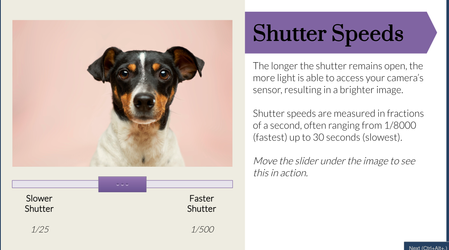
View the project here This is my first time participating in a challenge and this week's was a choose-your-own. I decided to utilize sliders and states to create an interactive short course on The Exposure Triangle. My aim was to allow the user to manipulate an image to see the effect of shutter speed, ISO levels, and aperture. I used sliders and dials to create a fun interactive process. I set triggers to change the image's states based on the slider position. For shutter speed, I made different image states with varying levels of brightness. For ISO, I added a textured rectangle over the image and changed it's transparency across different states so it added more grain over the image when the slider was moved. For aperture I created different states for the backround image with increasing blur effect (completed outside of Storyline) and added a character on top so she stayed in focus while the background blurred. The aperture slider was the most complicated! I think one way I could try to take it further is to figure out how to get multiple sliders to work together on the same image. For example, allowing the learner to have a shutter slider, ISO slider, and aperture slider on the same image to find the exact perfect settings. Thanks for reviewing! Any feedback is helpful!334Views10likes7CommentsScenario-Based Quiz: Recognizing, Preventing, & Reporting Harassment
About For an instructional design & eLearning developer portfolio project, I created a fictional scenario quiz about reporting harassment using Articulate Storyline and generative AI characters. Links To learn more about this project visit my portfolio. You can also view the published Storyline project here. To see the full course that the scenario quiz was embedded into, view the course. Screens View select screens from the Articulate Storyline file below: You are welcome to let me know if you have questions or suggestions!544Views1like3CommentsADDIE Adventure
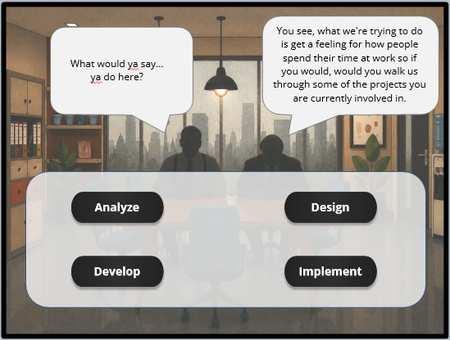
I was once again checking out the different projects that people have shown off and DavidTaits Escape Room | E-Learning Heroes caught my attention. I appreciated his explanation on ho he had the transitions work. During my recent 1on1s with my leader, she challenged me to look into the ADDIE model. At The same time I had been experimenting with some new technical "programming" in storyline while also trying to recreate some of Davids design and I mistakenly mixed some of my ADDIE learning into the SL learning and accidently made a little ADDIE adventure learning module. I was trying to find a way to take information from a drag and drop or multiple choice question and use it in a later slide in order to give more in depth feedback. My solution was to have multiple states for the drop area that translated into a numeric variable that could be recalled later on for more in depth feedback. In my version you find info on each stage of the ADDIE model and then have to use that to determine how to Analyze some issues a team is having and break it up into categories; if the issues are training related, environment related or a knowledge/skill issue. Then look at options for how to design a course and which elements you want to include, from simulations to if a cat video is necessary. Decide which Development tools are best for the task at hand. Is Storyline, Canva, Photoshop, Rise or PowerPoint the way to go. Finally order the best steps for implementation. Once those are completed you will go to a meeting and see if your answers are what management was looking for and get 1 of 5 endings based on those results. ADDIE Adventure | Review 360453Views2likes3Comments