focus order
9 Topics[REDUNDANT] Storyline custom focus control
========================================================================= Update 18 March 2025 This functionality is now redundant. Please use the native focus trigger in Storyline 360 64 bit March 18, 2025 (Build 3.98.34222.0) ========================================================================= There have many been times, when using Storyline to develop content, it has not been possible to get the kind of screen reader focus control that I have needed. Using layers for this can only get you so far. I developed a JavaScript function that allows you to send the screen reader focus to the text field that you want, via any trigger. Adding the following JavaScript to your projects Slide Master will make it available throughout your module: // Check if function has been defined already if (typeof window.setFocus === "undefined") { // Get reference to the Storyline Player var $player = GetPlayer(); // Set the amount of time to delay before attempting to send focus to the target element (milliseconds) 1000 = 1 second. var $interval = 200; // window.setFocus = function ($target, $announce = false) { // Get the target element, based on the passed argument setTimeout(function () { var $div = document.querySelector('[data-acc-text^="' + $target + '"]'); var $id = "acc-" + $div.dataset.modelId $div = document.getElementById($id); if($announce) { $div.setAttribute("aria-atomic", "true"); $div.setAttribute("aria-live", "assertive"); } // Send focus to target, after defined $interval $div.focus(); }, $interval); } } Once the function is defined in your Slide Master, you can then call the function on the page using a JavaScript function, which can be triggered by any Storyline trigger such as timeline start, timeline end, button click etc. // The second argument will determine if the content should // be announced to assistive technology using aria-live=assertive // This will announce the text contents to the screen reader window.setFocus("Customer in the queue", true); // This will just send focus to the element. window.setFocus("Customer in the queue", false); The first argument, which is passed in the "" quotes, is the text contents of the text field you are targeting. You do not have to include all the text, just enough to ensure it is unique. For example, if you have two text fields: "Customer in the queue talking on their phone." "Customer in the shop staring into space." Passing the words "Customer in the" would not be specific enough, as there would be two text fields found. However, passing "Customer in the queue" would send the focus to the text field that contains the text "Customer in the queue talking on their phone." The second argument (true or false) determines if the target elements contents should be announced to the screen reader when it receives focus.1KViews1like11CommentsAnnouncing content.
I recently had my first Storyline 360 project audited and one element of the feedback was none of the slides announce content by the screen reader. What does this mean? Is each slide suppose to auto read some sort of description of what the slide is before they use their arrow keys to navigate the page? And if so how do I force Storyline to auto read a description?Solved700Views0likes3CommentsNVDA Storyline 360 Software Simulation Issue
Hello all, I have been working on a software training course for a while, but I cannot share the product file, so I have tried my best to replicate the issue with a brief PowerPoint activity. My current project file has 6 scenes and 452 slides. I am looking for the easiest fix to the issue at this point, while avoiding backtracking on work. Any assistance would be GREATLY appreciated as I am close to my wits' end. Below is a synopsis of the issue, the fixes I have tried, and the attached PowerPoint Activity project file. Build Background: I used the screen recording features in Storyline 360 to create both Try Mode Steps and Test Mode Steps for scenes in the course. I turned off Show Animation in the Capture Action Fine Turning. I have ensured that hotspot and text entry interactions are at the top of the timeline, above all other elements. I have deleted triggers where possible, but some of the Play Video Screen Recording Action When the User Clicks Hotspot 1 remain, as the program won't allow them to be deleted even after turning off the animations, so I have disabled them. I had to make additional cover-ups to hide employee IDs and information, as I did not have a fake user account. The cover-ups have been hidden from accessibility tools. Issue: When navigating the course with NVDA and Microsoft Narrator, the Try Again layer keeps deploying as the user selects the hotspot button for a second and announces "Incorrect," which will lead to annoyance and confusion for the learner. The Try Again layer does not deploy in the Test Mode Steps scenes, but it does in the Try Mode Steps scenes. The Try Again layer does not deploy when using keyboard navigation without a screen reader enabled. I do not want to remove the Try Again feedback, as it is important for sighted users. Triggers on Base Layer: When the user clicks outside Hotspot 1 - Show layer Try Again When the user clicks Hotspot 1 - Jump to slide next slide (Disabled) When the user clicks Hotspot 1 - Play video Screen Recording Action Triggers on Try Again Layer: When user clicks Try Again - Hide layer this layer Solutions Tried But No Success: Running the file as a published SCORM in test environment, Review 360, and in preview mode- Try Again layer still deploys in all environments. Expanding the hotspot area beyond the identified bounds. Changing the order of the user clicks outside Hotspot 1 and the user clicks Hotspot 1 triggers on the base layer but Storyline 360 does not allow me to change the position of these triggers under Hotspot 1 in the trigger menu. Adding back in the correct layers of the screen recording as shown in scene two of my attached example.Solved602Views0likes6CommentsReturn focus to hyper link from layer
This might be a bit of a niche requirement, but it came up a few weeks ago when testing content for a client. If you use a hyperlink (text with a link on it) to show a layer in Storyline, you cannot return the focus to the hyperlink that showed the layer, when closing the layer. Storyline does not return the the focus automatically like it does with other elements such as buttons, nor is it possible to return the focus to a hyperlink using triggers, as the hyperlink is not exposed as an object that you can send focus to. The result is that the focus is returned to the top of the current slide when closing a layer that has been shown using a hyperlink. Maybe the Storyline engineers can fix this up? The solution is a bit of JavaScript. Firstly, we need to add some JavaScript to the Storyline project, to make a function available throughout the project. The best way to do this is to add the following JavaScript to the "When timeline starts on this slide - Execute JavaScript" to the Slide Master. window.RM_focusToLink = function(index) { const arrindex = Number(index) - 1; setTimeout(function(){ var link = document.querySelectorAll('#slide a')[arrindex]; link.focus(); },100); } Then, within the layer, you need to add the following JavaScript to the button (or any other trigger) that is closing the layer: window.RM_focusToLink(1); The number 1 that is placed within the brackets is the argument that needs to be passed to target a specific link on the slide. In this case, it is link number 1 which just means it's the first link on the slide (with regards to the order it appears in the Document Object Model). I did consider targeting the link using the text within the link, but then considered that could be duplicate links with the same name, and so using the index is the safest. For any programmers out there, I'm starting the index at 1 rather than 0 (zero) to make it more user friendly. I have attached a demo file.599Views0likes1CommentStoryline: Freeform radio group labels affected by timeline order and focus order
I think the behavior I describe below is a bug, but please let me know if this is intentional. Background Information Storyline now automatically publishes a group label for radio button sets. JAWS will read "group start ___" and "group end ___" around each radio button set. NVDA reads it once at the beginning of the radio button set, I believe. I think this behavior was updated in v3.111 (Feb 21 2026) since I can take a slide between v3.110 and v3.111 without doing anything to it and it won't add the group labels on publish to my slide in v3.110. I believe the reason this feature was added was to address WCAG 1.3.1 guidelines surrounding group labels for form field sets. (Rise already has group labels automatically added.) However, I don't see any mention of it in the Storyline 360 version history. Situation - potential bug For freeform questions, the "___" portion of the announcement (the group label name) depends on two things: Which textboxes are below the answer options in the timeline (this includes textboxes on the master slides - they are treated as "below" the answer options) Of those textboxes, which one comes first in the focus order (a textbox has to be in the focus order to be used for the group label) Storyline will use whichever textbox is below the answer options and first in the focus order as the group label. The layer position of the textbox in the timeline shouldn't have any effect on the group label, correct? Is there someplace we can actually set the group label without having to use the above mentioned rules as workarounds to get it to say specific things for the group label? Here's a Review 360 slide, and storyline file attached. group-labels | Review 360Solved500Views1like3CommentsFocus is moving away from the dialog box in language selection page
The focus should stay in the first dialogue box but instead the screen reader is reading the content in the background. This is an accessibility issue. After Localization and publishing the course, when we come to the language selection page, the screen reader is reading the content of the main page (Heading of the course and topics of the course) instead of the language selection box. I tested the issue again with Jaws on Edge browser. The issue is there with Jaws.499Views0likes4CommentsAlt text for the same background
Hi! My Storyline project provides a scenario that demonstrates the feeling of being overwhelmed by responsibilities as a head chef. It emphasizes the importance of trusting your team and delegating tasks to them. Most of the background images are of the Head Chef's office. The dialog is between the Coach and the Head Chef. I want to include the following on the first slide: "The scenario takes place in Head Chef's office. When there is a change, it will be noted." I want to do this so that I don't have to repeat that this takes place in the Head Chef's office in the Focus Order. This is my first Storyline with Accessibility. Thanks, Norma399Views0likes2CommentsStoryline 360: Keyboard focus missing for right-click trigger
Hey all, I have a short simulation built that functions well with a mouse, but keyboard navigation gets stuck when the trigger is "user right clicks" on a hotspot. In these cases, the focus indicator is missing, and the user cannot even focus on the hotspot. Any ideas?99Views0likes4CommentsEndless Loop in Labeled Graphic Block
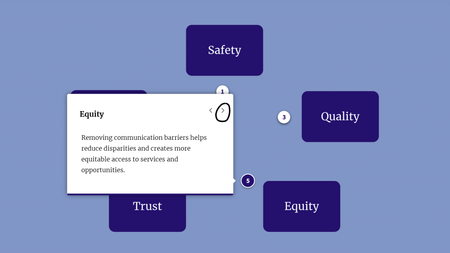
Hi everyone, I'm currently evaluating keyboard navigation for a course using NVDA. I'm having trouble getting stuck in an endless loop around a labeled graphic block, and unsure if: There's something I'm not adjusting in Rise 360 This is a "me problem" with NVDA navigation I didn't have this issue with another labeled graphic block, but I'm not sure what the difference is. When testing with NVDA, I'm using Tab to navigate to the Next button of each Marker's description. But then after Marker 5, instead of exiting to the next Continue button outside of the block, it just keeps me going around and around in an endless loop. (I originally had each marker styled as a plus sign, but had hoped numbering them would fix the issue.) Unfortunately, I didn't find the Accessibility Info section of the Rise 360: Using Labeled Graphic Blocks particularly helpful.95Views2likes1Comment