instructional design
869 TopicsPrompt for "full body character shots" for the AI Image generator
Greetings, Simple question, hopefully, how can I tell the AI image generator to "give me a full body shot" of a character I'm listing traits for? I'm running into this issue and it drives me crazy: everytime I want Storyline to generate a character, of any kind, with various prompts, using the AI image generator, it cannot or heavily struggles to get me 4 "full body shots". I'm always asking for the portrait format, not square or landscape. In photography, a full body shot is "from head to toe, completely framing the subject". Right now, unless I'm adding "walking" to my prompts, I'm getting Italian shots (head to pelvis), portraits and close-ups. If I write "standing", "full body shot" and whatnot, it doesn't generate complete characters. Please note for traits, be eyes, hair, eyes, skin color, outfits and such, Articulate's AI is... pretty spot on. It's not perfect and there are mishaps, but design-wise, it gets the job done. However, if I ask for a character, I do expect a full body shot unless I'm asking specific framing prompts. I currently have the Dec. 17th 2025 version of Storyline (3.107.35974.0), if that can tell you how the AI was fine-tuned by now. I know there's a new update today, but... right now I'm using the December version, since I needed to update Storyline right away a few days ago and I can wait for later versions. Thanks in advance and have a nice day :)3.8KViews0likes2CommentsCustomizable 3D Model Viewer in Storyline 360 Using Three.js
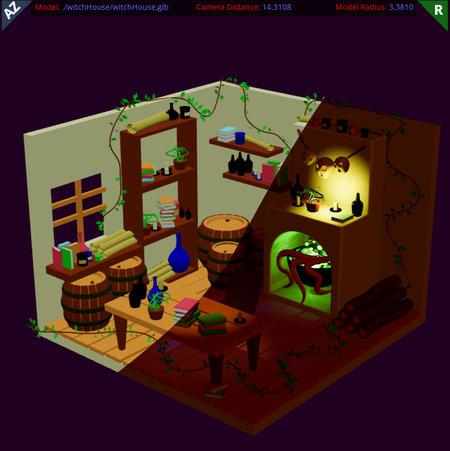
TLDR A 3D model viewer (GLB/GLTF and OBJ fiel formats) for Storyline 360 using Three.js. See the links below. Please check in the comments for additional updates. Updated (2025-03-08): Minor adjustments to model reloads and resource disposal. Use new project file. Demo: 3D Model Viewer https://360.articulate.com/review/content/87acc80c-2820-4182-b99b-db9e7fd60852/review Demo: 3D Model Display Customizer https://360.articulate.com/review/content/d740f374-c2ac-4ae0-92bc-255b7d35ee1a/review Introduction In my ongoing efforts to better my skills, I’ve been learning more about Three.js, a 3D animation and visualization library for the web. At its simplest, Three displays 3D models in a web browser. This is something that many Storyline users have expressed interest in but alas, it is not directly supported. Storyline actually does incorporate Three.js as its viewer for 360-degree images but otherwise does not include it as a part of its projects. This Project Since displaying graphics with Three is actually fairly easy, it seems like this is something that would have already been done. Since I couldn’t find much regarding integrating Three with Storyline however, I decided to use this as a test bed for my learning experience. As a disclaimer, I am not a programmer, so my code may be inelegant and inefficient in areas. I also know very little about 3D modeling. My design decisions were based upon what I found interesting or potentially useful and may overlook standard practices or some key features that one might expect. Feel free to comment. The Model Viewer I broke this project into two parts. Both are created within Storyline modules. One is a model viewer template that you can use to display two varieties of 3D model files (GL/GLTF and OBJ models). It accommodates a configuration option (list of variables in a trigger) which allows you to customize many aspects of how the model is displayed on your slide. You can include multiple models, each with their own configuration, and switch between them. The size of the model viewer matches the container object on your slide, so it can be sized to your needs. The template module is pretty simple, with a viewer container, some JavaScript, and a handful of triggers and variables. I’ve included the project file for the viewer. You should either be able to adapt it directly or incorporate its parts into your own projects. The Display Customizer The second part is another, more complicated Storyline module. This component can be used to customize how your model is visualized. I linked much of the viewer’s functionality to a collection of Storyline controls, spread across multiple slide layers. Once you have your model setup and adjusted to your liking, you can export a block of JavaScript that represents all of the settings used in the viewer’s configuration options. You will copy and paste this into one of your viewer’s project triggers. Combined with your model files, this enables the 3D viewer to reproduce what you designed for display on your slide. Of course, you can also manually edit the configuration options if you desire, but for anything more than minor edits, this is far easier. Due to its complexity (4000+ lines of script and several hundred variables and triggers), I have not shared the project file. I will, however, leave an active link to the published module that you can use to set up your models. The Details (for anyone who cares) Inspiration for this project came from the following sources: https://threejs.org/docs/ https://threejs-journey.com/ https://github.com/donmccurdy/three-gltf-viewer https://community.articulate.com/discussions/discuss/drag-and-drop-objects-into-storyline/994181 https://github.com/Sphinxxxx/vanilla-picker Model Viewer The viewer module consists of A web object containing your model files and some JavaScript A viewer rectangle on your slide with its accessibility text set to “glb” A few variables A few triggers, including a main JavaScript routine and some configuration options The Web Object We will use a web object to include your model files and the Three.js base code into your project. While Storyline can load a version of Three when needed, it is older and lacks many of the additional resources we need. The script in the web is a custom bundle of the current Three components we need in this project, along the js-beautify library. The functions and classes are made available as global variables under window. Using a static version ensures that everything works together even if Three issues updates that break interactions. You also will include copies of your model resources. The configuration script specifies the base model files for the viewer. Additional files are typically referenced from within the base files. It is easiest if you create a folder for each model, and place all of the related files inside that folder, inside the web object folder. The viewer supports GLB, GLTF, and OBJ models. GLB models are typically one file with everything embedded. GLTF models often have additional texture files associated with it. Preserve any file structure that came with your model (i.e., If your textures are in their own folder, leave them there. If they are at the same level as the model file, leave them there. Also don’t change any of their names. You can rename the GLTF or GLB files and their containing folder, but they must match what is listed in the configuration script. OBJ models usually require several files. Include them all unless you know they are not needed. Final renders and reference images are not normally needed. As with GLB and GLTF, OBJ model files can be renamed but must match the configuration script. There is also an MTL file that should use the same name as the OBJ file (this allows the script to find this file). Don’t rename the texture files unless you know they need to be changed. Note: If you download models from places like CG Trader, Turbo Squid, or Sketchfab then sometimes the textures are separate from the models, or the filenames don’t match what is specified within the GLTF or MTL files. You may have to manually locate and/or rename the texture files. Sometimes you might need to edit the texture specs inside MTL files as well. If you make your own models, then I’ll assume you have what you need. You can also include optional environmental textures, which can provide lighting information and visual backgrounds within the viewer. These are supported as EXR, HDR, JPEG, PNG, and GIF files. If you include these, create a folder inside your main model folder called myEnvMaps and put the required environmental texture files inside this folder. Finally, add an empty text file to the web object folder and rename it to index.html. Once the web object folder is ready, add it to your project in scene 2. Note: Anytime you change the contents of the web object folder, you need to follow ALL of the steps below. Delete the existing web object Insert the new web object (browser to the folder, set to open in new window) Move web object to bottom of timeline list Publish the single slide in scene 2. Click the Load Now button to open the web object page Copy the portion of the URL text matching story_content/WebObjects/[random characters]/ Make sure to include the trailing “/” Paste this value into the dataFolder variable The Viewer Rectangle Create a rectangle. Fill and outline don’t matter, as it will be removed when published. Right-click on the shape’s timeline entry, select accessibility, and edit the text to read glb. You can change this value in the tagViewerContainer variable. This rectangle can be any size or shape and placed wherever on the slide. Variables and Triggers Make sure all of the variables listed in the viewer template project are included in your project. There is one trigger on the slide master. It loads the JavaScript for Three (from the web object). On the base slide, there is one trigger for the main JavaScript viewer routine. For each model you wish to display, there is one additional JavaScript trigger that sets the configuration options. You can generate new text for these triggers using the display customization module. Display Customizer The viewer has many options. Most are built into the Three objects used to display the model. A few are specific to this viewer implementation. You can manually edit the configuration trigger for each model if desired, changing values to fine tune your viewer. For large scale changes or initial setup, you might want to use the display customizer module (linked above). Loading Models The interface consists of a viewport on the left and various controls on the right. To load a model, you can drag and drop one or more files or a folder onto the viewport (or drop new files later to change models). The viewer will try to find and load the model and all of it associated textures and environment files. Dropping the files is convenient as an interface, but it requires extra processing to access the files. Since some of the model files can be large, it might take several seconds before everything gets loaded. Also keep in mind that all of the processing is done in the browser on your computer. If your machine is not very robust, then processing times may be longer. If in doubt, open and watch the browser’s inspector panel console to see if there are errors related to loading the files; especially when trying to load new models. Sometimes you don’t have all the files you need or they’re in the wrong folder. You will see what files the viewer is looking for, and if they are found. If unexpected problems occur, try reloading the browser window. Feel free to comment here if you discover recurrent error conditions. Base settings The base settings panel provides the main interface. You can see and control key aspects of lighting, as well as environmental, animation, and shadow conditions. You can also adjust the viewport aspect ratio in case you need something that is not square. Lighting Unless you set up an environment to provide illumination, you will need some lights to see your model. There are four types of lighting available. Ambient is equivalent to overhead sunlight. The other three types offer up to four light sources each. The controls show the colors. The corners control specific features (see the Help button for details). Right click on each square to get additional options. Each light type has its own options. There is a color picker to set your desired color. Making changes will be immediately visible in the viewport. If you can’t see a change, you may need to adjust the intensity or the positioning of the light. There is an option for a helper, which is a visual representation of the light shape and position. Turn this on to help you set up the lights. Syncing Lights Since the viewer offers the ability to orbit the camera around your model, lighting usually remains static in relation to your model (i.e., the model and lights appear to rotate together in the viewer). A custom feature in this implementation is the ability to sync your lights to the camera so they also move around your model, creating interesting effects. This can be enabled for each individual light, in two different sync styles. Lights may be made relative to the camera position, so they appear to remain in one place in 3D space. They may also be synced in the direction of the camera, at a fixed distance. This is similar to having a flashlight trained on your model as you view it. You can also specify whether each light will generate shadows. This can add realism to your displays. Shadows require significant processing, so use them sparingly to prevent laggy performance. Other Settings Other settings, including rotation direction and speed, environment controls, intensities, and animations are available. Animations seem to work with GLB/GLTF models. OBJ models do not support animation directly. Try out the various controls on your model to see the effects. Export Settings When you have set up your model as desired, you can use the Loader Settings button to export a copy of the current settings snapshot. These include the model filenames and camera positions (like a snapshot). Make sure things are in the position that you want them to start before you click the button. You will see a long list of settings that can be highlighted and copied. This will get pasted into the options trigger in the Model Viewer module. See the triggers attached to the example buttons in the demo file. You can also load and save copies of settings as session data in your browser. This could be useful if you have commonly used settings you want to reuse, or if you want to pick up where you left off on the previous day. Note, these are local to your machine and browser. They will not be available elsewhere. You can also Apply the loaded or the default settings to the current model if desired. The Defaults when Drop Loading checkbox indicates if newly dropped model files will use the current settings or the default start-up settings, in case you prefer one over the other. Technical Notes (thanks for reading this far) Loading Files The Model Viewer uses physical model files included with your published project. This increases your project size but improves the loading speed of the models on the slide. The Display Customizer uses a file drop mechanism to make it easier to switch between random models. This works by parsing through the files or folders dropped and converting them into URL blobs. The blobs act like internal web addresses pointing to each of your files. Large files, especially environment textures or complex models, may take a bit to fully process and load (the Burger model for example). When you utilize the Model viewer for your final product, performance should be better since you only need a single set of files, and they are included locally. You could potentially modify the Viewer script to allow for loading from external URLs rather than local files, but I have not done that yet. Environments Environment textures are 360-degree images, similar to what you use in Storyline. The format can be EXR, HDR, JPEG, PNG, or GIF. This only supports equirectangular, 2:1 images. EXR and HDR files tend to be very large, so keep that in mind. When using an environment Three infers lighting information from the selected image, making external lights unnecessary. If you want to use additional lights, you will need to lower the Environment Intensity setting so the lights don’t get washed out. The environment does not need to be visible to have an effect. If you want it visualized, then the image will replace the background color. Since the focus is really on your model, it is normal for the environment background to be somewhat blurred. Using low resolution images as textures will make this much more pronounced. If you wanted to have crisp images in the background, I believe you would need to modify the script to project the image onto a sphere instead, as you would when displaying 360-degree images (maybe I’ll add this later). OBJ Models My understanding is limited, but environments don’t project properly (or at all) onto imported OBJ models. You can display them, but they provide no lighting effects. Supposedly you can apply the environment textures to the meshes within the model, but I couldn’t get that to work. My approach, awkward but I like the outcome, is to replace all of the meshes in the loaded OBJ model with new meshes, apply the existing settings, and make some adjustments to shine and gloss settings on the fly. This results in a final model that responds to your environment lighting. I found that the test models I downloaded all seemed to come out super glossy. I added a few simple steps to calculate relative gloss levels between the model components and applied an overall adjustment to set it to a reasonable level. I was happy with the test results. Your mileage may vary. If your OBJ models don’t come out as you expected, you may need to adjust the MTL file to fine tune the output. I’ve also found that many OBJ model files (the MTL in particular) contain erroneous paths or incorrect textures assigned to material properties. If your model looks all white, black, grey or some odd color, check the MTL file (it’s plain text) and verify the data. Fix any broken paths, check to see if textures are supposed to be in their own directory, and make sure the correct textures are assigned. Particularly the lines starting with “map_”. These assign the texture images to material properties. Look at the actual texture images, the MTL file, and the Wavefront reference linked below. Play around with different settings to see if you can get it to look like it’s supposed to. See this link for more information: https://en.wikipedia.org/wiki/Wavefront_.obj_file. Lastly, the OBJ models don’t support animations like GLB/GLTF models. Even if your source says the model is animated, that may only apply to other model formats. You may be able to convert another animated version to a GLB format online, or by using Blender. Performance Remember that JavaScript runs on the user’s machine. Everything that Three and this viewer script does happens locally. Don’t overburden your model viewer with an abundance of processing requirements if you don’t think the end users’ machine can handle it. Light syncing and shadow display require extra processing. If you use them, do so sparingly to make an impactful point. Not every light needs a shadow to look realistic. Also, only include the files that are really needed in the final product. Extra environment textures just take up room and slow down website loading times. Excessively high-resolution images do the same and may not be needed. Downloaded models may include extraneous files unrelated to display needs. If you’re not sure they are needed, try removing them and see if everything still works. Only include those that are required. Customization There is a Storyline variable in the project called viewer. This holds a reference to the model viewer. Many of the settings seen in the Display Customizer can be accessed and modified using this variable. If you desire, you could add your own script that loads this viewer object and allows you to directly change settings. Things like turning lights on or off, changing colors, changing positions, starting or stopping rotation or animation, and moving the camera are all easily modifiable, giving you extra control on how your model behaves. You will need to reference the configuration settings script, the main viewer JavaScript trigger, and the Three documentation website (linked above) to understand the possibilities. Limitations There are a lot of moving parts in this project (quite literally with the 3D models). The Display Customizer module is quite complicated, and building something like this inside Storyline is not recommended for the faint of heart. It required 4 weeks, on and off, from concept to this beta version. There are undoubtedly logic errors and code conflicts that I have not discovered yet. This project is provided as is, with no guarantees. If you experience an issue, post a comment. I will look into it eventually and fix it if I can. I may post updates if I fix bugs or add any features. The models included as examples were all available for free from the CG Trader, Turbo Squid, or Sketchfab websites. You can download others or use your own. I could not get FBX models to work properly and lost interest in them. THREE seems to work best with GLB/GLTF models. I like the OBJ models as well since they are easy to manually examine and modify. Additional FIles Web object used in project file (holds Three.js and the example models. https://paedagogus.org/3DModelViewer/Web_Object.zip Additional sample models to experiment with. https://paedagogus.org/3DModelViewer/Other_Sample_Models.zip3.8KViews9likes11CommentsStoryline Carousel Template
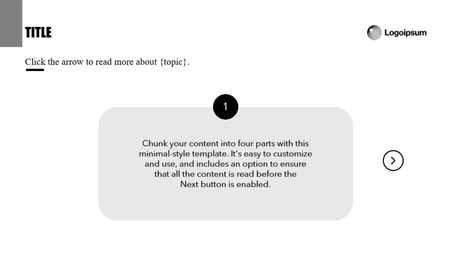
Struggling to fit all your content on one slide? Been there! 🙋♂️ Check out the Articulate Storyline 4-Sliders Template I just released! It's perfect for chunking your content into manageable sections. Preview it here: https://360.articulate.com/review/content/4bcea717-0796-411f-8cc4-33bed0f4f964/review2.4KViews0likes8CommentsBrief flash between slide layers
Hello, I was wondering if anyone knows what I could do to resolve this issue. I keep seeing all the items briefly flash at the beginning of every slide layer. I am not sure why this is. I've made sure these items do not have animations. I've made sure all transitions are "none." The slide properties that are currently checked are "hide other slide layers," "hide objects on base layer," and "prevent the user from clicking on other layer." The flashing is disruptive to the flow of the course because it makes it look like a slide header is reappearing over and over again when in fact, it is not. Could someone please give advice? Thank you!Solved1.7KViews0likes40CommentsIntroducing AI Chat + JavaScript Entrance Animations
Now you can chat with AI to generate simple JavaScript animations for your slide, making it easier to bring your ideas to life. Update to the latest version to give it a try and let us know what you think! To help you get started, we have a video walkthrough, a tutorial course, and documentation to learn more about how it works, see sample prompts, and animation examples that can all be found here. Why JavaScript? This update is our first step in helping authors experiment and push creative boundaries. Based on your feedback, we’re already working on support for built-in animations—and we’ll be sharing a preview soon! We’re also exploring more ways AI can handle tedious tasks for you, so let us know what you’d like AI Assistant to be able to do for you! Try It Out! Use AI Chat to make an object fly in from the right side of the screen after one second. Feel free to get creative—frisbee flying across a park? Plane flying across a cloudy sky? Sky's the limit (see what we did there?)! Share your example in the comments below!1.7KViews7likes14CommentsAI Voices
Just my two cents, AI Voices were good because we didn't need to go back to our live voice to get something redone, or if we wanted to update 1 slide or add something to a presentation. Now we are seeing voices being removed so the advantage of the AI voices is reduced. I see 2 posts this morning and it's not even lunch time from people that need to make updates to 1 or 2 slides, change a word, or add something and the voice is gone. Maybe we need to look at AI again.Solved1.6KViews9likes17CommentsHow long does it take to build a 20-minute e-learning module or course?
I had someone ask me how long they should tell their company to expect when building e-learning courses. This is a question I hear a lot from new instructional designers, and the answer isn't as straightforward as you might think. While you'll often hear that it takes about 40-50 hours to develop one hour of e-learning content (which is a good starting estimate), let's break this down into something more practical for you. For a 20-minute module, you might start by estimating 15-20 hours of development time. But here's the thing – several factors can stretch that timeline, and knowing these up front can help you plan better and set realistic expectations with your stakeholders. Here's what tends to affect your development time: Content Organization: Starting with messy content can really slow you down. Think about the difference between working with a clear training manual versus piecing together information from several email threads and meetings with subject matter experts. The second scenario will definitely take more time. Visual Design Needs: Using a template your company already has? Great – that'll save time. Need to create something from scratch or hunt down specific images? That's going to add several hours to your project. Level of Interactivity: Simple click-through slides are quick to build. But if you're creating scenarios where learners need to make decisions, or adding complex interactions, you'll need more time. Each interactive element you add means more development and testing time. Audio and Video: Adding narration isn't just about recording. You'll need time for editing, making sure it syncs with your slides, and often re-recording sections after reviews. The same goes for video content. Review Process: This one often surprises new developers. Getting feedback from stakeholders, making revisions, and going through multiple review rounds takes time. Sometimes a lot of time, especially if multiple people need to sign off on the content. Your Tool Experience: Be honest about your comfort level with your e-learning tools. If you're still learning Storyline, Captivate, or whatever tool you're using, build in extra time. What might take an experienced developer two hours could take you a full day – and that's perfectly normal when you're starting out. Testing Time: This is easy to forget, but you need time to check everything works right. Does your course work in different browsers? Do all your quiz questions give the right feedback? Do your animations play smoothly? Take the above tasks and assign an approximate time commitment to each. For example, organizing content may take 8 hours. Then add all those hours together and that gives you a good estimate. It also gives you a checklist you can offer your organization to show what steps need to be taken and why you made the estimate you did. Here's a tip from experience: whatever time estimate you come up with, add about 30% to it. This gives you breathing room for the unexpected things that always seem to pop up during development. Question for the community: What has surprised you most about development time in your e-learning projects? I'd love to hear about your experiences in the comments below.1.5KViews3likes8CommentsText Entry Minimum Character Requirement
I am trying to create a text entry field with a minimum character requirement in order to submit. I have absolutely no idea how to do this. Scenario: My students need to write a reflection that is at least 50 words before they can submit. It is ungraded, but participation is required in order to move forward. Important facts: I have never once dabbled in JavaScript or anything similar, especially when it comes to Storyline. I have seen some people addressing the issue on the boards, but their answers may as well be in Greek due to my beginner standing. (Most "help" leads to a miles-long thread that still doesn't answer the question.) If you know the answer to this conundrum, please explain it to me like I'm five years old. I'm sure it is a frustrating request, but from where I am sitting it is a necessary one. This seems like it should be a standard feature for an educational platform, so I might have just missed something in my training for Storyline. I truly appreciate any help that anyone is willing to share, and thank you for your patience.Solved1.4KViews1like25CommentsRise Competency-based Quiz - Early Access Group - Closed
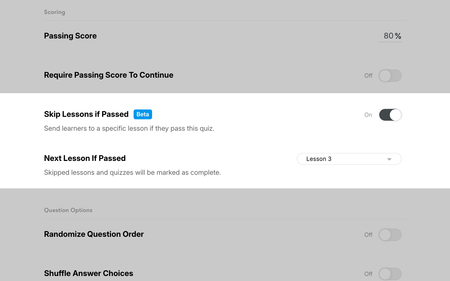
Update 11.13.2025 Thank you to all who participated during our limited beta! Your feedback was incredibly informative. We'll be incorporating updates based upon your feedback over the coming months. -------------- Our team is testing a potential new feature in Rise that lets authors choose a lesson learners will automatically skip to when they complete a quiz correctly. We’re especially interested in hearing from those who want to use Rise for competency-based or similar course structures. Volunteer to participate here .Solved1.3KViews6likes21CommentsAuto-Generate PDF Certificates in Storyline (No HTML Edits Needed)
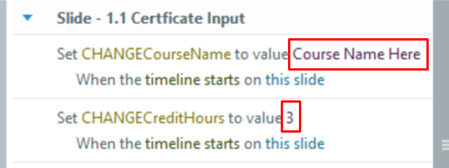
UPDATE August 20, 2025: I uploaded the new version of the file I've been using. It adds a layer for the learner to double-check their name, then blocks them from editing the name again if they download the certificate, in order to prevent multiple people from generating the certificate. I recently developed a way to generate a certificate PDF in Storyline without having to edit the published files. That means it works even in Storyline Preview and Review 360, and it's simple enough to use as a team-wide template. I drew inspiration from Devlin Peck’s tutorial, but updated the code to follow current JavaScript standards and removed the need to modify output files manually. You’ll find the full code and a sample .story file at the bottom of this post. If you like it or have any suggestions for improvement, let me know! You can also see an example version of it in action here, using a simple certificate template from Canva: https://philwingfield.com/wp-content/certificate-generator/story.html Table of Contents: What You’ll Need Define Your Storyline Variables Certificate Background Image Changing Orientation to Portrait Placing Text on the Certificate Naming the PDF File Triggering the Script in Storyline Troubleshooting TL;DR Full Code .story File (attached to post) What You’ll Need Storyline (obviously!) A background image for your certificate (.jpg or .png, set to A4 size) Recommended: Some sort of code reader such as Visual Studio Code Somewhere to upload the certificate file for testing, such as AWS (though there are instructions for local storage below under the Certificate Background Image header) Define Your Storyline Variables You’ll need to set up the Storyline variables that will be pulled into the certificate. Here are the variables I used: Storyline Variable Purpose UserName Learner’s name (typed in by the user) CHANGECourseName Course name (manually set per course) CHANGECreditHours Number of credit hours (manually set) ⚠️ Variable names are case-sensitive. userName ≠ UserName. I made this as a template for our team, so the variables beginning with CHANGE are the ones they will change manually when using the template in a course by changing the values of these variables: The current date is handled inside the JavaScript, so you don’t need to create a date variable in Storyline. Here’s how the script pulls in those values: This line gets us ready to pull the variables from storyline, and the next few lines redefine the Storyline variables as JavaScript variables: const player = GetPlayer(); And then this line pulls the value of the UserName variable from Storyline and stores it in a new JavaScript constant called name (a constant is a type of variable that does not change later) const name = player.GetVar(“UserName”); So then we do that with all the variables: const player = GetPlayer(); const name = player.GetVar("UserName"); const course = player.GetVar("CHANGECourseName"); const hours = String(player.GetVar("CHANGECreditHours")); If you need to pull in other variables, follow the same pattern. There is another variable, date, which is defined in the code itself in lines 20-24 and returns the current date. It does not need to be input to Storyline. You could also pull in quiz data if you like. In Storyline, make a number variable on the last slide (I'll call it score) and make a trigger to set score equal to the internal variable Quiz1.ScorePercent when the timeline starts. Then you could use something like this code after line 10: const score = player.GetVar("score")+"%"; The +"%" part will append a % sign to the end, so a learner answering 4/5 correctly will display as 80% instead of just 80. Don't forget to tell jsPDF where to draw it during the Placing Text on the Certificate section below! Certificate Background Image You’ll need a background image for your certificate — It should be sized as A4 landscape (297mm x 210mm)***. Make sure to leave space for where the name, course name, date, and number of credit hours can go. Note that jsPDF will compress the background image, so I would recommend doubling the photo size to 594x420mm if you want the higher resolution, or even tripling it. It will look less blurry when it is scaled down. Here’s an example background you can view (hosted via S3): 📎 certificate_example.png (Note: I may not maintain this file indefinitely.) To load the image in the code, host it somewhere with public access (like AWS with a direct link), and reference the URL like this on line 2: const CERT_BG_IMG_URL = "https://yourhost.com/your_image.png"; Alternatively, you can reference an image placed locally in the story_content folder after publishing and reference it as “/story_content/your_image_name.jpg”, but that will not work in Preview or Review 360. ***The defaults for a standard 8.5x11" are 216mmx280mm. jsPDF will convert your image to the correct size as defined in line 70, so the certificate may be slightly distorted if you don't use A4 sizing. Changing Orientation to Portrait There are 2 steps if you want to change your image to portrait instead of landscape. In line 62: remove orientation: 'landscape' so it is just curly brackets: {} The default for jsPDF is portrait A4, so we only need to define it as landscape if we want it that way. In line 70: change the size of the imported image. Swap the 297 and 210 in that line (the x and y lengths) so it reads (img, 0, 0, 210, 297) This will force whatever image you import to be 210mm wide and 297mm high, so make sure you change line 2 from the URL for my certificate to whatever certificate you have, or else it will be distorted. Make sure that your portrait image is portrait A4 as well. 🚧 CORS Warning If you’re hosting the image online, make sure CORS is enabled in the hosting service so it can load locally and in preview mode. For AWS: 🔗 Enable CORS in Amazon S3 If your PDF shows text but no background image, this may be why. The script is written to fall back and still display text if the image fails to load. Placing Text on the Certificate You’ll manually position the text using jsPDF’s .text() function. Here's an example: doc.setFont("times", "bold"); doc.setFontSize(30); doc.text(name, doc.internal.pageSize.width / 2, 130, { align: 'center' }); .setFont() – sets the font and weight. There are 14 accepted fonts from jsPDF, and you can see the parameters in the image below, taken from the jsPDF documentation: If you want to import custom fonts, Devlin Peck once again has a good tutorial: https://www.devlinpeck.com/content/jspdf-custom-font .setFontSize() – sets the font size .text() – 4 fields separated by commas which let you define the text (in this case it is the variable “name,” which was defined earlier in line 14), the x coordinate from the left, the y coordinate from the top, and then the alignment in reference to that coordinate. Note that the x coordinate in the example above uses a formula to place it in the exact center of the document from left to right. The y coordinate, 130, means it is 130mm from the top. To determine where your text should go: Open your certificate background in Canva, GIMP, or another editor Use guides or measurement tools to identify the X/Y positions. For example, in this screenshot, I had a line drawn in canva, opened the position editor, and could see the y coordinate at 129.97mm for the end where the name would go. So, it is entered as 130 in the text() function Use those values in the .text() calls in your script You can also preview your placement by: Pressing F12 to open the console in preview, review 360, or a published course. Copying and pasting your entire code into the console. Then you can paste again and quickly adjust the x/y coordinates until you get it fine-tuned. This is also a good way to check for console errors if the download is not happening (copying and pasting the console error message into google is how I discovered the CORS issue from above). Naming the PDF File Line 54 defines the filename for the downloaded certificate: doc.save(`${name}_${course}_certificate.pdf`); The ${} symbols simply allow you to call a variable, in this case name and course. If you wanted to make it a static name, you could replace that with something like: doc.save("Course Certificate.pdf"); Triggering the Script in Storyline Use a Storyline trigger like this: Make sure this happens after the learner has entered their name, or the UserName variable won’t have any value. In my example file, the js script is triggered when the certificate generation layer is opened and the learner clicks the "Continue to Download" button. I also have another js script set to execute when the timeline begins on the base layer (it makes the variable update as the user types their name, rather than after they click off of the field). Make sure you are editing the one tied to the download button. If the download button won't appear for some reason, then just set the button's initial state to normal instead of hidden. A.I. Troubleshooting As of 2025, generative AI like chatGPT and deepseek excels at catching things like syntax errors (e.g., missing a bracket), cleaning up code, or giving solutions to a very targeted question asking how to arrive at a very particular result. It can be an exercise in frustration if you don't have a clear idea of what you want the result to be, and you often have to help it troubleshoot yourself if something doesn't work. However, it is an excellent tool, especially for people like me who have a hobbyist-level understanding of JavaScript. Here are some suggested question types for how to use generative AI to troubleshoot - I find it works best when you ask the entire question at once, otherwise it won't wait and will just start generating: - "Why isn't [wanted action] happening when I run this code: [paste entire script]?" - "This script below gives me the date format as MM/DD/YYYY. How can I change it to the full written month name, like July 4, 2025? [paste the part of the script that generates the date variable]" - "The script isn't running at all. What's the issue with this code? [paste entire script]" - "How can I make a record of each time someone generates a certificate?" - "I want to change the color of the course title. How can I do that? [paste section that draws the text]" - "Explain line by line in detail what this section of code you gave me does [paste the code that it gave you]" Just keep in mind that generative AI will confirm what you ask and will often have on blinders about your issue. When you go to someone experienced and explain what you're doing to solve a problem, that person will often be able to give you a completely different way to approach it that's simpler and more elegant. Generative AI will almost never do that. Instead, it will dig into the method that you were trying and attempt to make THAT work, even if it is overly complicated or will never actually function. TL;DR Set up your Storyline variables Add a background image to your certificate Use jsPDF to place Storyline variables over it Trigger the script No need to modify published files Works in Preview and Review 360 as well as published outputs Generative AI is a great troubleshooter (to an extent) Full Code // --- CONFIGURABLE SETTINGS --- // const CERT_BG_IMG_URL = "https://philwingfield.com/wp-content/open-content/certificate_example.png"; // Background image URL (A4 landscape: 297mm x 210mm) // --- LOAD jsPDF LIBRARY DYNAMICALLY --- // const script = document.createElement('script'); script.src = "https://cdnjs.cloudflare.com/ajax/libs/jspdf/3.0.1/jspdf.umd.min.js"; /** * Main logic to generate the certificate PDF after jsPDF loads. */ script.onload = () => { // --- GET VARIABLES FROM STORYLINE --- // const player = GetPlayer(); const name = player.GetVar("UserName"); const course = player.GetVar("CHANGECourseName"); const hours = String(player.GetVar("CHANGECreditHours")); // --- FORMAT CURRENT DATE --- // const now = new Date(); const dd = String(now.getDate()); const mm = String(now.getMonth() + 1); const yyyy = now.getFullYear(); const formattedDate = `${mm}/${dd}/${yyyy}`; /** * Draws the certificate text on the PDF. * @param {jsPDF} doc - The jsPDF document instance. */ function drawText(doc) { // User Name doc.setFont("times", "bold"); doc.setFontSize(30); doc.text(name, doc.internal.pageSize.width / 2, 130, { align: 'center' }); // Credit Hours doc.setFont("times", "normal"); doc.setFontSize(20); doc.text(hours, 233, 150, { align: 'left' }); // Course Name doc.setFontSize(30); doc.setTextColor(0, 0, 0); doc.setFont("times", "bold"); doc.text(course, doc.internal.pageSize.width / 2, 88, { align: 'center' }); // Date doc.setFont("times", "normal"); doc.setFontSize(24); doc.text(formattedDate, 210.64, 176.89, { align: 'left' }); // Save PDF doc.save(`${name}_${course}_certificate.pdf`); // format of the saved document name } /** * Generates the PDF, adds background image, and overlays text. */ async function generatePDF() { const { jsPDF } = window.jspdf; const doc = new jsPDF({ orientation: 'landscape'}); // Load background image const img = new Image(); img.src = CERT_BG_IMG_URL; img.crossOrigin = "anonymous"; img.onload = function () { doc.addImage(img, 0, 0, 297, 210); // Defines position and size in mm or image drawText(doc); }; // Skips background image loading if not available; check for CORS permissions img.onerror = function () { console.warn("Failed to load certificate background image. Continuing without it."); drawText(doc); // Proceed without background }; } generatePDF(); }; // --- APPEND SCRIPT TO LOAD jsPDF --- // document.head.appendChild(script);1.1KViews4likes13Comments