javascript
33 TopicsHow To Embed An ElevenLabs Conversational AI Widget Into SL360 Using JS!
Hi Heroes, It feels like something new and exciting is always around the corner in the world of generative AI technology, and this week ElevenLabs put themselves firmly in the driving seat of the agentic AI revolution with their new Conversational AI toolkit. If you haven't heard of this yet, check out this video which explains it all: https://www.youtube.com/watch?v=v-EYzZCLF48&ab_channel=ElevenLabs The interactive, animated widget that this toolkit provided is easy to embed anywhere, including directly within an Articulate Storyline 360 project slide! If you're interested in how to get started, I've written a blog post that includes all the steps, including an Execute JavaScript snippet you can use to effortlessly get your agent loaded into your activity: https://discoverelearninguk.com/how-to-set-up-elevenlabs-conversational-ai-widget-in-articulate-storyline-360/ I'm also currently experimenting with the API for the new Conversational toolkit to understand how I can implement it into my eLearning Magic Toolkit plugin for Storyline + WordPress, potentially opening the door for developing real-time voice activated automation all within a Storyline-built eLearning activity! Much more to come very soon. 🚀 --- My name's Chris Hodgson, an eLearning developer and software trainer based in the UK. I enjoy creating fun, unique, and engaging online experiences using Articulate software! Connect with me on LinkedIn - https://www.linkedin.com/in/chrishodgson44/2.8KViews6likes7CommentsNew Tutorial! Build Dynamic Animated Bar Charts In Storyline Using JavaScript
Hi Heroes, I’m excited to share the latest episode of my Storyline Magic Series with you all! In this episode, I'll be showing you how to create dynamic animated bar charts in Articulate Storyline 360, using standard Storyline shapes, variables, and a touch of JavaScript magic. 📊✨ One of the highlights of this technique is that your chart animations are controlled using Storyline number variables, and bar shapes will adjust their height beautifully across all screen sizes, ensuring consistent results for all users. By the end of the tutorial, you’ll have a reusable template that you can apply to any bar chart designs you want to bring to life in Storyline! Check out the full tutorial below, along with a link to all previous episodes in the series: Watch the full series here - https://lnkd.in/dNvyD7wv --- My name's Chris Hodgson, an eLearning developer and software trainer based in the UK. I enjoy creating fun, unique, and engaging online experiences using Articulate software! Connect with me on LinkedIn - https://www.linkedin.com/in/chrishodgson44/ 1.4KViews7likes2Comments
Training Recommendations for a Beginner?
Hello! I want to learn JavaScript. 🙃 I really need JavaScript for Dummies 😂 I have access to LinkedIn Learning and found courses like: "Hands-On Introduction: JavaScript" (uses GitHub Codespace) "JavaScript Essential Training" (uses CoderPad) "Learning the JavaScript Language" (uses GitHub Codespace) Anyone familiar with these? I'm not familiar with GitHub or CoderPad, so I'd like to not have to set up an account and learn another program/site if the course isn't what I need. Does anyone have any recommendations from LinkedIn or YouTube? Or should I go to Microsoft? 😱 Maybe this is an opportunity for an Articulate Training/Tutorial? Most of the existing training presumes (I think) an intermediate or advanced knowledge of JavaScript. Thanks in advance for helping out a JavaScript newbie 👶🏼Solved1.3KViews5likes19CommentsMagic JavaScript switch?
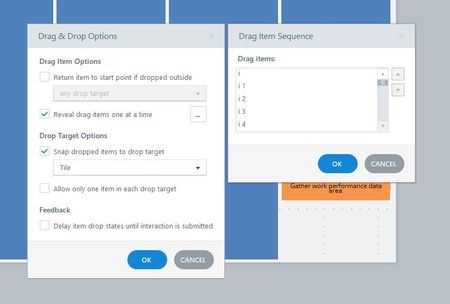
I have a drag and drop quiz with 95 drag options that are then added to a chart. This is all working beautifully and tiling onto the chart very nicely, but if I want to randomize the order that the 95 options appear in (on the drag sequence menu) then I have to manually drag them around to make them appear randomized. Has anyone ever incorporated javascript to make drag options appear in random order if they are appearing one by one? Apologies if this is unclear or not allowed to ask.Solved1.3KViews0likes7CommentsJavascript not working in full screen
Hi all! I have two Javascript codes that execute when selected: one to copy a claim key, and another to add confetti. Both seem to work when completed normally, but once I'm in full screen, neither work! Is it because of the Javascript itself? To recreate the issue: 1. Claim key: if you have something copied, open the Storyline file in full screen, select the "Copy Claim Key" button, and paste in the text field below. If in full screen, it will paste your previous selection instead of the key (which is "S8AM83B2QDBBKKF89K3K")! The code used for this is below, using a "ClaimKey" variable already set in the Storyline file: var player = GetPlayer(); var text = player.GetVar("ClaimKey"); copyFunction (text); function copyFunction(tt) { const copyText = tt; const textArea = document.createElement('textarea'); textArea.textContent = copyText; document.body.append(textArea); textArea.select(); document.execCommand("copy"); textArea.style.display = "none"; } 2. Confetti: if you select the "Add Confetti" button, the confetti will appear on the page normally. If you select full screen and the "Add Confetti" button again, exit full screen early to see the last instances of confetti that don't show up in full screen. Two Javascript codes were used for confetti: var duration = 5 * 1000; var animationEnd = Date.now() + duration; var defaults = { startVelocity: 30, spread: 360, ticks: 60, zIndex: 0 }; function randomInRange(min, max) { return Math.random() * (max - min) + min; } var interval = setInterval(function() { var timeLeft = animationEnd - Date.now(); if (timeLeft <= 0) { return clearInterval(interval); } var particleCount = 50 * (timeLeft / duration); // since particles fall down, start a bit higher than random confetti(Object.assign({}, defaults, { particleCount, origin: { x: randomInRange(0.1, 0.3), y: Math.random() - 0.2 } })); confetti(Object.assign({}, defaults, { particleCount, origin: { x: randomInRange(0.7, 0.9), y: Math.random() - 0.2 } })); }, 250); var confettiScript = document.createElement('script'); confettiScript.setAttribute('src','https://cdn.jsdelivr.net/npm/[email protected]/dist/confetti.browser.min.js'); document.head.appendChild(confettiScript); *The second code is a workaround I used from this Little Man Project post to avoid updating the HTML file each time I publish :) I'm a JavaScript beginner, so any help is appreciated! You can preview the issue here in Review, and I've attached the file for reference. Thanks!Solved1.1KViews1like5CommentsTop-Down game mechanics in Storyline
I was fooling around with the new API and created a proof of concept for some mechanics of a top-down game. You can use the WASD keys to move the robot around. If you roll close to objects, I set a variable that allows a layer to open. Unfortunately, the built in Intersection triggers don't work when you move objects with API method, so you need it to do it through JavaScript. If you move the robot off screen to the right, it will go to the next screen in the correct position it left. Try going back higher up and see how it works. The current demo only allows you to go to slide (or room) 3 and back. I can get the coordinates of a character object and then since you know the slide size, you can trigger variables to get you to the next slide and back. I also built some logic in to prevent the robot from going too far up or too far down. On the last slide that you can get to through the menu, you will notice a demo of a platform concept. Move the oval using the keys and notice that we can simulate gravity like any game engine. I imagine if I implemented the same positional logic that we could create a simple platformer but haven't got there yet. Full disclosure: All assets are generated using ChatGPT 4.0 except for the ovals and the rectangles. 😉 Take a look here. https://360.articulate.com/review/content/6104372d-85cf-41cc-8f81-6f42e3a6c061/reviewSolved1KViews4likes5CommentsButton Listener to move a character
Hello everyone I've dealing with a problem, I started a project, it is supposed to be an Escape Room, and most of the things I need for it are already available on Storyline. But I've been stuck on the movement of the character, it is a simple 2D movement, right and left, inside the room. The problem is: I already got it to move on a click, but it is just on that click, I want it to move as long as I keep the button pressed. This is the last JavaScript I tried to make it move: const button = object('5yfHufFxicy'); function moveWhilePressed() { button[i].addEventListener("mousedown",() =>{ const player = GetPlayer(); player.GetVar("MousePressed"); const currentX = player.GetVar("MoveX"); player.SetVar("MoveX", currentX +1); setTimeout(moveWhilePressed, 100); const objects = [ object('6EPGwyDzEfX'), ]; const positions = objects.map(obj => ({ x: obj.x})); objects.forEach((obj, i) => { obj.x = positions[i].x+currentX; }); }); } moveWhilePressed(); Not sure if I'm wrong on the EventListener, before I added it, the character moved, but the moment I clicked, it kept moving without the button pressed. I tried using Variables, but the result was the same, the character kept moving.Solved900Views1like4CommentsProgress bar with javascript not working in new versions
Hi all. I am new here. Maybe a beginner question.... I found out that my javascript progress bar doesn't work after the updates past 8th october 2024. I couldn't find out why, tried with the console and different ways. I think the <div> is not visible or not inserted. Could you please check my script in the example file? Probably you have seen this scipt in other projects, its from the web. Behaviour: start slide (without progress bar) 1. slide - master slide 1 - progress bar works fine the first time. 2. slide - master slide 1 - progress bar failes. 3. slide - master slide 2 - progress bar works fine. 4. slide - master slide 1 - progress bar works fine. If I have two slides with the same master slide in a row, on the second slide the progress bar failes. I upload a example with 4 slides. The script is on the master. Any help is welcome. Thank you.899Views1like14CommentsNew Tutorial! Create and Control Glassmorphism Effects With JavaScript In Storyline
Hi Heroes, I'd like to share the latest episode in my Storyline Magic Series on my YouTube channel! In this episode, we'll delve into 'Glassmorphism'—a modern and powerful design technique that blends translucent surfaces with frosted glass effects. This approach not only enhances the aesthetic of your content but also helps learning designers create depth and establish a clear visual hierarchy. I’ll show you how to create and control this stunning effect entirely within Articulate Storyline 360. Let me know if you'd enjoy seeing more comprehensive start-to-finish project builds like this in the future! And see how other Storyline devs are using Glassmorphism here: https://community.articulate.com/blog/e-learning-challenges/using-glassmorphism-designs-in-e-learning-course-development-310/1151525 --- My name's Chris Hodgson, an eLearning developer and software trainer based in the UK. I enjoy creating fun, unique, and engaging online experiences using Articulate software! Connect with me on LinkedIn - https://www.linkedin.com/in/chrishodgson44/ 898Views5likes2Comments
Capturing Text from a Shape or TextBox
I have a game with 40 questions, subdivided into 4 categories. I've created an object for each category and used states for each question within the category. My current plan is to enter the questions in the WYSIWYG environment for easier proof reading than if I tried to enter them into the Variables editor. It's a team based game and if nobody can get the answer right, I want it to save the question to a variable, then at the end of the game, I want it to email the questions to the SMEs. My problem is that unless I switch to using 40 variables, I haven't figured out a way to pull the question from the object before moving on to the next question. I had thought it would be something simple like this: const jsObject = object('6N5bhivlzyV'); set jsText = jsObject.value; setVar('theText',jsText); But, that's not working. Is my javascript bad or is there a way to do this with standard triggers?Solved800Views0likes3Comments