morph
6 TopicsMeet the Team - Morph & "Highlight"
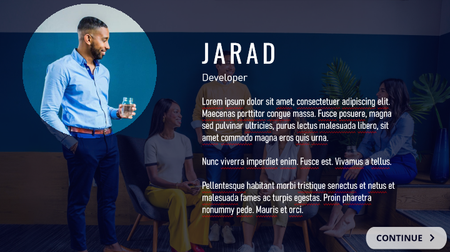
Hi everyone! 👋 I love using Morph in PowerPoint and I have been so looking forward to this feature in Articulate! I'm a frequent "watcher" of ELH Challenges and have never submitted one, so I figured that my favorite slide transition was the best time to give it a shot. (Better late than never?) So, here is one of my favorite, simple and effective, tricks for "highlighting" people/things within photographs using Morph.: Meet "Stellar Property Management" HOW TO DO IT: Insert your photo. Insert a "Donut" shape from the shapes menu. Make it large enough to cover the slide and then shrink the middle so that the "highlighted" portion is only as big as the object/person that you're highlighting. Change the transparency & add your informational text. Duplicate the slide and move the open area of the circle around the slide to highlight different parts of the photograph. Move your text around the slide as needed. Select everything and apply Morph! I included a few other Morph transitions for the start and finish of the example as well. I'm really excited to start applying Morph to my other projects! Thanks! -LizInteractive Markers on a Car
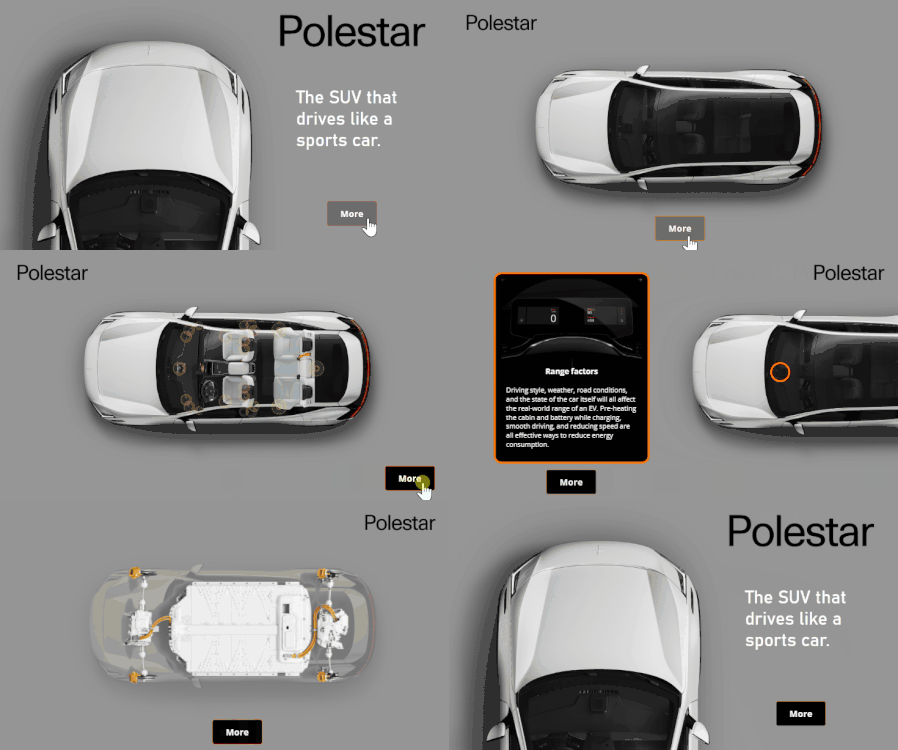
Version 1 I saw this nice Polestar ad on my phone that had markers and labels that I thought I'd test with the morph. I I tried a few things: Create a slide with all of my elements. Add triggers to slides (need to change them after duplicating) Since the morph is only a transition between slides and I wanted all of my objects to transitions in and out the ones I wasn't using a made transparent. I think all of these "hidden" objects via transparency may be problematic. :) Attached is the file. Version 1: View demo Version 2 I tried a few novel things in version 1 that may have confused Storyline, so I simplifed the demo in version 2. Version 2: View demo. About Me I love helping people learn to use the Articulate software to meet their needs at work. I especially like to help those new instructional designers who are trying their best to get a handle on things. I regularly contribute to the training team's blog where we assemble all sorts of tips and tricks. Follow it to stay up to date. I post every Wednesday to Articulate's company blogwhere I share more general instructional design tips. I used to write the Rapid E-learning Blog. Still lots of good tips & tricks in there. Connect with me on LinkedIn and follow my YouTube for more tips & tricks.Know the Staff
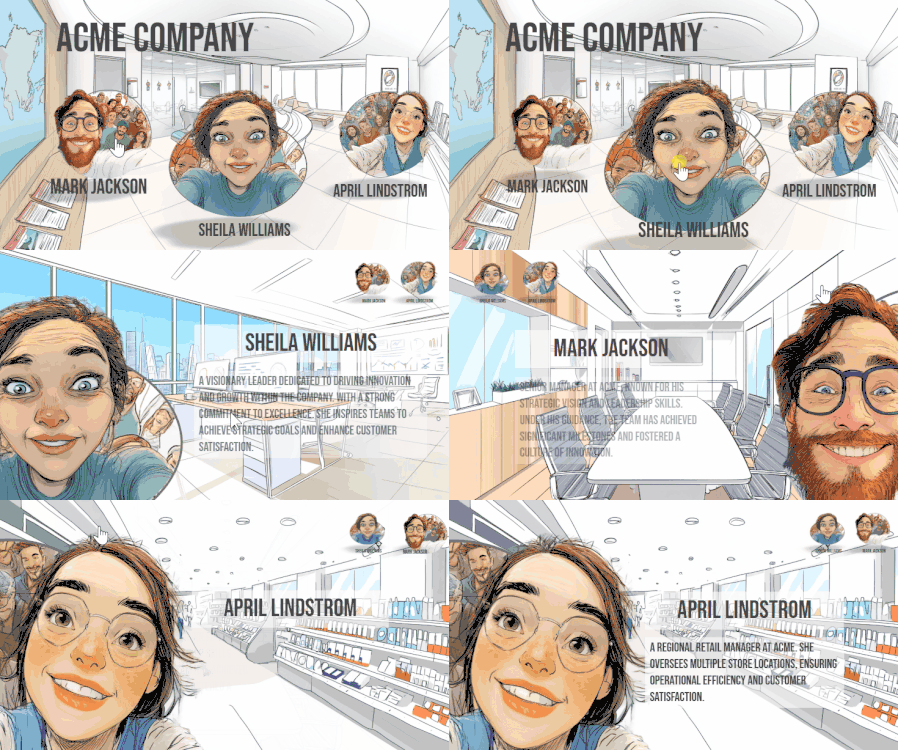
Simple interaction where you can click on different managers to learn about them. For the pop out look I decided to go with a selfie of each person and then used a morph transition to the information slide. [I also submitted this for #502] I used use AI to generate the images and background and I used AI Assistant to generate the placeholder text. See the demo here. About Me I love helping people learn to use the Articulate software to meet their needs at work. I especially like to help those new instructional designers who are trying their best to get a handle on things. I regularly contribute to the training team's blog where we assemble all sorts of tips and tricks. Follow it to stay up to date. I post every Wednesday to Articulate's company blogwhere I share more general instructional design tips. I used to write the Rapid E-learning Blog. Still lots of good tips & tricks in there. Connect with me on LinkedIn and follow my YouTube for more tips & tricks.Easter Traditions
View example. I actually started this for last week's interactive comparison challenge but didn't get it finished on time so instead I morphed (see what I did there!) it into this week's morph transition challenge. It's been a useful exercise to try out the new morphing functionality - it can be a little temperamental though. The transition back to the menu slide isn't as smooth as I'd like, and I found it really doesn't like images so I had to trick it by making each object on the menu slide a shape, setting up the transition, then going back and filling the shape with the image I wanted. Hope you enjoy learning about some global Easter traditions with some pretty watercolours from the Storyline AI image generator.ACME Staff Selfies
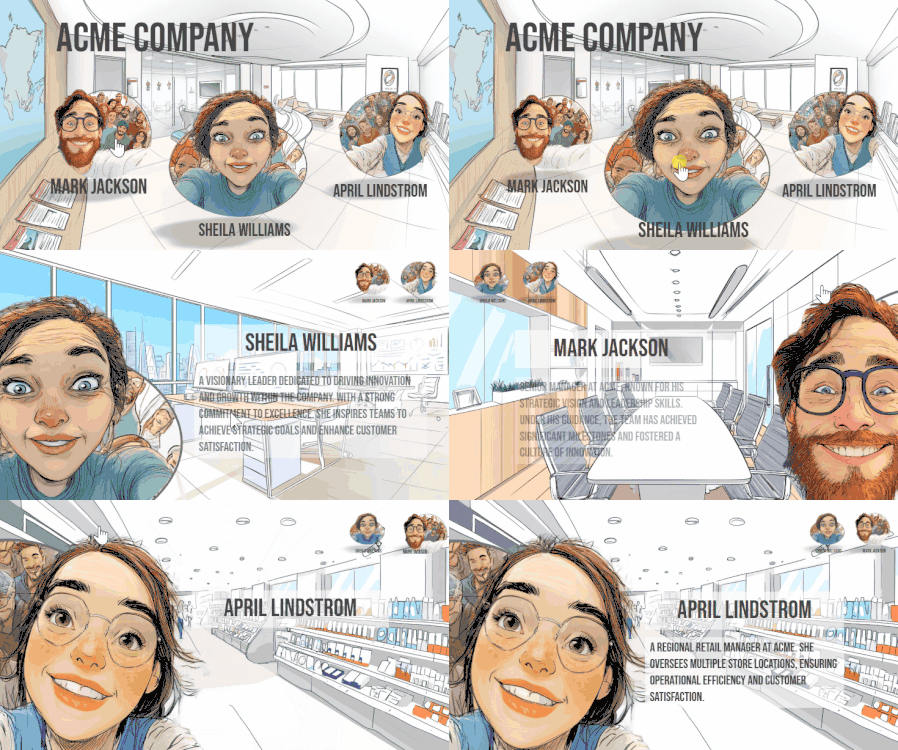
Simple interaction where you can click on different managers to learn about them. For the pop out effect I decided to go with a selfie of each person and then used a morph transition to the information slide. I used use AI to generate the images and background and I used AI Assistant to generate the placeholder text. See the demo here. About Me I love helping people learn to use the Articulate software to meet their needs at work. I especially like to help those new instructional designers who are trying their best to get a handle on things. I regularly contribute to the training team's blog where we assemble all sorts of tips and tricks. Follow it to stay up to date. I post every Wednesday to Articulate's company blogwhere I share more general instructional design tips. I used to write the Rapid E-learning Blog. Still lots of good tips & tricks in there. Connect with me on LinkedIn and follow my YouTube for more tips & tricks.