visual design
141 TopicsFind the Dog
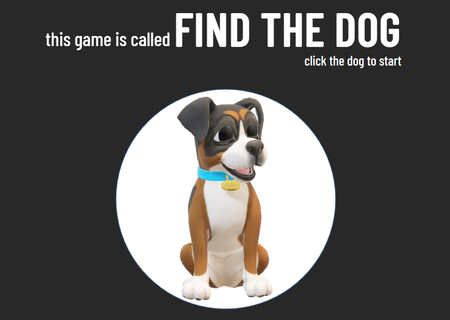
Taking a breather after some intense experimenting with the morph transition! Here’s a simplified version of the classic shell game (I think that’s what it’s called?). I remember watching it as a kid — older guys would play it on the street, trying to earn a bit of extra cash. They’d use matchboxes, shuffle them around with a hidden object underneath. If you guessed right, you’d win a few coins. If not... well, better luck next time! I called it "Find a dog" for the purpose of this challenge. Find the DogQuick and Dirty Image Effect for E-Learning Cover Slides #377
E-Learning Cover Slides #377: Challenge | Recap Can You Judge an E-Learning Course by Its Background Image? Need a quick way to set the stage for your course content? Try using a custom background image. Background images are the largest object on your slide, making them one of the best ways to establish context while creating a sense of location. This works equally well for content and course cover slides. But not all projects require custom themes or visual treatments. For example, most e-learning courses are built from existing templates that are modified based on the course content. That’s okay because there’s a background trick for those courses, too! Creating Custom Backgrounds Images Using Transparency In a recent post, Tom Kuhlmann shared a visual design tip commonly used in advertising and high-end product photography. The effect is achieved by using the same image for the focal point and background graphic. The background version is scaled beyond the slide size, and transparency dialed way up to blend the image into the background. Here’s a before-and-after view of the effect: Notice how the faded image fills the background without dominating the slide? This is one of the quickest ways to add richness and depth to your slide backgrounds. And that's what this week's challenge is all about! Challenge of the Week This week, your challenge is to create a cover screen for an e-learning course, real or fictional, using the transparent echo technique. You can share a static image of a cover slide or add a cover screen to an existing project or challenge entry you created. Share Your E-Learning Work Comments: Use the comments section below to share a link to your published example and blog post. Forums: Start your own thread and share a link to your published example.. Personal blog: If you have a blog, please consider writing about your challenges. We’ll link back to your posts so the great work you’re sharing gets even more exposure. Social Media: If you share your demos on Twitter or LinkedIn, try using #ELHChallenge so your tweeps can track your e-learning coolness. Last Week’s Challenge: Before you uncover your slide designs, check out the creative ways course designers build templates from stock vector illustrations: E-Learning Templates from Illustrations #376: Challenge | Recap New to the E-Learning Challenges? The weekly e-learning challenges are ongoing opportunities to learn, share, and build your e-learning portfolios. You can jump into any or all of the previous challengesanytime you want. I’ll update the recap posts to include your demos. Learn more about the challenges in this Q&A post and why and how to participate in this helpful article.4.5KViews0likes119CommentsEverything You Need to Know About Image Usage Rights
It’s tricky to find appropriate, usable images for e-learning projects. And sometimes after you’ve found the right photo, it’s unclear whether you can legally use it. Images are protected by copyright. So you can’t add any photo you find online to your e-learning project. But trying to do the right thing can raise more questions than answers: What if I just link to their website? Should I reach out to this person? Wait, I don’t see who owns this image! Usually images you’ll find on photo sites fall into one of a few categories. Here are some of the different usage terms you’ll find. Copyright Copyright law protects original works, including images. In most cases, you can’t copy or distribute a copyrighted image without permission from the person who created it. You should assume that any image you find online is protected by copyright. If possible, contact the copyright holder for permission to use their work. When you buy a stock photo, you’re buying the right to use that copyrighted image. Depending on which site you use, the image may be royalty-free or rights-managed. Royalty-free means that you’re not responsible for royalty payments. You’re usually able to use the image as you’d like. Rights-managed means there are restrictions on how you can use the image—so be sure to read your license agreement closely! Fair Use The fair use doctrine provides opportunities for using copyrighted images without permission. For instance, you can legally use a copyrighted image for personal and educational use, or for the public good. Most e-learning is commercial. As a course creator, you should assume that using copyrighted images in your work doesn’t qualify as fair use. But fair use also allows you to transform copyrighted images into something new. If you turn a copyrighted image into a completely new work, you can use that image freely. Creative Commons The Creative Commons non-profit provides free copyright licenses for creators. The copyright holder can determine several things with these licenses: Whether you need to credit them for their image Whether you can use their image for commercial purposes Whether you can modify their image What license you must use if you modify their image When using Creative Commons images, be sure to read the license carefully and use the image appropriately. Pro tip: Some photo sharing sites, such as Flickr, allow you to filter search results by specific Creative Commons licenses. Public Domain Typically an image becomes part of the public domain in one of two ways. The creator either gives up copyright willingly, or the copyright expires. These images aren’t protected by copyright, so you’re free to use them any way you’d like. Pro tip: WikiMedia Commons has a large database of images in the public domain. A Helpful Alternative Of course, the easiest way to source freely available images is by finding e-learning solutions that provide stock assets. Articulate 360 includes Content Library 360, an ever-growing library of visual assets that you can access right from within Rise and Storyline 360. These assets are made available through third parties, including Unsplash, Noun Project, Pexels, and Pixabay, and you can use them in your content without additional charge. However, as noted in our Terms of Service, the use of these images, including any attribution requirements, is subject to these third parties’ terms. See what’s available in Content Library 360 when you start a free, 30-day trial of Articulate 360. You’ll also get access to award-winning authoring apps Storyline 360 and Rise, a project review app, and access to live online training led by industry experts. New to e-learning? Sign up for our E-Learning 101 email course, a series of expertly-curated articles that'll get you up to speed with course development.3.5KViews1like32CommentsBlurred Backgrounds in E-Learning Course Design #366
Blurred Backgrounds Effects in E-Learning #366: Challenge | Recap Challenge of the Week This week, your challenge is to share an e-learning slide, demo, or design comp that features blurred backgrounds. Try to include before-and-after examples to show how your background graphics transformed your original slides. Bonus: Share your backgrounds as a separate asset or download. We'll post a blurred backgrounds round-up to share your bundles of blurred goodness in a few weeks. Share Your E-Learning Work Comments: Use the comments section below to share a link to your published example and blog post. Forums: Start your own thread and share a link to your published example.. Personal blog: If you have a blog, please consider writing about your challenges. We’ll link back to your posts so the great work you’re sharing gets even more exposure. Social Media: If you share your demos on Twitter or LinkedIn, try using #ELHChallenge or #ElearningChallenge so your tweeps can track your e-learning coolness. New to the E-Learning Challenges? The weekly e-learning challenges are ongoing opportunities to learn, share, and build your e-learning portfolios. You can jump into any or all of the previous challenges anytime you want. I’ll update the recap posts to include your demos. Learn more about the challenges in this Q&A post and why and how to participate in this helpful article. Last Week’s Challenge: Before you dive into this week's challenge, take some time to check out the interactive video examples your fellow challengers shared over the past week: Interactive Video in E-Learning #365: Challenge | Recap6.4KViews0likes173CommentsCreating E-Learning Templates from Vector Graphics #376
E-Learning Templates from Illustrations #367: Challenge | Recap Challenge of the Week This week, your challenge is to build a simple interaction or course starter template using a single illustration. Please include a screenshot or a link to the stock graphic you used to help others learn from your example. Resources How to Edit SVG Graphics in PowerPoint How to Edit Free Vector Images in PowerPoint 36 Mixing Photo and Illustration Examples in E-Learning Design #312 Share Your E-Learning Work Comments: Use the comments section below to share a link to your published example and blog post. Forums: Start your own thread and share a link to your published example.. Personal blog: If you have a blog, please consider writing about your challenges. We’ll link back to your posts so the great work you’re sharing gets even more exposure. Social Media: If you share your demos on Twitter or LinkedIn, try using #ELHChallenge so your tweeps can track your e-learning coolness. Last Week’s Challenge: Before you break apart this week’s challenge, check out the xAPI examples your fellow challengers shared over the past week: xAPI Examples from E-Learning Designers #375: Challenge | Recap New to the E-Learning Challenges? The weekly e-learning challenges are ongoing opportunities to learn, share, and build your e-learning portfolios. You can jump into any or all of the previous challenges anytime you want. I’ll update the recap posts to include your demos. Learn more about the challenges in this Q&A post and why and how to participate in this helpful article.2.8KViews0likes111CommentsEye Yoga: A Black-and-White Break for Your Screen-Tired Eyes
For my first-ever entry in this week’s black-and-white challenge, I stepped far outside my comfort zone, because I love colour! Embracing the monochrome theme, I created a lighthearted, collage-style interaction called "Eye Yoga". Built in Articulate Storyline 360, the visuals were crafted in Canva using a mix of halftones, shadows, and paper cut-out effects to give the piece a tactile, layered feel. The final design features three simple animations and guides learners through three quick exercises to ease digital eye strain. This project was a fun exploration of how texture, balance, and movement can still bring energy to a design—even without colour. Let me know what you think! I hope you will like it. Click here to explore the 'Eye Yoga' project