Forum Discussion
Glossary in Rise 360
Has anyone found a way to create a glossary in Rise 360 that is easily and readily available for learners, as needed? This can be done in Storyline 360 by including it as a resource but I haven't figured out a workaround for Rise.
Any assistance is appreciated!!
48 Replies
- PatrickFinne459Community Member
I understand this is an old thread. I came here hoping that there were other answers, but it seems not yet. However, here's what I am doing right now.
Create a lesson called "Glossary" and place it at the end of the lesson menu, usually in a "Resources" section.
Create the glossary content with any Rise element or combination of elements you want. (List, Accordion, etc.)
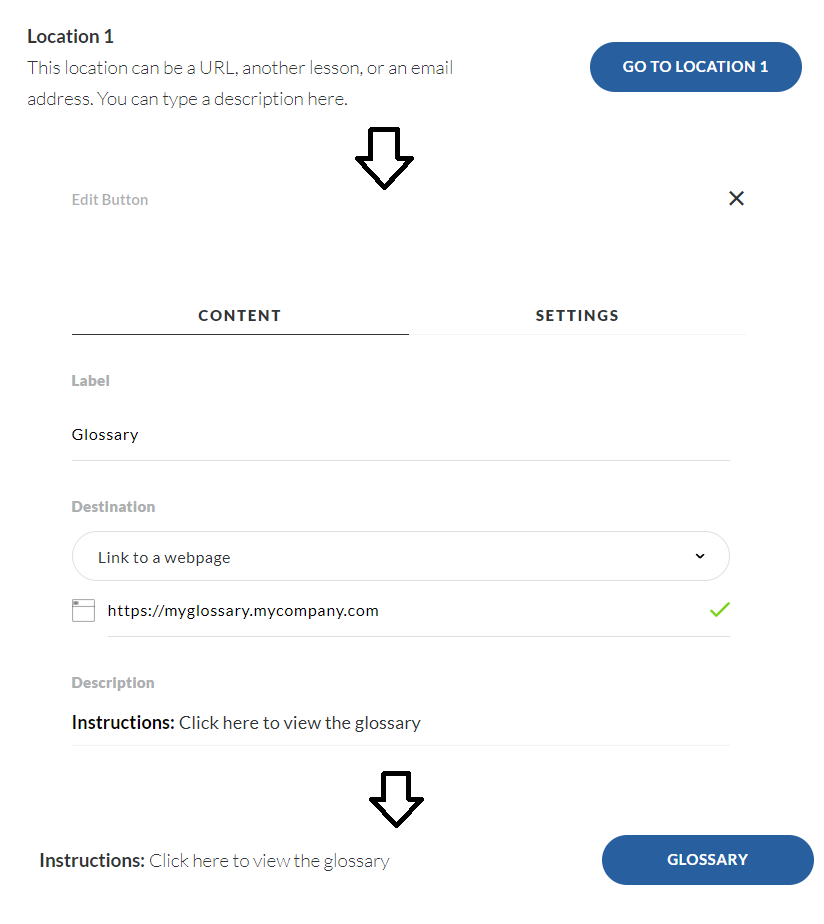
Instead of adding the glossary itself to every lesson, add a link to it using the Button interactive element. I usually place the button at the top of each lesson, but some clients prefer the bottom, and you can also just place it at whatever points seem appropriate.
If you have more then one glossary or want to break the glossary up into sections, create more than one glossary "lesson" and instead of using a button, use a button stack.
The only issue this creates is getting back to the original location from where you clicked the Glossary button. Since there very limited conditional processing in Rise, there no great solution that I can see. The only possibility I can think of is to make more than one copy of the glossary for each Glossary button and add a "Return" button to the original lesson. Not perfect, I know, but it's something anyway.
Another author mentioned a concern with course completion if completion is based on % viewed. I've solved that issue in the past by adding a requirement that the learner at least visit the Glossary once. You can do this as a course walkthrough that demonstrates the interface and resources to make it seem more natural that a visit is required.
And of course, a button interaction is an interaction after all, so you can add one in the walkthrough and not let the learner proceed until they have taken a quick look at it using the conditional continue element.
Of course many more options are available if you create the glossary as a Storyline or Engage element.
Hope this helps. - KatjaKleinCommunity Member
Hello, is there meanwhile the possibility to create a glossary in rise 360?
Hi Katja,
This is a feature that we have already requested from our Rise engineers. It's not in our roadmap yet, but I will update this thread if we hear more from our team about this feature.
In the meantime, have you checked the workarounds proposed by our community members in this thread? Here are a couple from William and Gerry.
- UzmaSaeed-28815Community Member
Please can we have an in-built glossary :'(
It so seamless in Articulate.. But my trainings look clunky at the moment - while I am learning the ropes on Storyline I would still like to produce professional looking stuff. It would be great if we could click on the term, and it jumps to the Glossary - like you can do in PowerPoint.
- FionaOSullivanCommunity Member
All of the ideas in the video are not viable options. They need the learners to navigate to other lessons and then back to where they were. We need a proper glossary button at the top, next to the menu button, that allows us to open a popup dialogue without navigating away from the lesson.
It looks like this is a feature that many people are looking for. Is this going to be included on the Rise roadmap any time soon? Considering this thread is two years old, it should be a must for the product.
- NatoshaGalle484Community Member
I created a glossary in InDesign and added it as an attachment (PDF) to be opened at the start of a lesson and can be kept open in a separate window. I'd prefer something even easier than that, but this seems to work.
- DelphiniaBrown-Community Member
An integrated glossary would be a great feature to add to Rise. - Watching this feed.
- MarcPoirier-552Community Member
I'm currently working on a old moodle course to bring it back to 2020 ;) I'm using Rise 360, I can get a lot done, but on their end what I liked was that the "glossary" was on the words itself. So as you do your course, a word is highlighted in a different colour, when you hover over it, a question mark appears and if you click a small popup window attached to the word pops out with the glossary for that word.. pretty neat feature that would be great to have in Rise!
Marc.
- WilliamButlerCommunity Member
Guys, I have created a glossary that exists as its own URL, external to RISE. I drop the link at the bottom of each section and have it open in an external window if the user click on it. That is a decent workaround for us.
- UzmaSaeed-28815Community Member
Hi William,
Any chance you can share how you did this? Step by step - I'm super new to Articulate 360, so haven't gotten my head around intricacies. I would be much obliged! Thankyou kindly.
- WilliamButlerCommunity Member
- KarlMullerCommunity Member
There are several issues related to this approach for our organization.
Using a button to get to the Glossary means that learners are navigated to a completely different lesson. Learners must remember which lesson they were busy with, and then manually find their way back to where they were before jumping to the Glossary. This may sound like a trivial thing to do, but we have some very large courses with more than 100 Lessons.
As the Glossary is a Lesson, it becomes a problem for us as our course completions are based on the percentage of the course viewed. The Glossary Lesson becomes a part of that percentage and learners that do not need to view the Glossary, may have problems achieving course completion status.
At best this is a workaround. For a Glossary to be effective, it needs to be a Globally available resource that can be opened, viewed and closed without the learner being required to physically navigate away from their current Lesson.
- KimberleeBoyd-6Community Member
Elizabeth, on a separate note, I didn't know these quick tips existed. Will you share with me how I can navigate to them on the site without bookmarking them separately?
- HollyDoggettCommunity Member
Hey Elizabeth, I know this is an old thread, but your list of quick tips is there and would be super helpful if they listed what was covered in each. Might y'all have a list like that? Spreadsheet? Tags list? (egads, I'm imagining having to create one for the 86 episodes i see, haha).
It would be really helpful to scan through them look at the ones that were especially interesting to a person
I realize you can put in a search term, but I just wanted to spend time going through some of them based on the tip i was interested in. :)












Related Content
- 5 months ago
- 3 months ago
- 11 months ago
- 5 months ago