Forum Discussion

Help needed to recover corrupt file
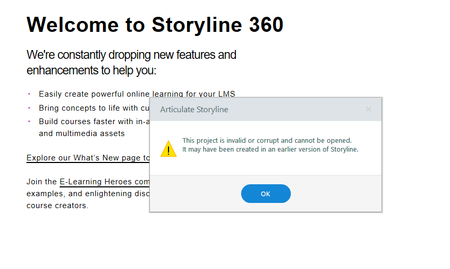

Hey RockRousseau,
So sorry to hear that you've encountered file corruption while authoring in Storyline.
Great to see Phil has been helping you! For your reference, Storyline 360: Cloud Backup is the feature he is referring to.
Also, I noticed that you've shared the affected .story file through a support case. I was able to import the content of the corrupted file into a new Storyline project. It looks like the corruption was caused by audio elements from various Slides in Scene #7. I'll follow up with you privately through your case and include a fixed copy of your file there.
Moving forward, these tips can help reduce the risk of corrupting or losing Storyline files. You mentioned using OneDrive. Storing your project files on a network drive is ok, but we suggest moving them to your local hard drive when making edits. Authoring directly from a cloud drive can introduce unexpected behavior or possible file corruption.
One extra tip. You may be able to recover a previous version of corrupted files by checking your Windows Temp Folder. Here's how:
- Open this folder in Windows Explorer: %appdata%\Articulate\Storyline.
- Scan the contents of this folder for a .story file
- If you find the file, copy it to your desktop (if you find more than one, copy the latest version).
- Change the file extension of the copy on your desktop from *.tmp to *.story.
- Double-click the file to open it in Storyline.
Let's continue the conversation through your case.
Steven, are you saying you were able to recover the file in a new Storyline project? If so, can you send me the recovered file?
- StevenBenassi2 months agoStaff
Hey RockRousseau,
Thanks for following up.
Yes, that's correct. I've just replied to your email through your support case, including a fixed version of your .story file.
We can continue the conversation there!
Related Content
- 10 months ago
- 3 years ago