Forum Discussion

Publishing Storyline Content in Canvas LMS
Hello! I just wanted to share a recent success I had with getting my Storyline files in to the Canvas LMS. Although I haven't quite found a way to use SCORM reporting features, this is an option to upload your presentations into Canvas that will allow for all of the great interactions we so love in Storyline!
The trick is, when you publish, you have to make sure to choose Launch Player in a New Window. Here are all of the steps I followed (including making it work for iPad).
In order for Storyline presentations to work in Canvas, you have to publish with these player options:
BEFORE you publish, you have to go in to the Player - Other - Launch Player in a New Window
If you choose Prompt to Resume, make sure to leave the "Ignore Flash Cookies in LMS" option UNCHECKED.
It should look like this:
When you publish, make sure to have LMS selected, and checkmark all the boxes in the Publishing for HTML5 and mobile devices.
In Canvas, you need to navigate to the course and page (assignment, module, etc.) where you will be adding the content. THIS IS VITAL. You have to be in the course you want to add the content in before you choose the FILE option on the left-hand side.
Choose "Files" option in the left-hand navigation.
Create a new sub-folder for the course and then choose the upload zip file. Upload the Storyline zip file into the subfolder.
Now create the assignment, announcement, module, etc. that you wanted to create. Choose Add File from the right-hand menu. Navigate to the subfolder you created. Once there, you need to find the "launch.html" file and click on it to add it to your assignment. If you want to allow iPad users to see your content, you also need to click on the IOSLaunch.html file and add it to the assignment.
Save your assignment.
Make sure you have popup blockers off, and then test it out. It should launch in a new window on all browsers. On iPad, you need to have the Articulate Mobile App to interact with the content.
Hope this helps!
55 Replies
- RebeccaHayes-59Community Member
I know this is an old thread, but it was very helpful to me. You must choose the story.html file (browser) and the storyhtml5.html file (iOS/iPad/iPhone) rather than the "launch" files specified in the original post, however.
Hi Rebecca! Glad that this thread was helpful to you as well :)
Thanks for popping in to share and welcome to E-Learning Heroes.
- SueChaconCommunity Member
Hi, I followed your instructions for publishing Storyline Content in Canvas LMS, and when I went to launch my project, I received the following error message. "Unable to aquire LMS-API. Content may not play properly and results may not record. Please contact technical support. I am not sure what this means. Can you please help with this?
Thank you, Sue
Hi Sue,
Have you reached out to your Canvas LMS team? They likely are familiar with what this error means in their system. In the instances that I've seen folks have that error and share in ELH, one of these options tend to fix it:
1. If your learning management system (LMS) automatically launches content in a separate browser window, don't set Articulate Storyline to launch content in a new window. Otherwise, you may encounter an LMS communication error.
To make sure Storyline doesn't launch your course in a new window, do the following:
- Go to the Home tab and click Player.
- Click Other on the ribbon.
- Uncheck the box to Launch player in new window (creates launch page).
- Click OK.
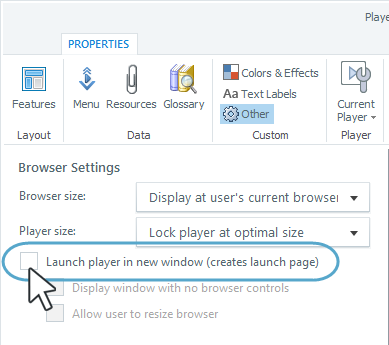
2. This may be caused by the version of Java that you have installed.
Some LMS’s use a Java API object to load content. Since content created in Articulate does not require Java, please do the following:
* Contact your LMS provider and ensure that your installed version of Java is compatible with the version of the LMS you are using.
Let us know if you need anything else!
- SueChaconCommunity Member
Yes, I figured it out. Thank you.
Sue Chacon
Instructional Design Specialist
[cid:image001.png@01D30480.6DD30FB0]
10160 N Valle Del Oro Drive| Tucson, Arizona | 85737
520.490.6794 | schacon1@asu.edu
Glad to hear it Sue!
Note: Replying via email will include your signature. You can edit out your contact information from your post if you'd like!
- ShaunaKayCommunity Member
I am following the directions above but I am stuck on this step. Any suggestions?
You have to be in the course you want to add the content in before you choose the FILE option on the left-hand side.
Choose "Files" option in the left-hand navigation.
Create a new sub-folder for the course and then choose the upload zip file. Upload the Storyline zip file into the subfolder.
Hi Shauna,
I don't know much about Canvas, so if you don't hear back from other users here you could look at messaging them directly! On an individual's ELH profile, find the Contact Me button which will you to reach out to them one on one.
Hope that helps!
- RebeccaHayes-59Community Member
Hi Shauna,
I don't have a ton of experience with this, but I am guessing that what is tripping you up is that you need to choose the Expand It option when you upload the zip file to Canvas, because Canvas can't work with the file if it is zipped up. The files have to be expanded (see the attached Expand It Screenshot), so that you can then locate the specific file you want the link to point to. I had to work through this one myself with a little trial and error. I can tell you from experience that you want to keep you file tree as shallow as possible: it will make it much easier to locate the file. For me, locating the correct file is the trickiest part. If you are still having trouble, feel free to contact me privately and maybe I can help you further.
Another issue I had was with the size of the player on Canvas not fully displaying the module once I published the link. To solve this issue, I choose "Scale player to fit browser window" in the dialog where you get to pick the browser settings. I attached a screen shot (Module Size Screenshot) for good measure. I don't know how people get the screenshots to display within their messages, that seems to be beyond my skills. :)
Best of luck,
Becky
- ShaunaKayCommunity Member
Rebecca,
My name is Shauna Kay and I contacted you way back in February about
transferring Storyline to Canvas. I have finished creating all the
Storylines and now I am ready to put them into my Canvas class. Are you
able to help me with this? I remember trying it way back then and I messed
everything up.Thanks,
Shauna Kay
- CynthiaGovreauCommunity Member
So this is going to make me look really stupid, but if the file is zipped how can I navigate to the launch.html file?
- CynthiaGovreauCommunity Member
So does it only work with assignments? I am so confused by the instructions.
Any help from anyone would be greatly appreciated.
- RebeccaHayes-59Community Member
Hi Cynthia,
Don't feel stupid, it is a complex process! You have to choose the Expand it option when you load the file into Canvas. (I attached a screenshot of this in my last post on this thread.) Feel free to reach out to me one on one and I will see if I can help you out. I have had lots of help from others on here, so I am happy to pass it on. :) I'll double check my profile now to make sure you can reach me.
- ShaunaKayCommunity Member
Thank you. I am in the process of creating the storylines then I will try
it.
I appreciate your help.