Forum Discussion

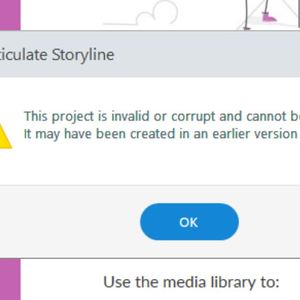
This project is invalid or corrupt......
I updated Storyline due to the latest release. I then attempted to open a file I had been working on just previous to this release and now I receive the error message - "This project is invalid or corrupt and cannot be opened. It may have been created in an earlier version of Storyline."
Please let me know if there is a fix here, I'm under a time constraint and don't need this headache with this course.
138 Replies
Hi there, Ryan. I'm sorry you're dealing with this situation; it is definitely not typical or expected behavior. You did the right thing to open a case for help. I'll follow along so I can share any updates here.
- RyanCarlsonCommunity Member
They could not do anything for me. I exhausted all troubleshooting suggestions and there are no temp files or backup temps files. It's unfortunate. Could Articulate come up with a better auto-recovery solution? I lost a week's worth of work.
- HaleighSummersCommunity Member
I can't believe this has been going on for 7+ years. This application costs entirely too much to be having this same problem. I have followed all the troubleshooting tips:
I have no temp files
Please help me. This is 2 weeks worth of work due tomorrow.
Hi Tess,
I'm sorry to hear you ran into this issue and have lost some of your work. The issues that lead to file corruption are documented here for folks, and we've implemented an auto-recovery issue for if Storyline crashes. To use that feature, you'd have to enable it prior to a crash and have saved the file at least once.
If there is anything else I can do to help, please let me know.
- RuslanRusiavyyCommunity Member
All my projects have not opened.
I lost a lot of my work time. I am very angry! Your application cannot be used. I lost two days of work and did not get a result. I read all your advices, did what you said. But in the end, all projects do not open. Hello Ruslan and welcome to E-Learning Heroes :)
Thanks for reaching out and letting us know that you're running into an issue with your Storyline 360 files.
Were you able to take a look at the documentation Ashley shared above regarding best practices?
There may still be a working version of your project in your temp files. Here's how to check:
- Open this folder in Windows Explorer: %appdata%\Articulate\Storyline.
- Scan the contents of this folder for a file that starts with the name of your project.
- If you find the file, copy it to your desktop (if you find more than one, copy the latest version).
- Change the file extension of the copy on your desktop from *.tmp to *.story.
- Double-click the file to open it in Storyline.
- RuslanRusiavyyCommunity Member
I have carefully studied this post documentation before starting work. I did everything that was written there. However, all these advices did not help. I also searched for traces of my projects in the AppData folders, but there is nothing there. What should I do? Can you really make your application work?
- RuslanRusiavyyCommunity Member
I'm very sorry you're at this obstacle, Ruslan.
While it's tough to track down why files become corrupt, we're not going to give up. Our Support team is happy to work with you 1:1 to figure out what may have happened, and they'll see if they can restore a working version of the course.
Click here to share the .story file privately with them. We'll let you know what we find, and will delete it after troubleshooting!
Hi all,
In our continued efforts to help prevent and recover from file corruption, we've added a new recovery feature to Storyline 360, build 3.29.19305.0. If a project becomes corrupt, Storyline lets you know if there's a working version in your temp files and makes it easy for you to recover. Details here.
Let us know how this feature is working for you and if you have any other questions on the latest update! You can reach out in E-Learning Heroes or connect with our Support Team.
- SusanSantCommunity Member
I haven't seen this option and my files have been crashing all day!
- SusanSantCommunity Member
I just started to experience this issue. I've read through and tried most of the recommendations without any success. I'm starting from my capture files over and over. Has anyone found a viable solution? Or, figured out why this is happening over and over? I'm finishing up a project so this comes at a really bad time. Anyone? Anyone?
Hi Susan and welcome to E-Learning Heroes :)
Thanks for reaching out and letting us know that you are continuing to run into an issue.
What do you mean when you share, "I'm starting from my capture files over and over"?
I'm curious if the issue happens in any course you are working on or just this particular one?
If you cannot re-create the issue in a new course, I would advise to import the file into a new one and proceed.
If it's happening in any/all files, you should conduct a repair of your software.







Related Content
- 4 months ago