Forum Discussion

Rise Canvas
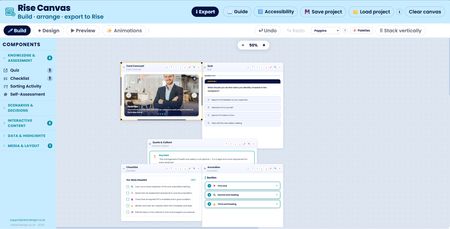

Well a long flight from London to the USA yesterday, on a flight with starlink 🤯, gave me plenty of time to work on Rise Canvas. In particular, working on some of the trickier coding I’d been putting off.
This update is mostly one big feature, rolled out across the whole tool, plus the run of fixes that came out of testing it! It solves a problem that’s been quietly limiting Rise Canvas since the start - images, video and audio uploads🤨.
Until now, every image you added to a component was embedded directly into the exported HTML as base64. That works, and it keeps everything self-contained, but it has a hard ceiling. Base64 inflates a file by about a third, and a couple of photos can balloon a component to a size that Rise code blocks will scream at you. For a logo or a small diagram it’s fine; for real photographs it isn’t. Some users were uploading huge png files then wondering why Rise didn’t like it!
So there’s now a third way to add an image, alongside uploading a file or pasting a web address, you can simply type a filename of an image, audio clip or video held in your local storage. If you enter something like diagram.png, the component exports a relative reference to that file rather than embedding it. You then bundle the image, audio or video alongside your exported HTML in a zip and upload it to Rise using the code block’s “Upload project” option, which serves the files together so the reference resolves. There’s no size limit this way, a full-resolution photo is no heavier in the export than its filename.
To make that workflow clear, every image field now has a small information link that opens a short guide laying out the three options, upload, web address, or filename with the full step-by-step for the zip-and-upload route. And to stop oversized uploads catching people out, there’s now a 200KB guard on file uploads, try to embed something larger and it’s blocked with a friendly explanation of the better options, rather than silently bloating your export.
The genuinely time-consuming part was getting this working consistently across all sixteen components that take an image, because they don’t all handle images the same way. Some place a picture as a banner, some as a background, some as a draggable thumbnail.
There was also a fix to the canvas itself. When you edited a component that already lived on the canvas and changed an image filename, the canvas occasionally held onto the old version of the block rather than re-rendering it. It now forces a clean refresh whenever you replace a block, so a change you make in the builder always shows up on the canvas.
Thats it for this update; enjoy building!

Hi DShaw! Congratulations on the development of RiseCanvas. I've been testing it, and it really caught my interest, especially the editing features that make it possible to create more visually engaging content blocks. I'd like to take this opportunity to ask you a question and share a suggestion.
First, are the free exports intended to renew after a certain period of time, or are they a one-time allocation?
Finally, I think the blocks would become even more versatile if it were possible to add audio not only to the dedicated Audio block, but also to the "Knowledge & Assessment" and "Interactive Content" blocks. That would open up many more possibilities for creating richer and more engaging learning experiences.
- DShaw2 months agoCommunity Member
Hi & thank you for your kind words… you can add an audio component to the canvas along with any of the other components. If you want the player to remain hidden and autoplay, you could choose the audio player style of your choice and place it underneath your component of choice to hide it with autoplay set. Alternatively if you want the learner to select the audio to play manually, align the player on the canvas along with your chosen component. The 5 free exports is intended as a preview of the app.
Related Content
- 1 year ago
- 1 year ago