Forum Discussion

Rise Reflection Block Builder
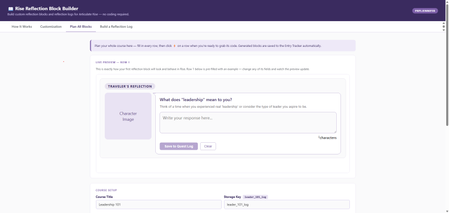

Great resource, thank you! There is an issue with preview in mobile preview vertical.

For the broken character image- did you provide a public link to the image you'd like to have there? If you plan to use the zip file method, you won't be able to see the character preview.
That said, I'm not sure how practical the mobile view will be, other than using it to preview. I don't think you'll be able to do anything with the code generated on the phone since you need a desktop browser to create the code block.
Please do let me know what settings you used, and I'll check to see if something needs to be updated.
Thanks!
- PJ8884 months agoCommunity Member
Super speedy reply PrplJennifer!
I didn't add a a character, as I have a Vyond asset I want to use. How can I remove that broken character image?
And sadly you are correct, I need to to be usable across computer and phones, so wont be able to use it.
Thank you though, it is a good set up if only a computer is needed for the user.
- PrplJennifer4 months agoCommunity Member
Ah - let me clarify a couple of things.
1) To remove the character from the Reflection question, choose Standard for your Block Type in the first column of the grid. Initial is the one that uses an image.
If this is the Reflection Log preview, then choose the No image option on the Build a Reflection Log tab in the Character Image section.2) This particular tool is for the Developer to use to create the Reflection Blocks in Rise, for which you need to access Rise on a desktop computer. The resulting course would contain the Reflection Block, and it will work on a mobile device.
So the preview that you are seeing is what it would look like on a mobile device, once the code has been copied into a Rise Code Block.
Please let me know if this helps. :-)
- PJ8884 months agoCommunity Member
Sorry to be a pain, but I cant see to get the reflection log to load all the entries at the end. It is selectable but it doesn't show them all together.
Also- the Save reflection to PDF button doesn't work for me, even in preview mode. I can Ctrl P and get a PDF version though .
Would love your help!
- PrplJennifer4 months agoCommunity Member
Can you share a screen shot of what is happening?
Order of operation should be:
1) On Plan all blocks - fill in the grid.
2) For each block, click the lightning button to generate the code and add the block to the tracker
3) For each block, click the green copy code button and add it to your Rise Code Block
4) Check the Entry tracker to make sure all blocks are listed and numbered correctly.
5) On the Build a Reflection Log tab, check the Course Title, Storage Key, and Character Image. Add Creator/Brand Name and Website URL if you want them to be added to the Reflection Log footer
6) Click the Load from Tracker button to pull the Reflection Block entries in
7) Click Preview Reflection Log
If you can see the entries in the log but the preview button is shaded, it's because there are no responses. It won't print a log with no responses. For preview, you can get around this by going back to the Planning tab and submitting a response in the example at the top of the page. Then regenerate the preview and the Print button should be available in preview. If you've already got everything in Rise, I recommend that you always add a response when you're testing the code.
8) Click Generate Reflection Log Code and copy it to your Rise Code Block
(Retest)
Please let me know if this helps. I know coding can be complex, so I'm hoping to make this as easy as possible.- PJ8884 months agoCommunity Member
1. Think I have completed this correctly. Generated the codes and upload to Rise no problem.
2. Noticed with the Reflection log, when try to 'Load from Tracker', I get this
3. Use the 'Paste tracker Text' works ok. I generate the code for the Reflection Log
4. Upload to Rise and preview...no answers being saved in final reflection log
Related Content
- 10 months ago
- 7 months ago