Tutorial
663 TopicsArticulate Localization: Overview
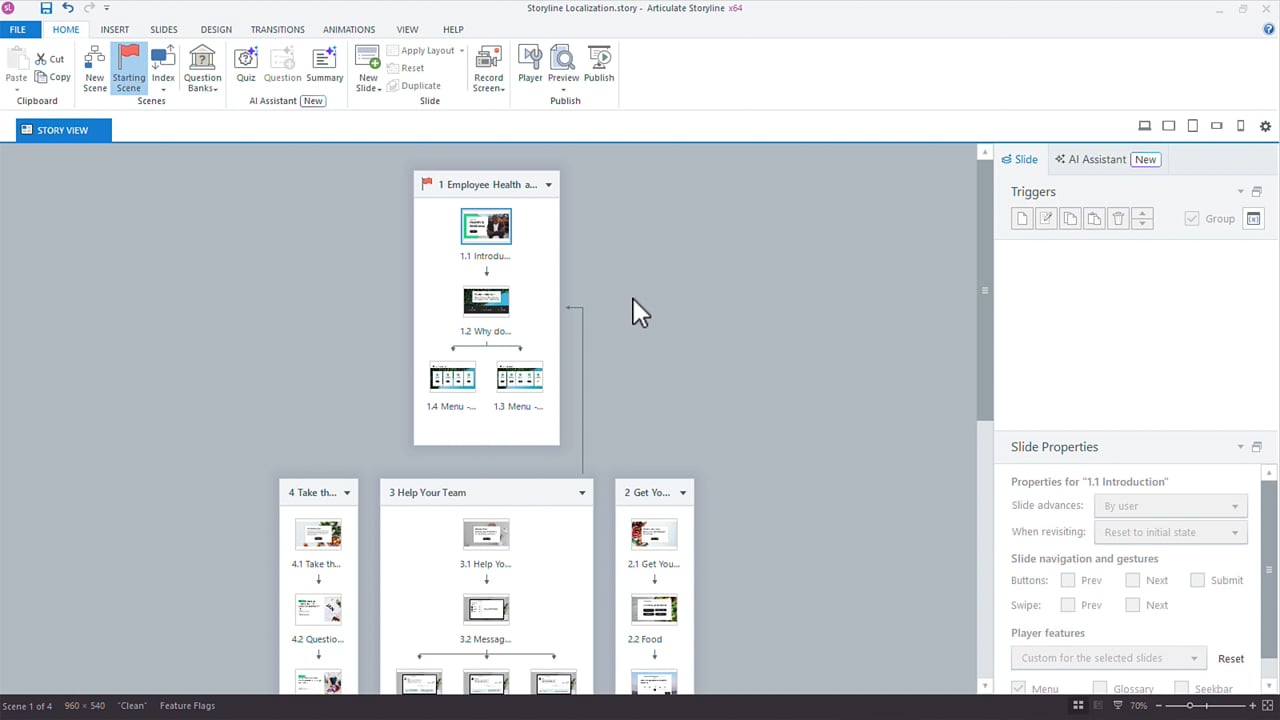
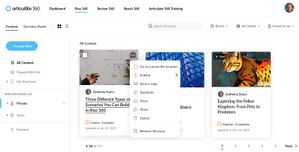
Develop high-quality localized courses seamlessly with Articulate Localization, a localization solution integrated right into Articulate’s unparalleled authoring platform. This overview covers the basics of Articulate Localization and explains how to access it. What Articulate Localization Does What Languages Are Available What Gets Translated How to Access Localization What Articulate Localization Does Articulate Localization helps you upskill your global learners more quickly and efficiently with three primary processes: One-Click AI Translation Instantly translate Rise 360 and Storyline 360 courses into 80+ languages with fully integrated AI translation. Upload custom glossaries to maintain consistency and incorporate specialized terminology. In-Context Language Validation Verify the accuracy of localized content with a new language validation experience in Review 360. Validators can preview their changes in context, and authors can import them directly back into the source project. Multi-language Workflow Management Streamline end-to-end localization for your Rise 360 and Storyline 360 courses. Manage all your languages in a single project, keep track of the validation process in Review 360, and publish all languages at once to Reach 360 or your LMS. What Languages Are Available Translate your content into over 80 languages, including certain regional variations such as Canadian French and Brazilian Portuguese. Afrikaans Finnish Lithuanian Sinhaha Albanian French (Canada) Luxembourgish Slovak Amharic French (France) Macedonian Slovenian Arabic (Modern Standard Arabic) Georgian Malay Somali Armenian German Malayalam Spanish (Latin America) Azerbaijani Greek Maltese Spanish (Mexico) Bangla Gujarati Maori Spanish (Spain) Bosnian Haitian Creole Marathi Swahili Bulgarian Hausa Mongolian Swedish Catalan Hebrew Nepali Tamil Chinese, Simplified Hindi Norwegian Telugu Chinese, Simplified (China) Hungarian Norwegian Bokmål Tetum Chinese, Traditional Icelandic Nyanja Thai Chinese, Traditional (Taiwan) Indonesian Pashto Tigrinya Croatian Irish Persian (Iran) Turkish Czech Italian Polish Ukrainian Danish Japanese Portuguese (Brazil) Urdu Dari (Afghanistan) Kannada Portuguese (Portugal) Uzbek Dutch Kazakh Punjabi Vietnamese English (UK) Khmer Romanian Welsh English (US) Korean (Standard South Korean) Russian Estonian Lao Samoan Filipino (Tagalog) Latvian Serbian Note: Many languages available for one-click translation also offer different degrees of formality. Articulate Localization defaults to Automatic, which determines the best formality level based on your content. However, you can adjust the formality of the translation based on your organization’s communication style. Tool Tip: Use our language lookup tool to see which target languages are supported for your source language and if the language pair supports glossary, formality, and right-to-left. Here’s how to use it: Launch the language lookup tool in a separate browser window. Select your source language from the Select a Source Language dropdown. A table displays all the supported target languages for the chosen source language with columns for glossary, formality, and right-to-left. A green checkmark in these columns means the corresponding target language supports it. What Gets Translated The following chart explains which parts of courses are translated and how: Part Behavior On-slide text, including slide notes and text variable values (Storyline 360 only) Automatically translated Block text (Rise 360 only) Automatically translated Closed captions (video, audio) Automatically translated Text-to-speech narration Automatically translated in Storyline 360. AI text-to-speech is automatically translated in Rise 360. Text labels in Rise 360 and player text labels in Storyline 360 Default text labels for each target language are automatically assigned. Custom text labels are not translated. However, in Rise 360, you can assign custom label sets to individual language versions after translation. Alternative text Automatically translated for customized alternative text but not default alt text generated by the app Question banks Questions drawn from question banks are translated together with the course. How to Access Localization Articulate 360 primary admins and 360 admins can start a free trial by clicking the Start a Trial button under the Localization section of the Manage Subscription page. To purchase directly, contact our sales team. During a trial, all creators are automatically given the ability to translate content in Rise 360 and Storyline 360 and start the localization workflow. Primary admins and 360 admins can remove an author’s translation access via the Localization section on the Manage Team page. Translation access settings are retained when purchasing from a trial. When Localization is purchased directly without a trial, creators aren’t given the ability to translate by default. A 360 admin must navigate to the Manage Team page to grant translation access to specific creators. Those creators must start any localization workflows. Once Articulate Localization is enabled, creators with translation access immediately see the Translate option when they click the more (...) icon of any content tile in the Rise 360 dashboard. If it’s not showing right away, simply refresh the page. For Storyline 360, creators with translation access see a Translate Course option when they navigate to File > Localization. They must use Storyline version 3.94.33593.0 or later. Here’s how to check the Storyline 360 version and how to update to the latest version of the app.17KViews27likes0CommentsArticulate Localization: Create Multi-Language Rise 360 Courses
With Articulate Localization, you can translate course and microlearning content into 80+ languages and manage all the language versions as a single project, right from the Rise 360 dashboard. Watch the video to learn how to translate and share the translations with validators. Then read on for more details on managing multi-language courses. Translate a Course Early-Access Course Stacks Translate Text Updates Manage Languages Add or Replace a Language Remove a Language Capture Course Stack Versions with Snapshots Save a Copy of a Language Localize Media Assets Localize Video Assets With Closed Captions Localize Audio Assets With Transcripts Generate Translated AI Text-to-Speech Tips Add Collaborators Localize Video and Audio Assets Understand Question Banks Include Right-to-Left Languages Translate Storyline Blocks for Use in Rise 360 Courses Translate a Course Before translating your course, run through this checklist to avoid common issues. Prepare your course for AI translation with the following best practices: Avoid using all caps to emphasize certain words. AI translation often interprets this as an acronym and won’t translate it. Avoid splitting a sentence into multiple text blocks, as this removes necessary context for effective translation. Avoid using emojis. Their meanings can vary across cultures, and machine translation tools may not interpret them accurately. Use proper grammar. Simplify formatting. Complex formatting can create challenges for all forms of AI translation. Here are some best practices: Don’t format spaces. Let Rise 360 handle text wrapping. Using shift+enter to manually insert line breaks will impact other languages, where it won’t always be appropriate. Scan through your content one more time for terms that might need to be added to the AI translation glossary. The glossary specifies how terms are translated—or not translated. For example, you might have a specific term for “service” in a particular language. Or you may want to make sure your brand name does not get translated. Include closed captions with video assets, and add transcripts to blocks with audio so they can be translated automatically. If you have AI Assistant and the target language is supported, add your narration with AI-generated text-to-speech to automatically generate translated versions. Once you’ve double-checked your course, follow these steps to get started with Localization: In your dashboard, hover over the content tile for the course you want to localize, click the more (...) icon, and select Translate. A translation dialog will appear. You can confirm the source language, select one or more target languages, and adjust the formality if the languages support that option. Choose a glossary for the translation run. This glossary will be used for all succeeding translations for this course, including updates. Click Translate. Rise 360 will create a multi-language course with all the language versions presented as a single course “stack”. The course stack tile on the dashboard indicates how many languages are in the stack, as shown below. Multi-language courses share the same theme and structure. If you add, move, or delete a block, lesson, or section in one language, those changes will apply to all other languages in the course. Other factors to note: Clicking the tile opens an overview page that lists all the current languages in a sidebar and allows you to preview each language. Click EDIT COURSE to make changes to any language version. The language dropdown on the top left lets you switch between languages while authoring, as shown below. Here are some guidelines to keep in mind when choosing a language from the dropdown: Stay in the source language if you want to make changes in all languages, such as updating course content, adding new blocks, lessons, or sections, and changing themes. Switch to a target language if you want to make language-specific changes, such as replacing media assets, editing existing text, and changing course labels. Custom label sets are not translated, but translated courses will automatically have default label sets for each target language. If you prefer to use custom label sets, you can assign them to individual language versions after translation. Similarly, code blocks will be the same across all languages after translation. You can have language-specific code blocks by modifying the code for each language after translation. If you accidentally choose the wrong glossary, translate the course again and select the current languages to enable the Glossary field. Custom blocks are not currently supported for Localization. Early-Access Course Stacks Multi-language courses created during our early-access program will have an [Early Access] tag on the course tile and course stack. This older version has the following differences: When you add languages to a Rise course, each translated language becomes a separate copy of the original course, so changes you make to one language version will not affect other languages. To edit an individual language, switch to it in the sidebar and click the Edit button in the top navigation bar. Any changes you make affect only the language you are currently editing. There’s no option to translate updates to the source language and publish a single-package, multi-language output. Learn more about the early-access version of multi-language Rise 360 courses. Refer to this user guide when working on this version. Translate Text Updates Rise 360 detects text changes made to your source language after the last translation run. It allows you to translate these changes without affecting other portions of the course. If the unchanged portions have imported validation suggestions, these will be preserved. Here's how it works. Update existing text or add blocks to your source language. A blue notification dot appears on the language dropdown on the top left. Click the language dropdown and select Back to Stack. From the course stack, click Update Translation to translate only the text updates you made for all existing target languages. When the translation run completes, the Update Translation option disappears. Additional information: Text updates are determined by translation units called text segments. A text segment breaks down the source text into smaller parts while retaining its meaning in context. Segments can vary in length and structure—from single words to complex sentences or even short paragraphs, depending on context. In Rise 360, a segment is typically the text in a block. Any text change in a segment will retranslate the whole segment. You can see how your course is broken down into segments when you publish to Review 360 and view the translation table. If your course has already been validated, follow the tips in this article to request validation for only the updated content in Review 360. Importing validation suggestions or updating text in the target languages will not enable the Update Translation option. Adding blocks, lessons, or sections to any target language will also apply to other languages, but they won't get translated. If you accidentally added them to the target language, simply delete them and recreate them in the source language. You can’t duplicate or send a copy of the multi-language course until all pending translations are updated. Translating updates within the same Articulate 360 subscription contract term does not affect your total purchased translation. Manage Languages You can add or remove languages from a multi-language project and create snapshots at any time. You can also save a copy of a language as a separate course. Add or Replace a Language To add or replace (retranslate) a language, re-run the translation tool by selecting Translate from the stack tile option in the dashboard or clicking Translate at the bottom left of the stack overview. If the language exists in the course stack or the Archived Translations folder, click Translate again to overwrite existing versions. Note: Retranslating or using AI translation for existing languages in a multi-language course within the same Articulate 360 subscription contract term does not affect your total purchased translation count. However, if you duplicate the multi-language course or send a copy to someone else, any new translations on the copy—including translating text updates—will be counted. Remove a Language To remove a language, click the ellipses (...) beside the language from the stack overview, and choose Archive. The language moves to the Archived Translation folder at the bottom left. You can restore or permanently delete the language from the Archived Translation folder. Retranslating archived languages will also permanently delete the versions in the Archived Translations folder. Capture Course Stack Versions with Snapshots Create and manage snapshots of your multi-language courses by selecting the Snapshots menu next to the course title in the course stack overview page. Similar to single-language snapshots, versions are automatically generated whenever you publish a multi-language course. You can also save different versions and restore them as needed. Key points to remember: Snapshots are not available in early-access versions. Snapshots created before you translated the course are still included. While you can't revert to these pre-translation versions, you can save them as a new course or microlearning. Restoring an earlier version won't impact your translation count. If any languages are removed during a restore, retranslating them is free, as long as you do this within the same billing period. Save a Copy of a Language To save a language as a separate course or microlearning, click the ellipses (...) beside the language from the stack overview, and choose Save as. Give the copy a name and click Save. The copy is saved in the same folder as the multi-language project and includes the default label set for the corresponding language. The label set is also added to the list of built-in label sets under Course Settings. Localize Media Assets Images, audio, and video assets will be the same across all languages after translation. Any changes you make to the media—such as alt text or image alignment—in the source language will be applied to all target languages. You can have language-specific media by modifying the media asset in the target language. Remember that editing a target language disconnects the asset from the source language, so any changes made to the source won’t be applied moving forward. For audio assets, you can reset the target language audio by clicking the Options (...) icon on the right of the audio player and selecting Revert to source audio. Localize Video Assets With Closed Captions Localize video assets automatically by adding closed captions before translation. Captions translate along with other course text when you add new languages. They’re also included in the validation process when you publish to Review 360 for validation. Validators can play the video and click the CC button to display the captions. Learn how to add closed captions to videos. Localize Audio Assets With Transcripts For blocks with audio, you can add transcripts after recording or uploading your narration. These transcripts will be translated automatically. To include a transcript: Enable the Transcribe audio file toggle when you upload or record audio. Or, generate text-to-speech with AI Assistant, which automatically includes transcripts. Read on for instructions on using AI Assistant to generate audio and transcripts. Generate Translated AI Text-to-Speech If you have AI Assistant and the target language is supported, you can generate translated, AI-generated text-to-speech when translating your course. Here’s how: Generate text-to-speech narration with AI Assistant. Translate your course or microlearning to generate text-to-speech narration for supported target languages. If you need to modify the narration, recreate it in the source language. Then, click the language dropdown and select Back to Stack. From the course stack, click Update Translation to generate narrations for the target languages. When you publish your course to Review 360 for validation, validators will be able to see the text-to-speech scripts as they review the whole course. If there are edit suggestions for the script, importing suggestions generates a new text-to-speech audio file with the suggested text. Note: Text-to-speech translation is currently in beta. Functionality may change over time. Based on feedback and feature stability, some options could be modified and others removed. Tips Add Collaborators You can add collaborators to your multi-language course in three ways: Click Share > View collaborators from the course stack or while editing the course to add them via course settings. From your Rise dashboard, hover over the content tile for the course, click the More (...) icon, and select Share to add them via share settings. If the course already has collaborators, a Share Settings option displays instead. Hover over the content tile for the course from your Rise dashboard, click the More (...) icon, and select Move to move the course to a team folder. Everyone who has collaborator access to the team folder you choose will have the same access to the course. You can add anyone with an Articulate 360 Teams subscription, but they must be on a subscription with Articulate Localization to access course stacks. Note that course managers and editors can view and edit multi-language courses. However, only course managers can manage languages. Course managers can also initiate course translations or add new languages if they have translation access within the same subscription. Collaborators without access to Articulate Localization can’t access the course stacks, but course managers can save separate copies of each language to their account when they try to launch the course stack. Understand Question Banks Questions drawn from question banks are translated together with the course. When publishing to Review 360 for validation, we recommend including all the questions from the question bank so validators can review them. Learn more about using question banks in knowledge checks and quizzes. Include Right-to-Left Languages Rise 360 supports multi-language courses with both left-to-right and right-to-left language versions. In edit mode, right-to-left language versions are in a left-to-right layout, but they will automatically adjust to right-to-left layouts when the course is previewed, reviewed, or published. Translate Storyline Blocks for Use in Rise 360 Courses Storyline blocks must be translated and validated through Storyline 360 before the translated versions can be embedded in Rise 360 content. Here’s one approach we suggest: Finalize your Rise 360 course and Storyline blocks in your source language. Translate, validate, and import suggestions for the Rise 360 course in Rise 360. Translate, validate, and import suggestions for the Storyline blocks in Storyline 360. After completing the Localization workflow in Storyline 360, publish the final version of the multi-language Storyline course to Review 360. Embed each Storyline language version to the corresponding language in the Rise 360 course. Follow these steps: Launch the Rise 360 course and click Edit Course. Click the language dropdown on the top left and select one of the target languages. Navigate to the Storyline block and click the pencil icon to edit. When the sidebar opens, click Change and select the Storyline course for this language. Each language version will have the title suffixed with the language code, such as “Onboarding Course - FR” or “Onboarding Course - DE.” If you use a single Storyline file for multiple Storyline blocks, you can publish the whole project to Review 360 for validation. Consider these options to ensure your validators are aware of the different slides/scenes: Instruct them to use the course overview navigation dropdown in the Translation tab in Review 360. (Note: The Translation tab isn’t available in the source language.) Enable the Storyline 360 player menu during the validation process. After validation, hide the player menu and republish the final version for embedding these scenes/slides as Storyline blocks. To publish slides or scenes as separate Review 360 items, save each language as a separate file—including the source language—to turn them into single-language project files. The Review 360 items can then be inserted as separate Storyline blocks. However, localization features like course updates, language validation, and multi-language workflow management won't be available for these copies.13KViews18likes0CommentsRise 360: Deploy Content Rapidly with Quick Share
Sharing Rise 360 training with a quick share link is easy. Quick Share is a lightweight distribution tool for rapidly sharing everyday training. It also offers a per-course dashboard that collects training views and, when the guestbook function is enabled, the names and emails of learners. Anyone can access content with a quick share link by simply copying and pasting the URL into a browser. Learners are taken directly to the content and can either start the training immediately or access the training after providing a password, guestbook information, or both. If your course is offered in multiple languages via Articulate Localization, users will be able to select an available language. Keep reading to learn more. Publish with Quick Share Access Engagement Metrics FAQs Publish with Quick Share Publishing a quick share link is available to course owners and managers only. Open the content to share from the Rise 360 dashboard. From the course outline or microlearning, click Publish in the upper right corner of the screen. Select Quick Share. At a glance, you'll see what settings are enabled. Skip to the final step if you don't wish to modify the defaults. To require a password to access the training, select the password status, enter a password, and then click Save. Learners won't have access to the training unless they enter the password whenever they use the quick share link. To disable the guestbook, click the guestbook status, toggle the guestbook Off, and click Save. This requires learners to enter their name and email address each time they access the training. To have quick share content update automatically as creators make changes, select the Live Updates status, toggle on Enable live updates, and click Save. Click Copy link to share the URL with your learners. Tip: Articulate Localization users, set the default language by navigating to that language in the stack and publishing to Quick Share from there. Learners will still be able to choose their preferred language. Update Quick Share Content When live updates are disabled, learners don't see content changes until they're published. When a creator makes changes to training shared via Quick Share, a blue dot appears next to the Publish menu. Another blue dot appears next to Quick Share. To make changes visible to anyone with the quick share link, select Quick Share and click Publish updates. Access Engagement Metrics Course owners and managers can view the number of learners who have viewed content by opening the Publish menu. The view count and number of guestbook entries are listed on the Quick Share option. Select Quick Share and click View engagement to see your Guestbook. Guestbook entries are sorted by view date, with the most recent views at the top. If a learner visits your training more than once, only their most recent visit is noted in the guestbook. Click Export to download a CSV file that includes learner names, email addresses, and the date they last viewed the training. Note: The view count includes repeat views by the same learner. You may need to refresh your training view to see the latest engagement information. FAQs How is Quick Share different from Reach 360? Quick Share is a lightweight distribution tool to rapidly share everyday training when robust reporting and learner management isn't required. Reach 360 is a full-featured learner and content management distribution platform with deep analytics. It supports advanced publishing options such as completion criteria and certificates, and it tracks learner progress. What if I already have Preview links for my content? If you've previously shared your content via a Preview link (also known as share links), those links will still work. However, they won't gather engagement information until you publish an update and distribute that new link as a quick share link. Please note that Preview links viewed prior to the Quick Share feature aren't included in the view count. I have a trial account—can I use Quick Share? Quick Share is available to anyone with an Articulate 360 account. However, during your Articulate 360 trial, external links and code blocks are disabled in content shared via Quick Share. How is Quick Share different from an LMS? Quick Share doesn't require a third-party platform to distribute content. Anyone can see a shared training without having to log in or create an account. However, advanced LMS features such as certification and centralized reporting aren't available when distributing via Quick Share. Can I embed content on my webpage using quick share links? No. If you embed a quick share link on your webpage (usually done by inserting the quick share URL into iframe code), the content won't display. We recommend publishing a web package if you need to host the content on your own server. Can I share quick share links outside of my organization? Will non-Articulate customers have to sign up for an account? Quick share links can be shared with any learner, not just members of your organization. These links take learners directly to the content without needing to sign in. Is there a way to log who views my quick share links? The guestbook is enabled by default for quick share links. When enabled, learners must enter their email, first name, and last name to access shared training. View learner information by selecting View engagement on the Quick Share screen for your training. Is there a limit to how many learners can view training via Quick Share? At this time, there are no limits on the number of learners who can view training accessed via Quick Share. Do quick share links expire? Quick share links expire only when the associated training is permanently deleted or when the subscription is deactivated.9.9KViews8likes0CommentsRise 360: Preview Content
Preview Rise 360 content at any time to see how it looks. It’s simple, responsive, interactive, and contextual. Simple Click the Preview button in the upper right corner of the editor to switch to preview mode. When you’re done, click Edit to exit preview mode and return to the editor. Responsive Click the device icons in the upper right corner to see how your course looks on computers, tablets, and smartphones. It’s fully responsive and adapts to each screen size and orientation beautifully without any extra work. Interactive Click through features, such as labeled graphic markers and accordion interactions, in the same way learners will experience them. Contextual For courses, if you’re on the course outline when you preview, you’ll see the entire course. If you’re editing a lesson when you preview, you’ll only see that lesson. For microlearning, you'll see the entire training.5.5KViews5likes0CommentsRise 360: Manually Translate Your Content
This article covers the process of manually translating Rise 360 content into left-to-right languages using XLIFF exports and imports. This method is best suited for single-language translation. Articulate Localization, available as a subscription add-on, allows for seamless creation of multi-language courses within Rise 360. Learn more by visiting the Articulate Localization user guide, or contact our sales team to learn how you can add Articulate Localization to your subscription. Read on for the manual process. Duplicate Your Content Export the Content as an XLIFF File Import Translated Text Translate Your Labels Translate Training into Multiple Languages Step 1: Duplicate Your Content The first step in the manual process is to duplicate the content you want to translate. The duplicate you create is used for the translated version. On the Rise 360 dashboard, hover over the content you want to translate and click the ellipses icon that appears. Select Duplicate. Enter a name for the duplicate content. (We recommend using the original course title, appended with the language code, such as “fr” for French.) Then, click Duplicate to confirm. The duplicate content appears at the top of your Rise 360 dashboard. Note that you'll need to create a duplicate for every language you want to translate your training into. Alternatively, with Articulate Localization, you can translate your content into 80+ languages (including right-to-left languages) and manage all language versions as a single project stack, right from the Rise 360 dashboard. Step 2: Export the Content as an XLIFF File Open the duplicate content you created in the previous step. Click the Settings icon in the upper toolbar. On the Translations tab, expand Traditional XLIFF Translation. If you're following this guide, skip Steps 1 and 2. Under Step 3, if you don’t need to preserve formatting you’ve applied to your text, deselect Include HTML formatting. This exports your content in easy-to-translate blocks of text. However, it doesn’t contain the coding necessary to maintain any formatting you’ve applied to that content. Enter the source language in the Set source course language code field if it's something other than U.S. English (en-us). As you type, a list of available language codes appears. Click Export XLIFF File and save the file to your computer. Edit your exported XLIFF file with a web app, computer program, or professional translation service. If Include HTML formatting was selected, you'll see additional HTML tags and extra spaces in your exported XLIFF file. These are there to preserve your formatting when you import your translated file. The following can't be translated using manual XLIFF exports: Code blocks: modify the code for each language after translation. Question banks: Questions drawn from question banks included in knowledge checks and quizzes display in their original language. To translate question banks, add Articulate Localization to your subscription. Tip: Rise 360 uses XLIFF version 1.2. Step 3: Import Translated Text Once you've translated your content, import the file back into Rise 360. Open the duplicate content. Click the Settings icon in the upper right corner. On the Translations tab, expand Traditional XLIFF Translation. Under Import, click Import Translated Text. Select your translated XLIFF file and click Open. A message displays when your text is successfully imported. Why am I seeing an error? If you see an error message that says the “Translation file doesn’t match this content,” make sure you’re in the content from which you originally exported your XLIFF file. The XLIFF file is content-specific, so it can't be exported from one piece of content and imported into another. If you see a different error, the XLIFF file may be incomplete or corrupt. Download a fresh copy of the file and try again. Where did my formatting go? If you deselected Include HTML formatting in step 2, any formatting you applied to your content prior to importing the translated file is not retained. Let us know if you have any questions. We’re happy to help! Step 4: Translate Your Labels Once your content has been translated, translate your buttons and other built-in navigational elements. Click Settings in the upper right corner. Select the Labels tab. Follow the instructions in this article. Note: In order for the correct language to be assigned to your training so that assistive technologies can communicate the content with the correct presentation and pronunciation, labels must use the same ISO language code as your translated content. Translate Training into Multiple Languages For multiple-language training, we recommend Articulate Localization. Not only does it provide a streamlined experience for translating training into multiple languages, but it also offers a deep set of features custom-built for your translation needs. Contact our sales team to learn more.28KViews4likes0CommentsRise 360: Use Your Dashboard to Manage Content
Create fully responsive e-learning content with Rise 360, an easy-to-use web app included with your Articulate 360 subscription. There’s nothing to install, so you can get started right away. U.S. and EU creators access Rise 360 by signing in to https://articulate.com and clicking Rise 360 on the navigation bar at the top of the screen. (Click here for a list of supported web browsers.) Note: Rise 360 users can collaborate with and send copies of courses to other Rise 360 users in the same regional data center. However, Rise 360 users can’t collaborate with or send copies of courses to Rise 360 users in a different regional data center. Learn more about our EU data center. Let’s explore the Rise 360 dashboard. Check out the video below for a guided walkthrough. Then take a look at the following image and refer to the table below to learn about each feature for managing Rise 360 content. Click image to view larger Header Feature/Location Description Switch Apps Switch to another app—collaborate with stakeholders in Review 360, take and manage training in Reach 360 (if available), register for Articulate 360 Training webinars, or return to your Articulate 360 dashboard. Edit Your Account and Update Your Profile Click your avatar to edit your account, update your profile settings, or sign out of Articulate 360. Select Deliverable Type The Content tab is selected by default. Click Question Banks to access your and your team's question repositories. Change the Layout View your content tiles in the default grid layout or switch to list view. Search Quickly find created or shared content by entering the title and pressing the enter key. Change the Sort Order Sort content by date or alphabetically by title. Rise 360 remembers your choice the next time you open your dashboard. Filter by Content Type View all types of content or filter to see only courses or microlearning content. Filter by Owner In a folder with team or shared content, filter content by author. Left Sidebar Feature/Location Description Create New Click to create a new Rise 360 course or microlearning. All Content See all your training, including content you're working on with other team members. Shared With Me Quickly access training on which you're a collaborator. My Shortcuts Bookmark private and team content you don't want to lose track of and organize it into folders. Private Work on content you aren't collaborating on with other team members. Create folders and subfolders to organize your content. Team Work on content you're collaborating on with your team or that's been shared with you. Move content to folders so it's easier to find and modify share permissions to manage content collaborators. External Connections (if available) Work on content with teams outside of your organization in the same regional data center. Deleted View recently deleted content and restore it or delete it forever. Main Dashboard Feature/Location Description Content Tiles As you use Rise 360, a new tile appears for each piece of content you create. Each tile displays the cover photo, title, lesson count, and last modified date. Articulate 360 Teams subscribers who collaborate on content will also see the owner's avatar on the course tile. Click a tile to open the content for editing and previewing. Learn more about creating new content Learn more about previewing content Hover over a tile, then click the ellipsis that appears to see options for managing the content. Tip: Collaborators' options depend on their role. Only course owners can delete content. Collaborators can remove themselves. Not every option appears for every piece of content. Reach 360 badge Conveniently tell at a glance if content is published to Reach 360 and if it's live or offline. Go to the current file location If viewing a shortcut, click to jump to the actual location of the content. Publish Quickly deploy content with Quick Share, publish content for Reach 360 (if available), or export your training for LMS distribution, web hosting, or PDF download. Only the course owner and course managers can publish content.) Send a Copy Send the source file to other Rise 360 creators. Only the course owner and course managers can send a copy of the content. If a creator sends a copy of the content back to you later, a new copy is added to your Rise 360 dashboard. Duplicate Duplicate existing content when you want to translate it or create new content with the same layout. Only the course owner and course managers can duplicate content. Move Organize content in folders so it's easier to find. You can also move content to a team folder to share it with other team members. You can move several items at once with multi-select. Share Add content editors and managers as collaborators. Delete Once deleted, content can be restored or permanently deleted from the Deleted folder. You can delete several items at once with multi-select. Only the course owner can delete and restore content. Collaborators can remove themselves. Add/Remove Shortcut In private or team folders, add content to or remove it from My Shortcuts. In My Shortcuts, move or remove content. Content Count Displays the total number of projects in your dashboard and the current range you're viewing. Only 16 tiles are displayed per page. Pagination Use this bar to quickly jump to another page of content or navigate with the Next and Previous buttons.29KViews4likes0CommentsArticulate Localization: Publish Multi-Language Storyline Projects
With Articulate Localization, you can effortlessly publish multiple language versions of a project in Storyline 360. For a fully integrated experience, publish your multi-language training to Reach 360 so learners automatically see content in their preferred language. If you’re publishing for LMS or web, you can choose between publishing a single package that contains selected language versions or separate packages per language version. How to Publish Follow the steps to publish a regular Storyline project, but note the following additional options when using Articulate Localization: Use the Language dropdown to choose whether to publish all or a subset of your course languages. Click the globe icon beside the Title to edit titles for other languages. Reach 360 If you’re publishing to Reach 360, all language versions are sent directly to your Reach account and packaged as a single training after you click Publish. Learn more about how multi-language training works in Reach 360. LMS and Web For LMS or web output, choose one of the following package types, then click Publish: Single package containing selected languages Separate packages per language Single Package Option The “Single package containing selected languages” option lets you upload one zip file to your LMS or one set of published files to your web server. When learners launch the course, they can choose their preferred language, as shown below. Separate Packages Option The “Separate packages per language” option creates a subfolder for each published language inside a main folder named after the project. You’ll need to upload or zip the content of each subfolder to your LMS or web server. Note for LMS output: Storyline 360 reports the language the learner chooses to the LMS. For both single and separate package output, the learner’s language code is reported in the following fields: AICC: cmi.learner_preference.language SCORM 1.2: cmi.student_preference.language SCORM 2004: cmi.learner_preference.language xAPI and cmi5: context.language If you need this information, check with your LMS admin to see if your LMS supports these fields. Cmi.student_preference.language, for example, is not a mandatory element in SCORM 1.2, so some LMSs might not support it. Video and Word If you’re publishing a video file or to Microsoft Word, Storyline creates one file for each selected language.1.8KViews3likes0CommentsStoryline 360: Hiding the Player Frame for a Chromeless Design
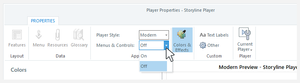
Want to turn off all the player features and hide the player frame to give your course a chromeless look? Storyline 360 can help with that! Here’s how. How to Hide the Modern Player How to Hide the Classic Player How to Hide the Modern Player It’s super easy to hide the modern player frame. Just go to the Home tab on the Storyline ribbon, click Player, then set the Menus & Controls option to Off. That’s it! Your course won’t have a player at all. You'll see a solid background color behind your course. You can change the page background color on the Colors & Effects tab in your player properties. When you turn off the menus and controls, it overrides the previous, next, and submit buttons for each slide in your course. And since your slides won’t have any built-in navigation buttons, be sure to add your own custom navigation features, such as buttons, links, or hotspots. How to Hide the Classic Player The Menus & Controls property described above only applies to the modern player. It’s grayed-out for the classic player. You can still hide the classic player frame. It just takes more work than the modern player. Follow these steps. Step 1: Turn Off the Player Features Go to Home tab on the Storyline ribbon and click Player. Go to the Features tab on the ribbon and uncheck all the player options. Step 2: Make the Player Border Transparent Also in the player properties, click Colors & Effects on the ribbon. Click the link to Show advanced color editing. From the Edit item drop-down list, select the following items and make them 100% transparent. Base >> Main Background Base >> Main Border Base >> Slide Background Step 3: Turn Off the Previous, Next, and Submit Buttons for Each Slide By default, each slide in Storyline will either have previous and next buttons or a submit button. You'll need to turn them off to make your player completely invisible. Go to Story View. Press Ctrl+A twice to select all the slides in your course. Uncheck the Prev, Next, and Submit boxes in the slide properties panel, and make sure all the player features are also unchecked. Be sure to add your own custom navigation features to each slide, such as buttons, links, or hotspots.1.9KViews3likes0CommentsReview 360: Use Comments to Give Feedback
While viewing a Review 360 item, use the sidebar to post feedback and participate in discussions along the way. Learn more about working with comments below. Read Comments Using the Comments Sidebar Using the Feedback Page Post Comments Inserting Emojis Tagging Other Reviewers Adding Attachments Annotating Screenshots Edit Comments Delete Comments Resolve and Reopen Comments Export Comments to CSV and PDF Files Disable and Re-Enable Comments Read Comments All reviewers can view comments. You can respond to or otherwise interact with comments using the comments sidebar or the feedback page. Read on to learn about each option. Comments Sidebar Feedback Page Using the Comments Sidebar The comments sidebar is in the default view for Review 360 items. This view allows you to see course content and watch videos. The comments sidebar displays comments for the content that’s currently displayed on the screen. For Storyline and Studio courses, comments are tied to specific slides, so the comments you see in the sidebar change as you move from one slide to another. For Rise courses, comments are lesson-specific, so the comments in the sidebar change as you switch lessons. For video content, all comments display in the sidebar simultaneously, with the newest thread on top. To see a comment in context, click its hyperlinked timestamp to jump directly to that point in the video. Brilliant! Collapse or expand the comment sidebar by clicking the arrow in the upper right corner. Sometimes it’s helpful to collapse the sidebar to have more space to view the content, especially on small screens. Hover your mouse over the edge of the sidebar and click and drag it to adjust the size. Reviewers who sign in with an Articulate ID see helpful badges for unread comments. A blue dot appears next to individual unread comments in the sidebar, and a red badge with the total number of unread comments appears next to the feedback tab at the top of the screen. Mark comments as read by clicking them, replying to them, or using the More (...) icon in the top right corner of the screen to Mark All as Read. Using the Feedback Page Click the Feedback link on the top right to launch the feedback page. This page lets you see all comments for a Review 360 item on one screen. Each thread has a screenshot to show you exactly how the content looked when the first comment was posted. These screenshots let you see feedback in context so you know what changes are needed. Click the screenshots to zoom in and out. You can change how comments are sorted for Storyline, Studio, and Rise courses. Click the sorting dropdown on the top right of the first comment to toggle between slide/lesson order and chronological order. Tips: Video content always displays comments in chronological order, with the newest thread on top. Comments for deleted Storyline 360 slides display below a "Scene not found" section. Post Comments All reviewers can add comments, emojis, @mentions, and attachments, and annotate screenshots. The process is the same for both the review and feedback tabs. Commenting on a Review 360 item is easy. Place your cursor in a comment box or reply field, type your comment or paste text from your clipboard, then press Enter on your keyboard or click the Post button. If you change your mind, click Cancel. When you start a new discussion thread, a screenshot of the content as it currently appears is automatically generated and attached to your comment. If you’re watching a video, the screenshot is captured as soon as you start typing. You’ll see these screenshots on the feedback page. Reviewers who subscribe to all comments will receive email notifications for new comments you post. And when you reply to an existing thread, you’ll see a list of reviewers who will be notified of your comment below the text-entry field. Tip: If you aren’t signed in to Review 360 with an Articulate ID, you’ll be prompted to enter your email address when you click inside a comment field. This allows you to receive notifications when other reviewers reply to your comments. (If you have an Articulate account, you’ll be prompted to enter your password.) Inserting Emojis Give your comments more personality with emojis. If you’re using a device with an emoji keyboard, simply tap the emojis you want to add to your comments. Or, click the emoji icon in the comment field and select emojis from the list. Tagging Other Reviewers Direct your comments to specific reviewers by tagging them. Here are two ways to tag people. Type @ followed by the person’s name or email address. A list of reviewers will appear as you type. Select the person you want to tag from the list. Click the @mention icon in the comment field and choose a reviewer from the list that appears. Who’s included in the @mention pick list? Great question! Everyone who has already commented on the current item appears on the list. And if you’re a member of an Articulate 360 Teams account, all your team members also appear in the list. Adding Attachments Add attachments to comments to keep your team on the same page. Attach images, videos, audio tracks, and more! To add an attachment, click the paper clip icon in the comment field, then browse to the file you want to attach. To download an attachment, just click it and choose where you want to save it. To delete an attachment, hover over it and click the X that appears. (You can only delete attachments that you uploaded.) You can attach up to five files per comment. Learn more about attachments. Annotating Screenshots When you want to provide more precise feedback, you can annotate the screenshot that’s included with your comment by starting a new thread discussion. Here’s how: Click the pen icon in the Comment field to take a screenshot. Use the tools in the toolbar at the top. Refer to the screenshot below and the table that follows for more information on each tool. Icon Function Grab Click and drag to reposition the toolbar. Draw Draw freeform lines and choose the stroke width. Highlight Draw semi‑transparent freeform lines and choose the stroke width to highlight an area without blocking the content. Rectangle Add rectangles to highlight words or regions and choose the outline width. Line Add straight lines and choose the line width. Text Add text for context and labels. Color Select an annotation color from the palette or enter a hex code, and then adjust the opacity as needed. To recolor an annotation: Select it and click the color icon. Undo Reverse the last action. Keyboard shortcut: Ctrl+Z (Windows), Cmd+Z (macOS) Redo Restore the last action that was undone. Keyboard shortcut: Ctrl+Y (Windows), Cmd+Shift+Z (macOS) Clear annotations / Delete selection Remove all existing annotations to start over. To delete an annotation: Select it and click the delete icon or press Delete on your keyboard. Other actions available: Move: Click and drag an annotation to reposition it. Resize and rotate: Click and drag the handles on the selection box of an annotation to adjust the size and rotation. Type your comment, then press Enter on your keyboard or click the Post button. The comment includes an “Annotated screenshot” badge to let others know there’s additional information in the screenshot. Edit Comments All reviewers can edit their own comments. Here’s how. Hover over your comment, click the drop-down arrow that appears, and choose Edit. Change the text, emojis, @mentions, and attachments as needed. See above for details. Press the Enter key or click the Post button to save your changes. Tip: If you don’t see a drop-down arrow when you hover over your comments, you’ll need to sign in to Review 360 with your Articulate ID or click inside a comment/reply field and enter your email address when prompted. Delete Comments All reviewers can delete their own comments. Hover over the comment you want to delete, click the drop-down arrow that appears, and choose Delete. Here are some tips for deleting comments: While all reviewers can delete their own comments, the content owner can delete any comment by any reviewer. When you delete the first comment in a discussion thread, the entire thread gets deleted. You can't restore deleted comments. If you need to refer to a comment later, try resolving it rather than deleting it. If you don’t see a drop-down arrow when you hover over comments, you’ll need to sign in to Review 360 with your Articulate ID or click inside a comment/reply field and enter your email address when prompted. Resolve and Reopen Comments Avoid confusion by resolving comments that have been addressed or are no longer relevant. Resolving Comments All reviewers can resolve comments. It’s easy! Hover over an individual comment or the first comment in a discussion thread, then click the checkmark icon that appears. Depending on your settings, the comment or thread will disappear or fade into the background. Tip: If you don’t see a checkmark icon when you hover over comments, you'll need to sign in to Review 360 with your Articulate ID or click inside a comment/reply field and enter your email address when prompted. Showing or Hiding Resolved Comments By default, resolved comments disappear. To see resolved comments, click the More (...) icon in the upper right corner of the screen and choose Show Resolved Comments. They’ll reappear with a faded or desaturated look so you can distinguish them from comments that are still open. To make resolved comments disappear again, click the More (...) icon in the upper right corner and choose Hide Resolved Comments. The show/hide setting is specific to each Review 360 item, so you can show resolved comments in one item and hide them in another. Review 360 remembers your choice, so you don’t have to reset it every time you open an item. Reopening Comments Sometimes you need to reopen a comment or discussion that was previously resolved. No problem! First, show resolved comments as described above, then hover over the comment and click the green check mark icon that appears. Export Comments to CSV and PDF Files Export comments from a Review 360 item for analysis, backup, or regulatory requirements. Here’s how. First, make sure you’re signed in to Review 360 with an Articulate ID. Then, click the More (...) icon in the upper right corner of the screen and choose Export Comments. Use the Comment Order drop-down list to choose how you want to organize comments in your report. Choose either CSV or PDF from the Export Format drop-down list. Click Export and choose where you want to save your report. All comments for all versions of the Review 360 item get exported to a single report. However, to include resolved comments in the PDF export, set the item to Show Resolved Comments first via the More (...) icon in the upper right corner before exporting. Disable and Re-Enable Comments Only the content owner can turn off comments. Here’s what happens when comments are disabled: The sidebar disappears from the review tab, and the feedback tab disappears altogether. If the review item already had comments, you won’t be able to read them unless you export them to a report. If the content owner enables comments again, all pre-existing comments will reappear. (Re-enable comments by clicking the More (...) icon in the upper right corner and choosing Enable Comments.)6.9KViews3likes0Comments