content library 360
118 TopicsCommunity Support for Accountability-Reported for Review
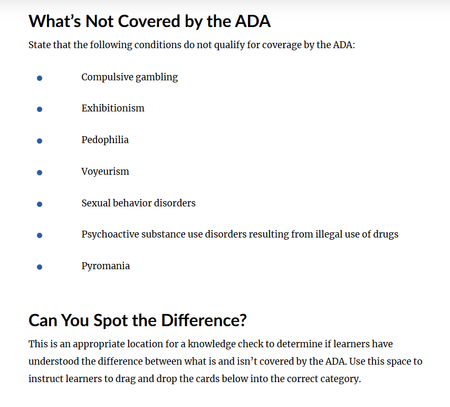
I am asking for community support for accountability to have Articulate change the language used in a course shell, using the example of pedophilia as a "condition" not covered by the ADA. While previewing the course shell for 'ADA Compliance for Employees', under 'Defining Disabilities' lesson, the attached screenshot is a list of examples of "conditions" not covered under ADA. I cannot fathom that whoever at Articulate created this content couldn't come up with ANY OTHER EXAMPLES. This content needs updated asap to include a list of appropriate reasonable "conditions" not covered by ADA. Disappointing content from an industry leader.88Views0likes1CommentWatercolor option missing in AI Image style
Recently I started projects in both Rise and Storyline and used Generate AI image to both create new images and alter uploaded images. Both were successful and did exactly what I wanted. Today when I want to continue, the Watercolor style option is missing. When I go to one of the created images I like, the text for the prompt has disappeared. I'm only give the option to create a new image, or alter the image with a fresh prompt. I know I should have copied the prompt for the watercolor style, but I didn't. Does anyone have the old prompt saved so I can put it in the "custom" style box. I'd like to contine with the consistent look and feel of the watercolor images. Thanks!69Views0likes2CommentsFeature Request: Restore Exact Date Timestamps in the Rise 360 Library
The recent Library update replaced exact date timestamps (e.g. "14 September 2026") with relative timestamps (e.g. "3 months ago"). For anyone managing a large course library, this makes it significantly harder to organise, audit, and locate content. This idea requests that exact dates be restored — or that users be given the option to switch between relative and exact timestamps. Why This Matters to the Community Many of us manage dozens or even hundreds of courses and rely on exact creation dates for filing, version control, and content audits. Since the switch to relative timestamps: Course creation dates are no longer visible. Relative labels like "2 months ago" shift every day, so there's no way to pin content to a specific date. Date-based filing systems no longer work. Anyone who organised their library by creation date has lost that workflow overnight. The current workarounds don't solve the problem. The "recently created" filter and the alternative view showing "days ago" still don't surface the actual date. The Ask Preferred solution: Restore exact date timestamps as the default display in the Library, as they were in the previous interface. Alternative solution: Add a user-level setting or toggle that allows users to choose between relative timestamps and exact dates. Minimum viable improvement: Display the exact date on hover (tooltip) over the relative timestamp, so users who need precision can access it without a full UI change. Articulate Support has confirmed there is currently no option to change the timestamp format or revert to the previous display, so a product-level change is needed.11Views0likes0CommentsRISE: New launch page w Library
We appreciate all the updates that Articulate has been making with custom blocks, and many, many other features these past 2 years. But today, under rigorous deadlines (our team), we are wishing we could revert back to the "legacy" UI for the opening of RISE (launch page). The new top layer (Library) seems confusing when one is in a dreadful hurry, and although I've clicked through many times today, it's not becoming intuitive, but confusing. In addition, I can no longer readily determine if I am in "Review 360" or "RISE authoring" whereas before, it was obvious, and easy to move around, know where I am. (New icons indicated "in review" or "published" have no meaning to us; but we realize every firm has their own preferred workflow.) (And yes, I do recall about 3 to 4 years ago upon a UI change involving folders, there was much controversy and we all adapted.) With changes so dramatic, I am wishing for a 'revert' to legacy UI button (like I've seen in other portals & dashboard). Nevertheless, totally regard Articulate as a top-notch software that keeps evolving, growing, and keeping up with change, innovation, and technology!65Views0likes0CommentsAI Image, Media, Prompt Library/History
Hi, I am relatively new to the e-learning/Articulate world and I haven't used Articulate as much as many others in this community. However, one of the things that I think could be a valuable asset to the AI assistant would be a library of any previously generated images or prompts. This would be valuable in a few settings that I thought of. Maintaining a certain image style throughout the course. Revising of other AI generated images/audio that has been added and then deleted from the course to be able to pick up where I left off with the prompt. Referencing previously well developed prompts that I would like to use again. Having the library or a history of my prompts would be valuable to help the forward momentum of the project instead of constantly starting over in the AI prompt. I understand I can simply save the images or prompts to a local drive or cloud storage. However, often times I forget or don't think to save them in the moment. I believe having this built into Articulate would make the usage more intuitive and user friendly. Thank you! Amanda Buzzell26Views2likes1CommentCourse Audio Translation Not Completing Successfully
We are facing an issue with course audio translation. The audio files are not getting translated completely, and the process stops with the error message: "Translation not complete." Has anyone encountered this issue? Any suggestions or guidance would be greatly appreciated. Thank you!AI Animation
I am normally a Storyline user, but I do use Rise to make AI animation. But recently when my animation in Rise is generated random words or shapes appear on the screen. I am not sure why or how to make it not happen. I am also wondering if I can create custom AI videos in Storyline yet? If so how? Thank you for all of your help. You can email me at mailto:[email protected] if you'd like.148Views0likes9CommentsAI text-to-speech voice inconsistencies?
Hi everyone, I'm working on a Storyline project that includes a customer service interaction. For one of the characters, I'm using the Zoe voice from the voice library (described as charismatic, gritty, and engaging). However, when using the v3 voice model, the voice intermittently shifts between the expected delivery and what sounds like a completely different voice with a strong Southern U.S. accent and noticeably different cadence. Occasionally, switching to v2.5 and then back to v3 temporarily resolves the issue, but the results are inconsistent. As a result, generating audio has become quite time-consuming and frustrating. I'm curious whether this is a known issue with the v3 model and, if so, whether there is a workaround or planned fix. Additionally, are there other African American female voices available within Storyline that are considered stable, long-term options and less likely to be retired from the platform? The options seem to be quite limited from what I've seen. Any insights or recommendations would be greatly appreciated. Thanks in advance!73Views0likes2Comments