storyline 360
366 TopicsStoryline: Interactive Timeline Template
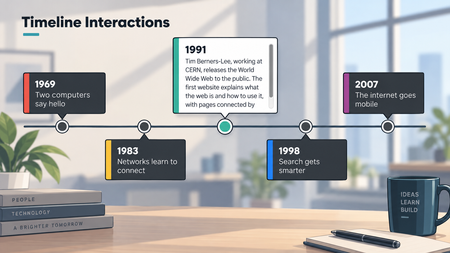
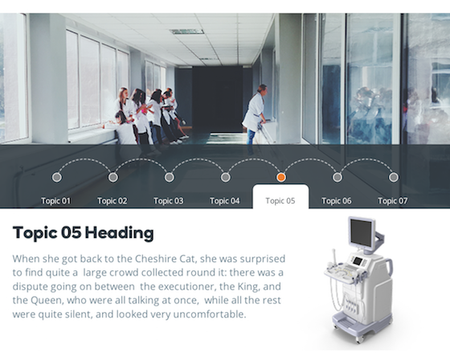
Here's a free timeline interaction designed and built in Storyline. One thing that's a little different in this build is how the text is applied to each closed and open card. Rather than using states and text boxes, you place the text directly on the shape, heading and body copy both. The shape's margins control the spacing and keep everything aligned. There are some nuances to this approach, but the benefit is rapid updating. View the interaction604Views3likes0CommentsStoryline: Gamified Quiz Template With Timer
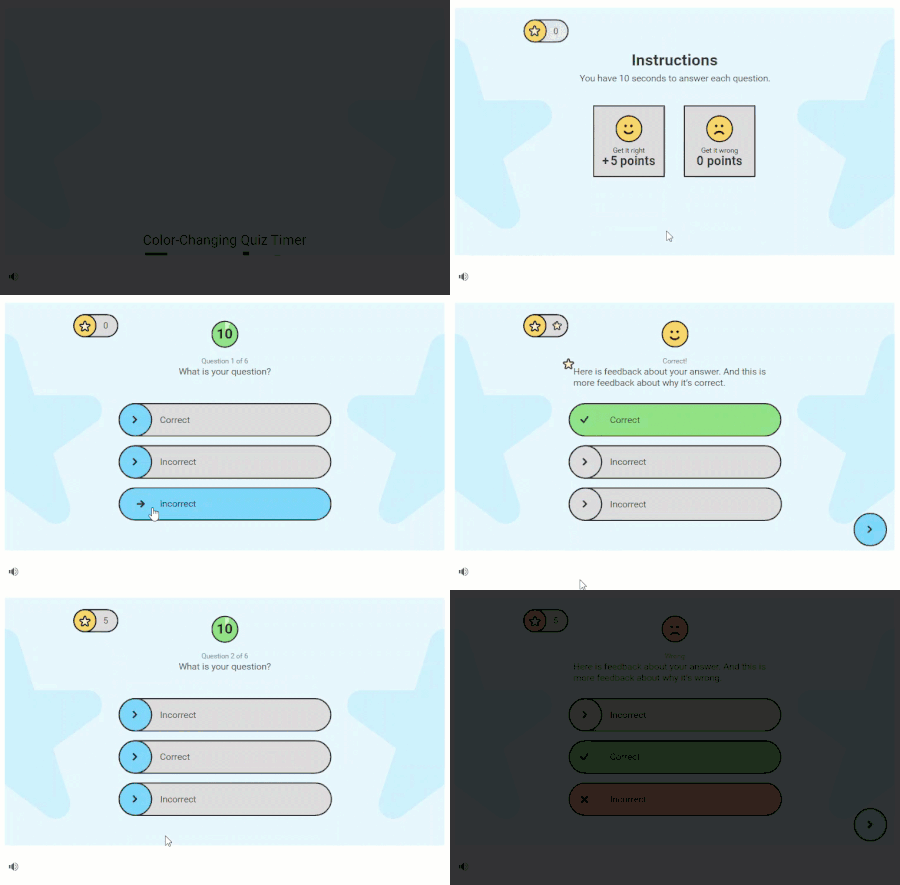
Have learners race against the clock in this fun, game-like quiz. This Storyline 360 template includes a color-changing timer to signal when time is running out and built-in slide number variables so you can add or remove questions without having to renumber them. Download the fonts Roboto and Roboto Black to get the same look and feel. View project in action.14KViews16likes69CommentsStoryline: Jeopardy-Inspired Game Show Template
Create a fun-filled e-learning quiz with this Storyline 360 game show template. Easily replace placeholder text to quickly gamify your content. View project in action. Download the fonts Poppins Regular and Poppins Semi-bold to get the same look and feel.15KViews13likes83CommentsStoryline: Then-Now Comparison Slider
This Storyline template features two ways to use interactive sliders to visually compare two versions of an image. The first example features a simple yet effective two-step slider allowing learners to toggle between 'before' and 'after' views – perfect for those clear-cut comparisons. The second slider ramps things up a notch using ten steps to create a smooth transition from one image to the next. View the project5.1KViews15likes9Comments