translation
31 TopicsI Was Wholly Unprepared for NOVA’s Translation and Localization Power!
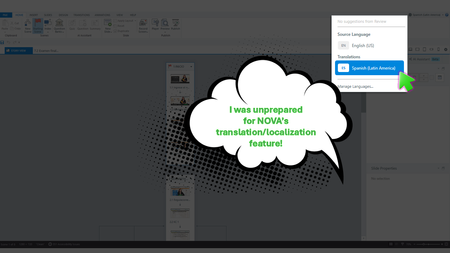
Yup, We Need This Course Updated by Next Week During the week of Articuland Orlando, my business partners dropped an “immediate need” eLearning build in my lap. At first, I didn’t think it would be a huge lift. Then I realized I had to fine-tune the English version of an existing course and create a Spanish version. Typically, translating a course from English into Latin American Spanish can take us two to four weeks. After I use Copilot to translate the course's script, an internal expert validates the translation. I then make the necessary changes, and the expert confirms that the revisions are correct. The challenge is that my internal expert has a full-time role with the company, so reviewing eLearning translations naturally falls lower on their priority list. When Articulate announced during the keynote that NOVA’s translation and localization feature had been activated for Articulate360 subscribers, I was literally in the middle of translating my course (MANUALLY). What Can It Hurt - Take NOVA for a Spin I said, “What the heck. Even if Storyline is able to only translate the base layer’s onscreen text, that’s a win.” Mind blown, when NOVA translated nearly everything!🤯🤯🤯 It translated: Onscreen text (base layer) Onscreen text (layers) Onscreen text (Master slides*) Changed the language the player was set up in AI Voiceover audio Lessons learned Written Spanish, typically, runs longer than written English. Resizing your text boxes etc. takes time, even with the tool that spotlights exactly where the issues are. *Some Master Slide (layouts) were translated, some were not. I was not working on a highly complex course, so fixing the lingering untranslated Master Slide (layouts) was not a big deal. As mentioned in Articulates Help documentation, when you have hardcoded text onto an image, that will not be translated. I can’t share a full demo, but I captured a few screenshots for your perusal (see below). My Key Takeaway Bottom line, the time NOVA saved us is remarkable. I was so excited, I nearly called my manager to rave about it (even though she was on vacation 🤣🤣).8Views1like1CommentLayout problems
Hello! I was testing Localization this past weeks and I found a problem for our e-learnings. We always adjust the design very precisely to the text lengths, such as the button width, or other text boxes. I actually thought that in the new Localization version, it was already possible to customize these text boxes or shapes with text individually for each language. But when I change something in one language, it gets changed in all languages, including the source language. Is this something that will be fixed in the next version? After all, the timeline can already be customized individually for each language. It would be very helpful for our workflow to change the size of text boxes individually as well. Now we have to save the translated languages as new files but then we cannot import updates that were made for the source language..8Views0likes0CommentsSwitching between languages in the LMS
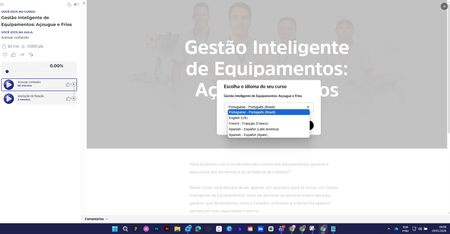
Hi everyone, how are you? I used the "Localization" feature in a course. After making the content available, when selecting a language I can't revert to the original language. What am I doing wrong? Choice of language After this, it is no longer possible to change the language. Thank you in advance.881Views0likes11CommentsPlanning Your Localized E-Learning Projects
In this age of globalization and multinational organizations, companies want to deliver online training that will reach worldwide audiences. The result is e-learning content that needs to be tailored specifically for each cultural group. If you’ve ever had to design or develop a multilingual e-learning course, you know firsthand that developing content for multiple languages can be a heavy lift. This is especially true if you haven’t put in place early the proper planning measures to make the process smooth and effective. This article will identify what you need to know up front (long before any development begins!) to effectively localize or tailor e-learning content for a variety of cultural audiences. Understand the concept of localization When it comes to getting a course out in multiple languages, it’s a common misconception that all you need to do is translate the written content. There’s often confusion about the differences between translation and localization. Translation is the process of translating text and words from one language to another without making any adaptations. Localization is the process of translating and adapting content for a specific culture. It often involves making changes not only to the text but also to imagery, tone, colors, currencies, and more, to account for cultural and regional differences. In many situations, simply translating the text in a course is not enough; you need to adapt the content in order for it to make sense for learners across cultural barriers. For example, let’s say you’re developing an e-learning course for a multinational delivery service. The course is for delivery staff based in the US and India on how to safely deliver packages on time. In addition to translating the text from English to Hindi, you need to adapt the content itself to take into account local driving and workplace safety laws. You should also consider updating the imagery to more accurately reflect the learner's home environment. For example, the American version of the course might show background images of busy streets in New York City. For the Indian version of the course, those could be swapped out with images of the streets of Mumbai. The two cities look very different and each have distinct architectural styles, roadways, and vehicles. Additionally, an image of a delivery vehicle in the American course might show a cube van or bicycle; the Indian version might be a tuk-tuk or a rickshaw. These changes in imagery make the course more meaningful and relevant to the learner. Plan for localization up front The key to a successful localized project is to plan every step of the localization process from the get-go. You want to keep your multicultural audience in mind from the beginning to avoid quality issues, save time, and ensure a smooth localization process. Things to consider when you’re in the project planning phase include: Identify the target markets and languages you want to localize for You need to determine early on which languages you’ll be localizing for. Keep in mind that even though your learners may speak the same language, you may need to create multiple courses to take into account regional differences. For example, a course developed in Spanish might not work for both Mexico and Spain. Why not? In addition to the many linguistic differences between Mexican and Iberic Spanish, there are regional differences that need to be considered, for example: different products, procedures, laws, technical standards, and currencies. Plan to build in one language first It’s a good idea to plan to design, develop, and deliver the course in one language BEFORE localizing the course into other languages. If you develop all of your courses in tandem, you’ll find yourself doing a lot of re-work. To illustrate: imagine a Subject Matter Expert asks you to change two paragraphs in your course. It’s a lot easier (and more cost effective!) to do it in one language than in five different languages. Once the first course is complete, you can save time by localizing your course into the other languages at the same time. Plan extra time for development and testing It might seem obvious, but you’re going to need more development time when you’re building a course in multiple languages. In addition to developing the course in the first language, you’ll need time to adapt it to every other language, which will include development, testing, and review steps. It’s a good idea to plan for the localization process by adding in extra development and testing time to your project plans and timelines. Find the right localization resources Having the right resources in place can make the translation and localization process run more efficiently and smoothly. Resources include the tools and the people you’ll bring on board for your localization process. Authoring tool When you’re going to be translating an e-learning course into multiple languages, it’s a good idea to investigate ahead of time what translation features and multilingual options are available within the authoring tool you’re using. For example, Articulate Storyline 360 offers the ability to export text for translation and then re-import it, saving lots of development time. This is good to know up front, so you can plan your project and allocate time and resources accordingly. Translators The quality and experience of your translation team will have a huge impact on the caliber of the final localized output. When it comes to working with translators, it helps to find translation professionals who have experience with your industry or subject matter. When the translation team has even a basic understanding of the content they are working with, it makes a huge difference in helping them ensure it all makes sense and works. In terms of hiring translators, your options are generally a professional agency or a single contractor or freelancer. They each come with their own set of pros and cons. Professional Agency Pros Cons They will handle all the project management for all the languages. They often offer voice-over professionals for all languages. They sometimes offer to do the translation directly in your tool of choice. The quality is often not as high. Because at a large agency the translators do not know you personally and are not that invested in your project. Also, you work with a variety of translators who may each have a slightly different style, which could be reflected in the final output. Freelancer/Contractor Pros Cons The quality tends to be higher, as usually freelancers need to provide a good service in order to maintain a good reputation, stay in business, and ensure repeated business and future contracts. It’s often cheaper to work directly with a translator because they don’t have high overhead costs to cover. Takes more time to find, hire, and manage freelancers than it does to work with an agency. They may not offer project management, voice-over services, and more. Voice-Over or Narration Professionals If your project includes narration, you’re going to need resources to narrate in a variety of languages. If you’re working with a localization agency, as noted above, they may offer narration or voice-over services. If not, you’ll need to recruit voice actors for each language. Keep in mind when you’re on the hunt for a voice actor that differences in local dialects and accents can make a huge difference to your learners. For example, Australian and New Zealand accents may sound similar to an outsider, but to the locals they are completely different! Finding the right voice for your project can take time, so account for this in your project plans, as well as the time required to record in multiple languages. QA Testers Testing and quality assurance review is an important part of creating an effective and high-quality multilingual course. During the project planning phase, identify resources for the testing and quality assurance phase of your course development. What should you look for in your testers? They should be proficient in both the original course language as well as the language they are testing, so they can compare both versions and ensure the message is consistent. The tester also needs to be a good writer, with strong spelling, punctuation, and grammar skills, so they can spot mistakes in the written content. These are just some of the things to consider when planning a localized e-learning project. Remember that up-front planning will eliminate a lot of headaches and help ensure a smoother process and better end result. What tips of your own do you have about planning for localized projects? Let me know in the comments! Follow us on Twitter and come back to E-Learning Heroes regularly for more helpful advice on everything related to e-learning. If you have any questions, please share them in the comments.1.7KViews2likes14CommentsQuery and Feature Request: Pop up when a localization credit will be used
In my last billing cycle I created a localized e-learning in 8 languages (elearning 1). In the new billing cycle I initially didn't have localization as an add-on and so couldn't open the file, instead I was prompted to save the languages as individual storyline files. Then a different project has been assigned 10 credits so localization is back as a feature but I only want to use those credits for a specific project that Omniplex are working on and not my original file (elearning 2). What I cannot tell is, if I make edits to one of the exported language files from my original e-learning (elearning 1), that I created when I didn't have localization enabled, will I be charged a credit when I publish that individual language file? And if I am not the admin of the account how do I know if a credit is about to be used / has been used? Could we please have a feature in Storyline that gives you a pop up when a credit is about to be spent? It would help a lot in trying to manage credits that have been allocated for certain projects, especially if you have a centralized account with one admin, as then users could see if and when they are at risk of spending credits they don't have allocated. Thank you for any support.60Views3likes0CommentsRise 360: Manually Translate Your Content
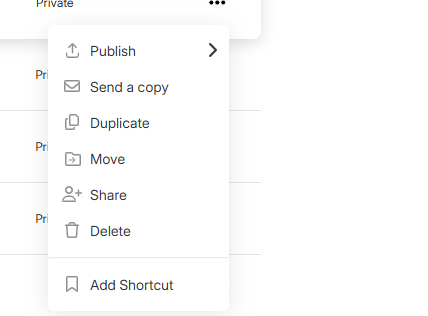
This article covers the process of manually translating Rise 360 content into left-to-right languages using XLIFF exports and imports. This method is best suited for single-language translation. Articulate Localization, available as a subscription add-on, allows for seamless creation of multi-language courses within Rise 360. Learn more by visiting the Articulate Localization user guide, or contact our sales team to learn how you can add Articulate Localization to your subscription. Read on for the manual process. Duplicate Your Content Export the Content as an XLIFF File Import Translated Text Translate Your Labels Translate Training into Multiple Languages Step 1: Duplicate Your Content The first step in the manual process is to duplicate the content you want to translate. The duplicate you create is used for the translated version. On the Rise 360 dashboard, hover over the content you want to translate and click the ellipses icon that appears. Select Duplicate. Enter a name for the duplicate content. (We recommend using the original course title, appended with the language code, such as “fr” for French.) Then, click Duplicate to confirm. The duplicate content appears at the top of your Rise 360 dashboard. Note that you'll need to create a duplicate for every language you want to translate your training into. Alternatively, with Articulate Localization, you can translate your content into 80+ languages (including right-to-left languages) and manage all language versions as a single project stack, right from the Rise 360 dashboard. Step 2: Export the Content as an XLIFF File Open the duplicate content you created in the previous step. Click the Settings icon in the upper toolbar. On the Translations tab, expand Traditional XLIFF Translation. If you're following this guide, skip Steps 1 and 2. Under Step 3, if you don’t need to preserve formatting you’ve applied to your text, deselect Include HTML formatting. This exports your content in easy-to-translate blocks of text. However, it doesn’t contain the coding necessary to maintain any formatting you’ve applied to that content. Enter the source language in the Set source course language code field if it's something other than U.S. English (en-us). As you type, a list of available language codes appears. Click Export XLIFF File and save the file to your computer. Edit your exported XLIFF file with a web app, computer program, or professional translation service. If Include HTML formatting was selected, you'll see additional HTML tags and extra spaces in your exported XLIFF file. These are there to preserve your formatting when you import your translated file. The following can't be translated using manual XLIFF exports: Code blocks: modify the code for each language after translation. Question banks: Questions drawn from question banks included in knowledge checks and quizzes display in their original language. To translate question banks, add Articulate Localization to your subscription. Tip: Rise 360 uses XLIFF version 1.2. Step 3: Import Translated Text Once you've translated your content, import the file back into Rise 360. Open the duplicate content. Click the Settings icon in the upper right corner. On the Translations tab, expand Traditional XLIFF Translation. Under Import, click Import Translated Text. Select your translated XLIFF file and click Open. A message displays when your text is successfully imported. Why am I seeing an error? If you see an error message that says the “Translation file doesn’t match this content,” make sure you’re in the content from which you originally exported your XLIFF file. The XLIFF file is content-specific, so it can't be exported from one piece of content and imported into another. If you see a different error, the XLIFF file may be incomplete or corrupt. Download a fresh copy of the file and try again. Where did my formatting go? If you deselected Include HTML formatting in step 2, any formatting you applied to your content prior to importing the translated file is not retained. Let us know if you have any questions. We’re happy to help! Step 4: Translate Your Labels Once your content has been translated, translate your buttons and other built-in navigational elements. Click Settings in the upper right corner. Select the Labels tab. Follow the instructions in this article. Note: In order for the correct language to be assigned to your training so that assistive technologies can communicate the content with the correct presentation and pronunciation, labels must use the same ISO language code as your translated content. Translate Training into Multiple Languages For multiple-language training, we recommend Articulate Localization. Not only does it provide a streamlined experience for translating training into multiple languages, but it also offers a deep set of features custom-built for your translation needs. Contact our sales team to learn more.28KViews4likes0CommentsLocalization translation of closed captions
Hi - We have just started using the translation features and received this feedback from a reviewer "In general, the translation is good. However, in the section which translates the closed captions of the videos, as it takes only one sentence at a time, it loses all sense and is very difficult to correct." Has anyone had the same experience with the translation of closed captions?429Views0likes1CommentAudio Translation
Hi everyone, I have a question: will a translate audio feature be added to Localization? I'm testing it during the trial period and just noticed that it only translates the text on screen, not the audio, so we have to type or re-record the text in the new language, which is quite time consuming. Thank youSolved1.2KViews1like11CommentsTranslating a course into Farsi
Hi Everyone. I am still pretty new to Articulate and brand new to the world of translating an e-learning. I apologise in advance if I am on the wrong forum as I am not subscribed to Articulate Localisation so my question is not about that service but translation in general. I have spent the whole day researching the best way to translate my small eLearning from English to Farsi, using copilot and ChatGPT as advisors. Various tools like Smartcat, Crowdin, Localise were recommended but the pricing plan felt high for me given I am just starting out and the NGO i am developing my first e-learning for also doesn't have a lot of money to pay out each month. In short, given I already had the content translated into Farsi in a word document, I decided to manually upload the Farsi version into Rise and then align/format the text. For those elements that I was unable to align within Rise (a handful of headings and MCQs), I decided to export a XLIFF copy and using Poedit make the necessary edits/format changes. I then successfully managed to import the updated version of the XLIFF file which I was happy about as I read it can be problematic. However for the headings I was struggling to align/format - instead of correcting them to a RTL alignment it changed the headings to the original heading with the tags as text instead of interpreting them. Regarding the RTL formatting of MCQs ChatGPT said this was not possible as the formatting was baked in within Rise. When I reported back to ChatGPT about my issue with the headings and asked if I used more powerful translation tools like Localazy would I have the same issue, ChatGPT implied yes. I appreciate ChatGPT doesn't know everything. My conclusion at the end of todays research is the best thing is to continue to manually enter my translated material and make the alignment changes I can do within Rise and just accept some things wont be aligned perfectly and thats ok. However before I make this compromise (as I know I might get frustrated with this compromise as the 'test' lesson happened to be relatively simply formatted whereas other lessons have bullets, timelines, image and text blocks, etc.. which might throw up more challenges) I thought I'd seek any advice from this forum of experts. If anyone has any advice, similar experience and solutions (hopefully) or just confirmation that I need to accept this compromise I'd much appreciate it. Many thanks in advance for time and expertise. Kind regards Katheirne169Views0likes0Comments