Forum Discussion

Drag objects not snapping to centre of drop targets (they're snapping off-centre)
Hi all
I'm having trouble getting my drag objects to snap to the centre of my drop targets.
Attached is my Storyline file if anyone can work out what I'm doing wrong.
I have gone to Drag & Drop Options, and made sure to set 'Snap to center' under 'Drop Target Options'/'Snap dropped items to drop target', but the drag objects are still snapping really off-centre (screengrab below - the circle headshots should snap to the centre of the red dotted circles):
Thank you all in advance!
Adrian
4 Replies
Hi Adrian,
Thanks for reaching out!
The clue to the cause of the issue can be seen in "Form View". If you select one of the available choices, you can see that Storyline 360 is recognizing the shape as rectangular, and the image of the person is actually placed in the lower left part of the shape.
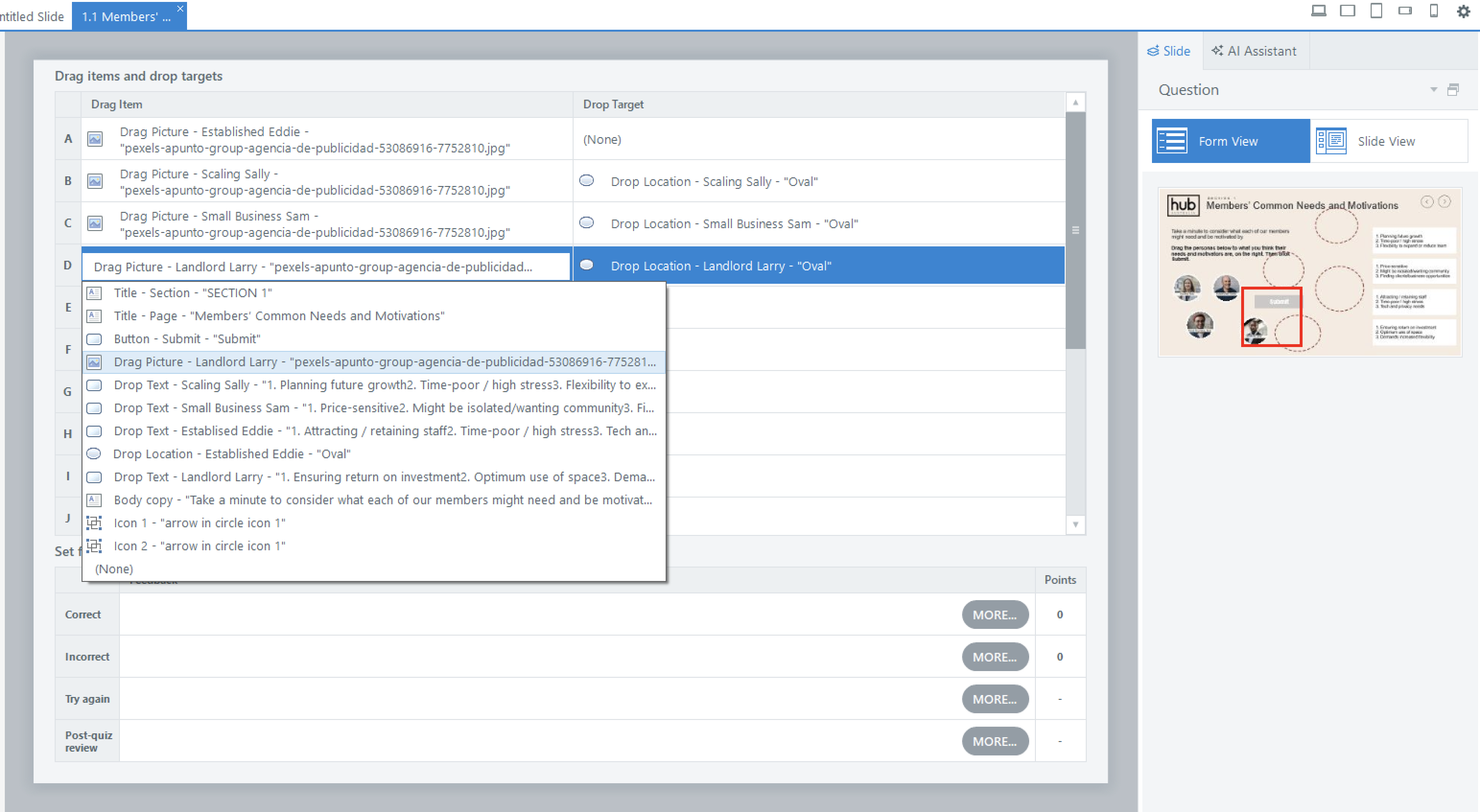
Would you mind walking me through how you created the shape with the photos of the people so we can check what's causing the object's position to shift?
- ThinkawayCommunity Member
Thanks so much for your help! I created the head shot images by doing the following:
1. Dragging the headshot image into Storyline and cropping it as a circle.
2. Placing the headshot on a white circle shape that I copied from a previous slide (I did all of this in States)
3. Adding a white rectangle background and label on top of the headshot (again, all in States).So the 4 headshot images, including their circle backgrounds and labels are all in the one state.
I'm not sure if that would be the best way to have created those headshot images though and would love any advice on whether I could be doing it a different way?
Thanks again for your help :-)
- NedimCommunity Member
Something seems to have gone wrong with the formatting of the pictures. Is this a template from the Content Library? I’m guessing you may have reformatted the original images, regrouped them, or made other layout changes.
In any case, I’ve adjusted the formatting so that all drag items now correctly snap to the center of each drop zone. Each circle is now filled with the corresponding image and grouped with a rectangle that contains the label text, making it easier to adjust and align. Instead of dragging a single image, you’re now dragging a grouped object (image + label) to the drop zone. Please see the attached .story file for reference.
- ThinkawayCommunity Member
Thank you Nedim - you're an absolute life saver!
I really appreciate you sending me your updated Storyline file + explaining a better way for me to do the drag images.
Just to clarify (and so I know for when I create drag and drops in future) - is it that I should contain all of my drag objects within a full transparent rectangle shape, instead of combining different shapes inside an object state?
Cheers!


Related Content
- 8 months ago
- 1 year ago