Forum Discussion

Embedded Storyline accessibility issues

Hello, LucianaPiazza following up on this b/c we are experiencing this issue as well. I had someone test our training and they responded with this (using NVDA):
The sentence before the 4 boxes (this is the storyline block) reads with read aloud but the text in each of the 4 boxes does comply with read aloud and skips to bottom of the page which means I would have to search around to see what still needs to be completed instead of actually hearing the directions.
I opened on all the interaction tabs and was not able to click in the interaction to start the read aloud function.
(this was more b/c he's unfamiliar with the tools we use and was trying to help solve the issue):
Are these interactions pictures? If they are pictures, then accompanying alt text need to be added. If a person is using windows narrator, the tool does not function in pdfs. Read aloud is the only option. It would be more conducive to accessibility tools if the pages were not continuous, in other words possibly page breaks. What happens is that the Read aloud functions jumps back to the start of the training when it reaches the of a current page. The only way to get the current page to read is to scroll back down, then highlight the first word on that page and start the reading. When you are able to make a choice, for example, during the last lesson you can select summary or either of the other 2 buttons and the page reads from where its supposed instead of jumping back to the beginning of the training.

I'm happy to check this for you!
We'll need to check your project file to see how the focus order is set up and how it responds to different screen readers. Would you be willing to share a copy of your project file here or privately by opening a support case for testing? We'll delete it when we're done!
I also wanted to share the following articles on accessibility to give you an idea of how Storyline 360 and screen readers interact:
- 4 Things To Know About Storyline 360 Courses and Screen Readers
- Accessible E-Learning & Screen Readers: What You Need to Know
- Storyline 360: How to Design an Accessible Course
Looking forward to hearing from you!
- emmalynewilloug10 months agoCommunity Member
JoseTansengco here is the review 30 link: https://360.articulate.com/review/content/ecb7fb2b-9080-41f5-9b41-d5d2c20be56b/review
I had to use test data for privacy and compliance restrictions. I kept the same interactions that we were having issues with. I included 4 bullets from the learner that he was having difficulty with.
Our workaround for timing constraints was just to include a text only option in the accordian. Not sure if it's just to simply include instructions on how to use the screen reader (i.e. up/down arrows vs tabs) for the best experience.
Also, here is the storyline: https://360.articulate.com/review/content/9361170d-7165-4acb-993b-527501fb1af1/reviewlet me know if you need the .story file too.
Looking forward to reading your response and helping find a solution!- JoseTansengco10 months agoStaff
Hello emmalynewilloug,
Thanks for sharing a link to your published output!
Here are my observations when I used NVDA to read through your course (first link):
- NVDA was able to read the text inside the interaction boxes. In the highlighted example, NVDA read the text in one go, reading "Second Topic Interaction" first, followed by a brief pause, then "Select anywhere in this box to learn more <dot> button". Are you hearing something else when using NVDA and the tab key to navigate to these interactive blocks in the embedded Storyline 360 course?
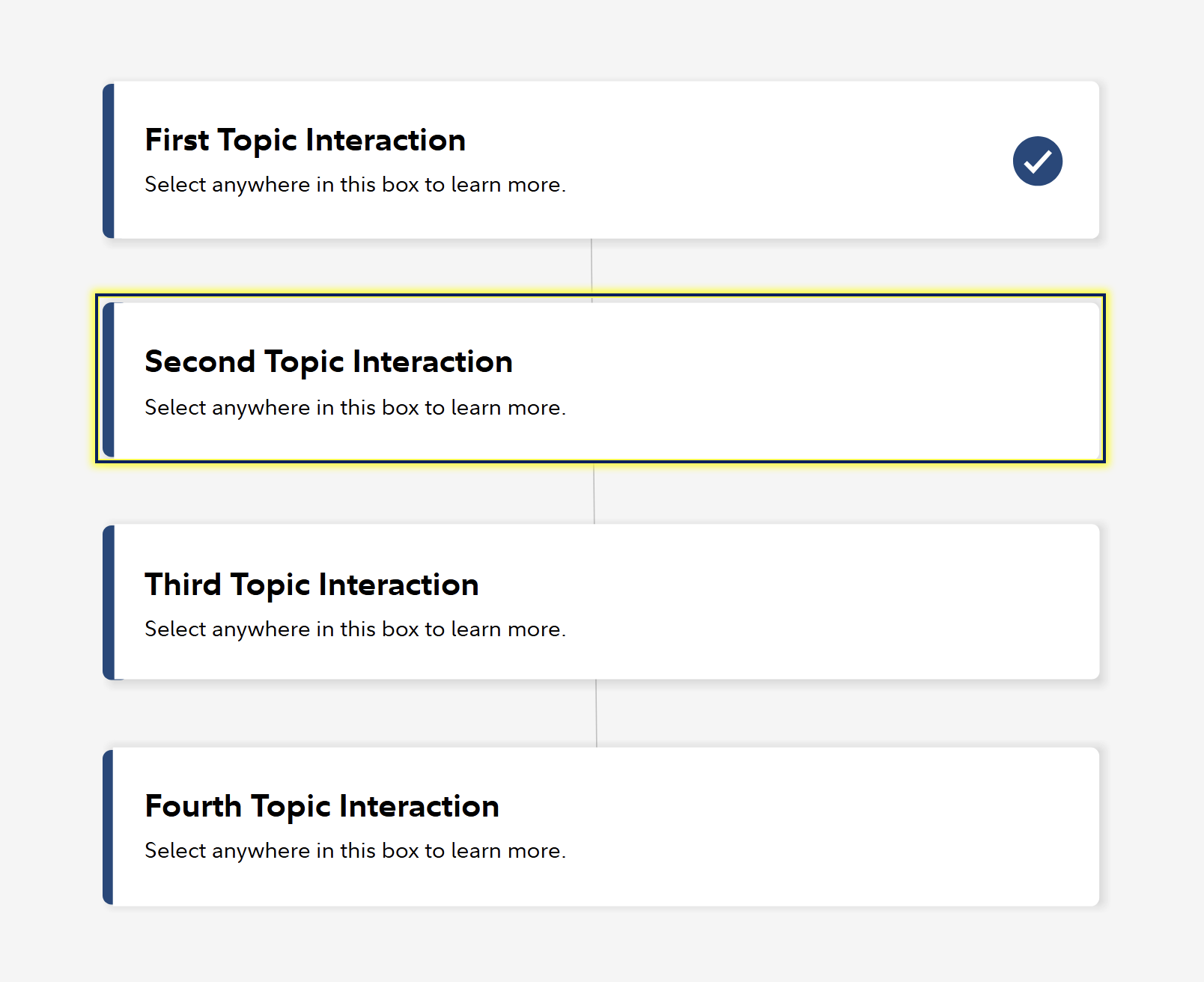
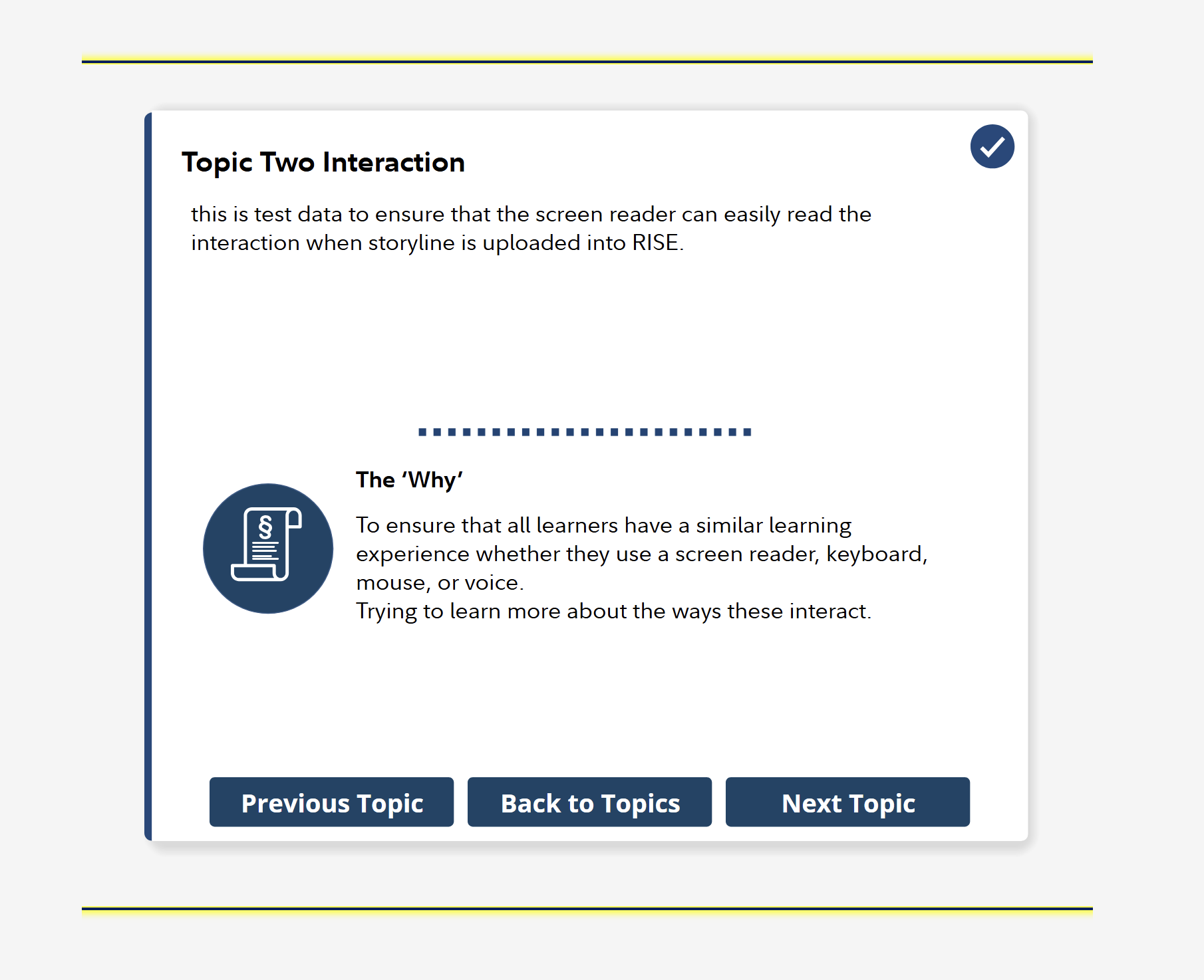
- If you're referring to the interaction in the screenshot, did you try using the space bar to open the interaction? If this is not the interaction you were referring to, would you mind sharing a screenshot of the interaction that you were unable to click?
- Regarding the comments from your accessibility reviewer, were they sharing feedback that the interactions didn't work in the exported PDFs of the courses? If so, please let them know that this is the expected behavior, as the exported PDFs of the courses are used to visually share a preview of the course. Rise 360 courses can also be broken down into lessons, so they aren't one long course, giving learners breaks in between lessons.
Looking forward to your response!
- emmalynewilloug10 months agoCommunity Member
Good Morning and thank you for the quick response! I'm glad to know this interaction worked, b/c we did follow all the steps for making both RISE and Storyline accessible.
I included the person sharing feedback bullets in this example training and his overall experience. He was, in fact, viewing the RISE experience as you did, not the PDF version. He mentioned that when he opened each of the interactions (the screenshots you shared above), he was not able to use the read-aloud function within each box. Instead, it jumps back to the start of the page.
Since you didn't experience any issues, could you share your process of using the screen reader? I assumed that since my person uses the screen reader for his job, he is a super user. But since training isn't done every day in his workload, maybe it's just a matter of including instructions in the training on how to use the screen reader to interact with the RISE/Storyline training.
- NVDA was able to read the text inside the interaction boxes. In the highlighted example, NVDA read the text in one go, reading "Second Topic Interaction" first, followed by a brief pause, then "Select anywhere in this box to learn more <dot> button". Are you hearing something else when using NVDA and the tab key to navigate to these interactive blocks in the embedded Storyline 360 course?