Forum Discussion

Line-in mic not working in Articulate Storyline
Hi there
I am using a line-in microphone that Windows 7 picks up as the default, that I can use to record in Audacity with no issues and that Articulate screen capture recognises - yet Articulate cannot seem to capture the sound from it.
There is nowhere I can see to select a microphone - any ideas?
Thanks
KerryJ
24 Replies
- KerryJCommunity Member
Solved it!
1) Go to screen capture mode
2) Turn off mic (line in won't come up as an option anyway, I disabled my mic in Windows 7 just to be sure)
3) select your line in as SPEAKER
DONE!
- JeffEvertonCommunity Member
I've installed a Blue Yeti Pro USB mic and it was working at one point under the screen recording, sound recording, microphone and now it's back to just the internal mic. Any clues how to reassociate this USB mic under Windows 7 64-bit OS?
- PeterAndersonFormer Staff
Hey Jeff!
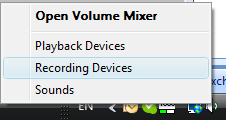
See if this helps.- Right-click the Volume Mixer (the icon that looks like a speaker) in the system tray on your taskbar, and select Recording Devices:
- Right-click your recording device and select Enable:
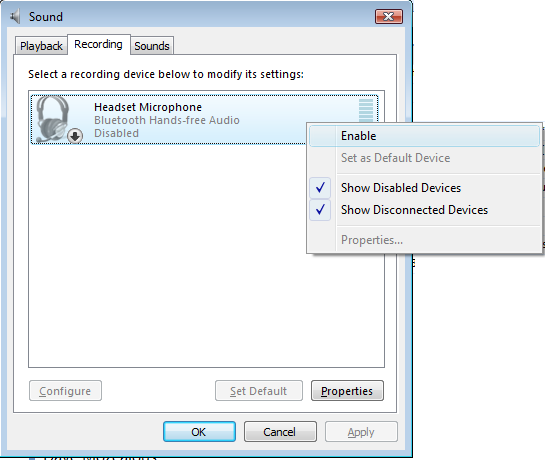
(Note: If you do not see any devices listed on the Recording tab, verify that both the "Show Disabled Devices" and "Show Disconnected Devices" options are check-marked similar to the image above.)
After enabling the device, you should be able to record audio in your Articulate software.
- Right-click the Volume Mixer (the icon that looks like a speaker) in the system tray on your taskbar, and select Recording Devices:
- JeffEvertonCommunity Member
- MikeTaylorSuper Hero
I have a Blue Snowball and if the cable is like that one it's possible to insert it upside down. If nothing else is working try unplugging the cable from your mic, flip it over and reconnect it.
Mike
- JeffEvertonCommunity Member
Thanks for the suggestion. The mic works properly with Audacity... so it's got to be something else vs. the physical connection. Plus, I've use the mic with Go-To-Meeting without any issues.
- JeffEvertonCommunity Member
So this is what I discovered... Because the default internal mic was not selected and no audio was selected, I needed to associate the line mic via the dropdown mic and not the settings! All is good

- StephenMeredithCommunity Member
I am having the same problem. I have tried a headset mic and three different computers. I am now on my desktop at work using a Yeti. The computer recognizes it and it works in sound recorder but not in Storyline.
Hi Stephen and Welcome to E-Learning Heroes! Did you try Peter's and Jeff's suggestions in this thread to see if one of those resolves your issue? Thanks so much and have a great day!
- SteveLyneCommunity Member
I note this thread is 2 years old, however, I've just starting having the same issue. I have tried all of the steps suggested here and have just repaired the installation with no success.
The mic I'm using works fine on other software applications that I have.
When attempting to insert a recording from the mic there is no activity on the vu meter and no sound recorded.
If I attempt to use the mic during a screen recording the vu meter indicates it's receiving input but there is actually no sound recorded.
This happened earlier today but magically began working properly.,. but alas it's stoppped again.
Anybody else with this issue or any suggestions?
Steve







Related Content
- 11 months ago