rise
95 TopicsMeet Your Learner Persona
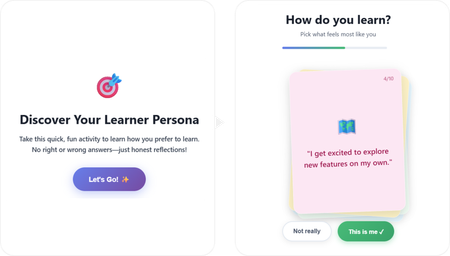
Hello there! 👋 Here's my project: A short, playful interaction that learners could experience at the beginning of a course, but not limited to that. I used both Lovable and ChatGPT as my buddies throughout this learning journey. The interactive code is embedded directly inside the course project. Check out the project here: Meet Your Learner Persona ✨The story behind As a newcomer to vibe coding, the experience was rewarding in the best possible way. I genuinely enjoyed every part of the process and learned a lot, especially about writing effective prompts, navigating code, and making small changes. I found a lot of inspiration by exploring visual and interaction design references on platforms like Dribbble, Figma, and Godly, which helped shape the experience's look and feel. Throughout the project, I experimented with both simple and more complex interactions. In the end, I found myself drawn to the simpler ones, those that quietly support the learning journey without adding unnecessary friction or contributing to cognitive overload. Try taking it to discover your type. 💻Here's also the prompt I used: Create a self-contained, embeddable HTML/CSS/JavaScript interactive learning game designed to be placed inside a Rise course code block. Concept: “Discover Your Learner Persona” – a playful, low-pressure personality-style interaction that helps learners reflect on how they prefer to learn. Experience goals: Fun, fast, and intuitive (2 minutes max) No right or wrong answers Feels like a game, not a test Encourages self-awareness and engagement at the beginning of a course Interaction design: Display one card at a time in the center of the screen Each card contains a short first-person statement describing a learning behavior Two buttons below each card: “This is me” “Not really” When the learner clicks “This is me”, assign 1 hidden point to a specific learner persona When “Not really” is clicked, move on without scoring After all cards are answered, calculate the dominant learner persona and display the result Learner personas (4 total): The Explorer – learns by experimenting, trying things out, discovering through action The Builder – learns best with structure, steps, and logical progression The Observer – prefers watching, reading, and understanding before acting The Connector – learns through discussion, stories, and social interaction Cards (8–10 total): Write short, relatable, first-person statements such as: “I like to jump in and try things out, even if I don’t fully understand yet.” “I feel more confident when learning follows clear steps.” “I prefer seeing examples before I start.” “Talking things through with others helps me learn.” Each card should clearly map to one persona behind the scenes, but never reveal scoring or categories to the learner. Result screen: Display the learner’s persona as a friendly title (e.g. “You are: The Explorer”) Include a short, encouraging description of what this persona means Add 2–3 practical tips on how this learner can approach the course effectively Include reassuring language that most people are a mix and there is no best persona Visual & UX style: Clean, modern, friendly Card-based layout with soft rounded corners Smooth transitions between cards Large, readable text Accessible contrast Neutral, welcoming color palette (colorful, but in light colors) Card layout and behavior: Display the cards as a stacked, slightly fanned card pile, inspired by a physical deck of cards. Cards should overlap each other diagonally, forming a small pile rather than a grid Only the top card is fully readable and interactive at any time The cards underneath should be partially visible, offset slightly in position and rotation Use subtle differences in rotation (e.g. -3°, +2°, -1°) to create a natural, tactile feel Each card should have rounded corners, a soft shadow, and a solid background color Interaction behavior: When a learner answers a card, animate it smoothly off the pile (slide or fade) The next card should move into the top position of the stack The pile should visually shrink as cards are completed Technical constraints: No external libraries or frameworks All HTML, CSS, and JavaScript in a single file Fully responsive (works well on desktop and mobile) Safe for embedding in Rise as a code block or zip package4.9KViews49likes14CommentsRise 360: Create Custom Blocks
Custom block is currently in beta. Functionality may change over time. Based on feedback and feature stability, some options could be modified, and others removed. Articulate Localization isn't supported for custom blocks at this time. Need a unique block to meet your exact training needs? Custom blocks unlock fresh possibilities! Add text, objects, and media elements to a blank canvas, then drag and drop them to craft the perfect creation. Note: While custom block supports several accessibility features, some aspects are not yet fully accessible. Insert Blank or Prebuilt Templates Set up the Canvas Add Templates and Objects Manipulate Objects Format Objects Adjust Object Order and Accessibility Settings Add Interactivity (Coming Soon) Modify the Block Settings Using Keyboard Shortcuts Accessibility and Known Issues Feedback Step 1: Insert Blank or Prebuilt Templates Get started with a blank canvas or a prebuilt template. Open the block library in your training to begin. Start from Scratch Expand the Custom Block menu. Select +Blank to insert a blank canvas into your course. Click Create a Custom Block to begin. Start with a Template Expand the Custom Block menu. Choose a category, then select a template. Hover over the block and click the Content icon to personalize the template. You can also add templates to blank blocks. Follow the link for a full list of prebuilt templates. Step 2: Set Up the Canvas The canvas is where you add objects and create your custom block. Only objects placed on the canvas are visible to learners. Use the toolbar that displays to select the canvas to modify the color, border style, and overlay. You can also manually enter the canvas pixel width and height or automatically shrink the canvas to the included objects. Please note, custom blocks aren't responsive at this time. We recommend using a slightly taller canvas size so that your content remains legible on smaller screens and mobile devices. Step 3: Add Templates and Objects Once you're in the custom block editor, you can either manipulate objects in your selected template (more on that in the next section), insert a new template, or add objects. Use the search bar in the object category menu to quickly find what you need. Use the control in the lower-right corner to zoom in or out on the canvas. Templates On the left sidebar, click Templates, and then make a selection. On a blank canvas, click Use template. This inserts the canvas and all objects associated with the selected template On a populated canvas, you can also select Add to canvas. This keeps the current canvas and inserts the template objects over the existing objects. Selecting Use template on a populated canvas completely replaces the existing canvas and objects. Once inserted, the individual objects of a template can be manipulated and formatted just like any other object. You may have to ungroup or drill into objects to access all formatting options. Objects Add additional objects from the left sidebar. Text: Insert a text box with the selected text type as the default. This can be modified in the formatting toolbar. Add a hyperlink by selecting text. (Note: superscript and subscript formatting aren't available for custom block text.) Shapes and Lines: Insert a grey prebuilt shape or black prebuilt line on your canvas. For shapes: click within the shape to add text. Shape formatting options include color, corner rounding, border, shadow, and overlay. Line formatting options include color, line style, and shadow. Images: Insert an image generated with AI, an image from Content Library 360, or upload your own. Regardless of source, images have corner rounding, border, shadow, and overlay options. Crop and alt text tools are available by right-clicking on an image. Videos: Insert a video by dragging and dropping or selecting a video file to upload. If you'd like your video file to keep its specific file format and not undergo compression, you can opt out of optimization by selecting Preserve file quality. Note that this may decrease performance. Forward seeking can't be disabled for videos in custom layouts. Audio: Generate audio with AI Assistant, record your own audio, or upload an audio file with transcription to insert into your canvas. Click any of the icons to insert the object you want, then simply drag it to where you'd like it to be in the block. You can also select an object or group of objects and enter the X and Y positions in the Position toolbar menu. Step 4: Manipulate Objects You can work with objects in multiple ways. In addition to direct manipulation, right-click menu commands, formatting toolbar options, and keyboard shortcuts are available. The options available for individual objects are also easily accessible from the Objects sidebar. Change the Order The easiest way to change the order of an object on the canvas is to right-click the object and select an option from the Move menu. There are also several keyboard shortcuts for adjusting an object's placement. Align Horizontal and vertical alignment guides display as you move an object, multiple objects, or an object group. If you have other objects placed on the canvas already, you'll see vertical and horizontal alignment guides in relation to those objects as well. You can also select an object, multiple objects, or group and choose an option from the Position menu, or right-click and select an option from the Align menu. Resize You can quickly resize an object by hovering over the edge or corner and dragging in that direction. Hold the Shift key while resizing to maintain the object's aspect ratio. You can also enter the width and height values in the Position menu. Rotate Rotate objects by hovering over an object's corner. When the cursor changes to a curved arrow, click and move the cursor in the direction you want to rotate the object. You can also select an object or group and use the slider, or enter a value in the Position menu. Note that alignment guides don't appear when you’re moving rotated objects. Group Grouping is a handy way to move, resize, rotate, flip, or change other attributes of several objects all at once—as if they were a single object. To group objects, Shift+click or drag your cursor over two or more objects, then choose Group to group them. To ungroup objects, choose Ungroup. Lock Select an object or group of objects and click the lock icon in the toolbar that appears to lock their position. You can also right-click and select Lock. Duplicate Select an object or group of objects and click the duplicate icon in the toolbar that appears. You can also right-click and select Duplicate. The duplicated object or group appears slightly offset from the original and is automatically selected. Delete Select an object or group of objects and click the delete icon in the toolbar that appears. You can also press Delete or select the Delete option from the right-hand menu. Restore deleted items by pressing Ctrl+Z. Step 5: Format Objects Select an object on the canvas to access the formatting/action toolbar. Different objects have different toolbar options. The formatting toolbar for multi-selected and grouped objects reflects the available tools for the objects in the group. If a tool doesn't affect a particular object, modifying the value will have no effect on that object. Tools that are available for all objects or multiple object types will equally affect all relevant objects. For example, changing the opacity for a group overrides any individual object settings and, instead, sets the opacity for all group objects to the same value. All Objects Opacity Adjust an object's visibility. When multiple objects are selected, this value overrides any individual object's value. Position Align the object to the canvas using the available options. Rotate the object. Enter pixel values in the W and H fields to adjust the object size, using the lock icon to preserve aspect ratio. Use the X and Y fields to position objects on the canvas. Images Crop Use the drop-down menu to select an aspect ratio and crop the image accordingly. You can also use the freeform crop tool or enter specific values in the position menu. Reset to abandon changes. Lines Line Start/Line End Select from a variety of shapes to start and end the line. Line start and line end styles can be set independently. Shapes and Text Text Formatting These tools let you adjust the font type, size, and formatting, as well as the paragraph and line positioning. Shapes, Lines, and Images Change Shape Switch to a different shape. Color (Shapes only) Change the object's fill. Apply a color to the selected object using one of the following methods: Click the color you want in the Saturation and Value area. Drag the hue slider to change the dominant color of the spectrum. Use the eyedropper tool to match the color of anything visible on your screen. Just click the eyedropper, then click any color on your screen. (Chrome-based browsers only) Entering a custom color value in Hex. Choose a color from the theme color palette. Or select a color you've used in the current layout. Adjust the visibility of the color opacity with the Opacity bar under the Hue slider. Border/Stroke Change the object's border/stroke color, opacity, width, and type: solid, dashed, dotted, or no border (shapes only) Corner Rounding Use the slider or enter a specific value to change the degree of rounding for image and shape corners (does not apply to ovals). Drop Shadow Add a shadow to the selected object. Use the X and Y fields to control the position of the offset. The shadow is black by default, but you can change it in the Color menu. Opacity determines how visible the shadow is, and blur affects the sharpness of the shape. Overlay Add a color overlay to your object. The overlay is black by default, but you can change it in the Color menu. Adjust overlay opacity with the slider or enter a value. Step 6: Adjust Object Order and Accessibility Settings There are two ways to adjust the order of objects and object groups. One way affects the visual order while the other affects how accessibility tools like screen readers interact with objects in a custom block. Visual Order Select Objects in the sidebar to access controls for the canvas and all objects in your current custom block. In addition to using the combined formatting toolbar, you can easily drag and drop individual and grouped objects to adjust their visibility. You can also remove items from groups. Note that newly added objects appear at the top of this list. Focus Order Select Focus order to access a list of objects and groups in screen reader and keyboard navigation order. Items in this list can be adjusted independently of object order for accessibility purposes, but you can't remove items from groups here. Click Match visual order to reset the list to the same order as the objects list. Newly added objects appear at the bottom of this list. Add Alt Text In the focus order panel, use the Alternative text field to add alt text to any object, object group, or the canvas itself. If they don't have alt text, images, lines, and shapes without text are considered decorative and aren't announced. Step 7: Add Interactivity (Coming Soon) We're still exploring how to add interactivity to custom blocks. We'd love to hear your thoughts. Hover over Interactivity in the sidebar and click Share Feedback to let us know what interactive features would make your custom blocks even better. Step 8: Modify the Block Settings Hover over an existing block to access the left-hand design toolbar and modify the appearance of your block. Click the Style icon to access block background options. The Format menu provides options for changing the block padding and content width. Since custom blocks aren't responsive at this time, use the following values as the maximum widths for your canvas so that the block fits within the content width parameters: Large - 920px Medium - 760px Small: 520px We recommend using less padding around custom blocks for a better mobile experience. Using Keyboard Shortcuts The following keyboard shortcuts can be used on the custom block canvas. Mac/Windows Keys Function O Add circle (oval) item to canvas T Add paragraph item to canvas R Add rectangle item to canvas Cmd/Ctrl+] Bring forward ] Bring to front Delete Delete object Cmd/Ctrl+D Duplicate objects Shift+H Flip horizontally Shift+V Flip vertically Cmd/Ctrl+G Group objects Cmd/Ctrl+Shift+L Lock/Unlock Shift+Arrow Keys Move object 10px Cmd/Ctrl+Click Select object within a group Cmd/Ctrl+Y Redo Cmd/Ctrl+A Select all Cmd/Ctrl+[ Send backward [ Send to back Cmd/Ctrl+Z Undo Cmd/Ctrl+Shift+G Ungroup objects Cmd/Ctrl+0 Zoom custom block canvas to 100% Accessibility and Known Issues Accessibility We're still evaluating and improving the accessibility compliance of custom blocks at this time. In its current state, the custom block feature doesn't fully meet accessibility guidelines. Custom block templates and user-defined custom blocks don't reflow to fit different screens. This can make them hard to read on small screens or when zoomed in. Accessibility guidelines provide a reflow exception for presentation content like our custom blocks, but they can still be difficult for mobile users and people with low vision to use. To make sure your content works for everyone, test it on both a mobile device and a desktop browser zoomed to 400%, not just in preview mode. Even though it doesn't meet full compliance at this time, we encourage authors to use the accessibility tools provided to improve accessibility. Read on to learn about managing the focus order and other accessibility tips for custom blocks. Manage the Focus Order Authors have full control of how a screen reader navigates the content in custom blocks. Objects can be reordered separately from their visual stacking order to dictate the exact reading order for screen readers. Here are some guidelines to keep in mind: Shapes, lines, and images are decorative by default. They will not be announced by screen readers unless the author assigns an alternative text. Text will always be announced. This includes text inside shapes. Groups aren't announced by default, unless they’ve been given alternative text. Leaving the group without alternative text just means the group itself won't be announced as a separate item. Any meaningful object within the group (for example, text or images/shapes with alt text) will still be announced. Audio and video have predefined labels. Authors can add alternative text when additional context is helpful. But if the field is left blank, screen readers will announce the default, predefined labels as “video player” and “audio player” respectively. The custom block canvas follows the same principle as groups, audio, and video. Authors can optionally assign alternative text to the canvas or leave it blank, in which case the screen reader would move straight to the content. Accessibility Tips Ensure that all meaningful objects and groups are clearly named in the objects panel. This makes them easier to identify later and saves significant time when managing both the visual and focus order. Use correct heading levels in order with clear, descriptive titles. Keep objects organized in a logical order from the start. A well-structured objects panel makes it much easier to set the final focus order later on. Provide alternative text (alt text) for any object that's meaningful or helps convey structure. Because alt text can be added to any object in Custom Block, authors can strategically use it to communicate important visual information effectively, especially in visually rich layouts. Use the focus order panel to reorder objects independently of their order in the objects panel. Conduct manual testing with a screen reader to ensure the focus order is correct. Known Issues Articulate Localization isn't supported for custom blocks at this time. To translate custom block content, authors must use the manual translation process. Share Your Feedback We're excited about the creativity that custom block will unlock and need your help to ensure it meets the needs and expectations of all Articulate users. Your feedback will directly influence the development of custom block within Rise 360, so consider sharing your thoughts on the following topics: Uses: How are you using custom blocks? Share your creations! Bugs: Is anything not working as expected? Improvements: How could this feature be better? Insights: How does this feature benefit you and your learners? Click Beta next to Custom Blocks and select Share feedback to share your thoughts.15KViews48likes0CommentsPaint by Num-Birds: Songbird Identification Tool
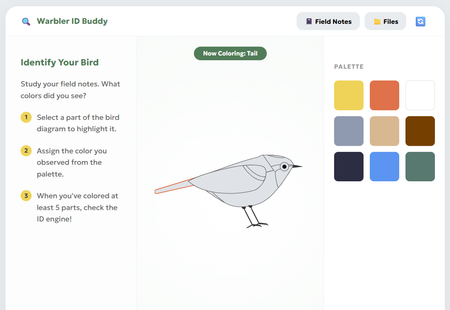
This interaction pushes learners to get curious and creative while identifying some of the most notoriously difficult bird species to spot - warblers! The paint-by-numbers interface paired learning materials (like snapshots, anatomy diagrams, and their own field notes) introduces learners to the fundamentals of bird identification, and allows them to explore this process of visually ID'ing a bird for themselves. Review Here: https://360.articulate.com/review/content/54d099bd-477a As a team with avid birdwatchers, trying to "onboard" people to the hobby always poses a classic blocker: "How do you tell the birds apart?" Though sound, habitat, and other factors play a role, visuals are the first pillar of identification that beginners start to familiarize themselves with. Using Rise's code block, we wanted to create a tool that went beyond flip cards, checklists, and other default interactions. Leveraging HTML/CSS, we created a workshop space that: Breaks down key features to note for ID'ing through an interactive diagram Offers as much or as little support they may need in the form of the snapshots, diagrams, and facts in the "Files" Provides a challenge to apply what they've learned by identifying the "Field Notes" recordings To build this block, we used a mix of vibe-coding and human code expertise! Once we had refined our idea on our own, Gemini was enlisted to help create the basic UI and functions. The functionality was refined and adjusted many times for user ease and clarity. Finally, we looped human experts back in to polish the code, refine the diagram, and squash any stubborn bugs. It was a whirlwind learning experience! Some takeaways: Having the AI refine snippets of the code ensured overall block integrity. We made the mistake at the start of having Gemini spit out a whole new HTML file to adjust minor pieces; we found it changed things that we hadn't asked it to, and actually got "lazy", condensing body text and dressing down UI elements increasingly with each iteration Knowing when to use AI, and when to call in a human expert was our superpower. Gemini deeply, SERIOUSLY struggled trying to create an SVG of a bird. So, we took the monstrosity it outputted and edited the code ourselves to create an image we were happy with! We also enlisted our senior developer to jump in and fix some serious coding errors that had made the block totally un-playable. Not all AI's are made equal: Canva's AI was very promising for vibe-coding at first, but Gemini ultimately became our tool of choice as it provided the most accurate and useful responses. We chose this activity because as bird lovers, we know that warblers in particular have such subtle differences - a black eye ring on one bird might make it a totally different species from the next! The ability to paint and visually describe these tiny differences seemed like the perfect learning opportunity for this challenge (and get our other coworkers on board with birding)! Let us know what you think! Were you able to paint a perfect match? Created by Aamir Aman, Tal Castillo, and Ryan Young.4.2KViews37likes15CommentsAccessibility Reality Checker (3 - minute Simulator)
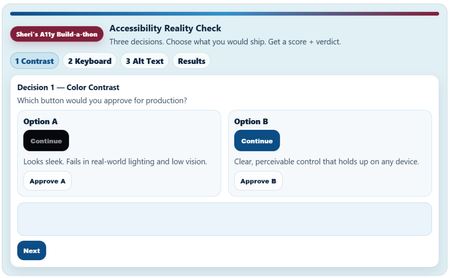
Link to Rise Course (Quick Share) Accessibility Reality Checker Copy /Paste Link: https://share.articulate.com/kdeNT__CFskcknh1QTeIp Project overview I created this project because most accessibility training fails in a predictable way. It explains rules, but it doesn’t change decisions. Teams ship inaccessible experiences because the tradeoffs are invisible in the moment. I worked to build something that puts some of those tradeoffs out into the open. Instead of building a tutorial, I built a short decision simulator: three common, high-impact accessibility choices (contrast, keyboard navigation, and alt text). I framed each choice under the question “Which would you ship?” The simulator allows the review to choose and get immediate consequences, then see an “accessibility” score. I made the simulator small, fast, and opinionated because that is how product decisions and learning content approval happens in the real world. This is not and was not intended to be a comprehensive accessibility course. It’s a pressure test for everyday judgment. Prompts and constraints The Build-a-thon prompt was to explore what the Rise Code Block can really do. My personal guide was: “Can I build something that feels like a real product review decision instead of another accessibility checklist?” My constraint and format drivers were: No long explanations up front No hidden scoring Do not pretend or ignore nuances The review must make a decision and live with the result Tools and implementation Built entirely in Articulate Rise 360’s Code Block Plain HTML, CSS, and JavaScript only Custom UI, state management, scoring logic, step flow, results meter, and share text are all handled in the Code Block Intentionally used: Semantic HTML Keyboard-operable controls Visible focus states High-contrast color choices The experience itself is designed to model the behaviors it’s teaching. The experience had to go beyond just talk about the experiences. What I learned I need to spend a lot more time upskilling on HMTL and JavaScript. Vibe Coding can be fun. Rise’s Code Block is capable of much richer, multi-step interactions than I use it for. Using the Code Block require you to be disciplined about structure, focus management, and state. Small UX decisions (focus order, feedback timing, contrast, visual hierarchy) have a big impact on whether a user experience feels accessible, useable, or sloppy. Accessibility cannot be taught in 5 minutes, but a quick accessibility review can expose bad decisions and highlight options for better user experiences instincts This type of tool/ format is good for awareness, decision calibration, but not for deep technical training. I like to call this a “feature” of the simulator not a bug. I acknowledge simulator has some real limitation for real work use in it’s current state.3.2KViews30likes11Comments3D Cube Interaction
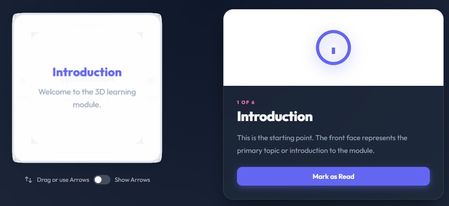
For this build-a-thon, one of the interactions I built was a Cube Rotation Interaction—a custom HTML/CSS/JS block meant to feel a little unexpected. Learners can rotate a 3D cube (by dragging or using arrow controls) to move between faces. Each face represents a topic, and selecting one updates an info panel with supporting content and a Complete button. Once completed, a checkmark appears directly on the cube so learners can easily track what they’ve already explored. The idea came from wanting to build something that doesn’t feel possible in Rise or Storyline. I was brainstorming interactions that really require HTML/CSS, and landed on the idea of rolling a die—something tactile, playful, and naturally three-dimensional. I liked the idea of learners discovering content in any order, rather than clicking through a fixed path. I used ChatGPT early on to brainstorm and create a build spec before jumping into development. From there, I built and refined the interaction in Antigravity using its code builder (powered by Gemini). It took a fair amount of back-and-forth to get the rotation, visuals, and overall feel right. I also added optional arrow controls for accessibility and used GitHub to track different versions along the way. A few things I learned: Rotating the content instead of the entire cube was important—this helped maintain a sense of orientation. Starting with a clear build spec made working with an LLM much more effective. Snapping to the nearest face was a needed touch to make things clear and readable. Small visual details matter more than expected (like darkening the cube during rotation so the cursor doesn’t get lost). Course Link: https://360.articulate.com/review/content/52d258fe-2de4-427a-b04c-747a8970182b/review I’m sharing the code so others can explore or remix it, and because this was a fun way to push beyond familiar interaction patterns and experiment with something a bit more playful. <!DOCTYPE html> <html lang="en"> <head> <meta charset="UTF-8"> <meta name="viewport" content="width=device-width, initial-scale=1.0"> <title>Flip Cube Interaction</title> <link rel="preconnect" href="https://fonts.googleapis.com"> <link rel="preconnect" href="https://fonts.gstatic.com" crossorigin> <link href="https://fonts.googleapis.com/css2?family=Outfit:wght@300;400;600;800&display=swap" rel="stylesheet"> <style> /* Scoped variables for easy tuning */ :root { --cube-size: 300px; /* Super Slick & Vibrant Palette (Dark Theme Base) */ --bg-grad-start: #0f172a; --bg-grad-end: #1e293b; --text-main: #f8fafc; --text-muted: #94a3b8; --primary: #6366f1; /* Indigo */ --primary-glow: rgba(99, 102, 241, 0.5); --accent: #f472b6; /* Pink */ --success: #10b981; /* Emerald */ --success-glow: rgba(16, 185, 129, 0.5); --panel-bg: rgba(30, 41, 59, 0.7); --panel-border: 1px solid rgba(255, 255, 255, 0.1); --panel-shadow: 0 25px 50px -12px rgba(0, 0, 0, 0.5); --face-bg: rgba(255, 255, 255, 0.95); --face-border: 4px solid #e2e8f0; --face-border-active: 4px solid var(--primary); --face-shadow: 0 0 30px rgba(0,0,0,0.1); --font-main: 'Outfit', sans-serif; } body { font-family: var(--font-main); background: radial-gradient(circle at top center, var(--bg-grad-start), var(--bg-grad-end)); margin: 0; padding: 2rem; display: flex; justify-content: center; align-items: center; min-height: 120px; color: var(--text-main); overflow: hidden; } /* --- Progress Tracker --- */ .progress-tracker { position: fixed; top: 20px; right: 20px; background: white; padding: 12px 24px; border-radius: 50px; box-shadow: 0 4px 20px rgba(0,0,0,0.08); font-weight: 800; font-size: 1.2rem; color: var(--primary); display: flex; align-items: center; gap: 10px; z-index: 100; transition: all 0.3s cubic-bezier(0.175, 0.885, 0.32, 1.275); } .progress-tracker.complete { background: var(--accent); color: white; transform: scale(1.1); box-shadow: 0 10px 30px rgba(247, 37, 133, 0.4); } .progress-icon { width: 24px; height: 24px; fill: currentColor; } /* --- Container Layout --- */ .cube-experience { display: grid; grid-template-columns: 1fr 1fr; gap: 60px; max-width: 1100px; width: 100%; /* Glassmorphism Panel Wrapper (optional, currently using grid) */ align-items: center; } /* Mobile Layout */ MeDia (max-width: 860px) { .cube-experience { grid-template-columns: 1fr; gap: 60px; padding: 20px; } :root { --cube-size: 260px; } body { padding: 1rem; } } MeDia (max-width: 400px) { :root { --cube-size: 220px; } } /* --- Cube Module --- */ .cube-module { display: flex; flex-direction: column; align-items: center; position: relative; } .cube-stage { width: var(--cube-size); height: var(--cube-size); perspective: 1000px; cursor: grab; position: relative; /* Prevent scrolling on touch drag */ touch-action: none; -webkit-user-select: none; user-select: none; } .cube-stage:active { cursor: grabbing; } .cube { width: 100%; height: 100%; position: absolute; transform-style: preserve-3d; /* transform is set by JS */ transition: transform 0ms; /* Initial state, JS handles duration */ will-change: transform; } /* --- Animations --- */ @keyframes slideUpFade { from { opacity: 0; transform: translateY(20px); } to { opacity: 1; transform: translateY(0); } } @keyframes pulseGlow { 0% { box-shadow: 0 0 0 0 var(--success-glow); } 70% { box-shadow: 0 0 0 10px rgba(16, 185, 129, 0); } 100% { box-shadow: 0 0 0 0 rgba(16, 185, 129, 0); } } /* --- Cube Faces --- */ .face { position: absolute; width: var(--cube-size); height: var(--cube-size); background: var(--face-bg); border: var(--face-border); display: flex; flex-direction: column; justify-content: center; align-items: center; text-align: center; padding: 24px; box-sizing: border-box; border-radius: 24px; backface-visibility: hidden; backface-visibility: visible; box-shadow: var(--face-shadow); transition: border-color 0.3s, opacity 0.3s; /* Added opacity transition */ } /* Dynamic Opacity during Interaction */ .cube-stage.interacting .face { opacity: 0.9; background: #cbd5e1; /* Light grey for contrast with white cursor */ } .face.visited { border: var(--face-border-active); } /* Checkmark moved to face-content to rotate with text */ .face.visited .face-content::after { content: ''; position: absolute; top: 0px; /* Adjusted for face-content padding/relative pos */ right: 0px; width: 28px; height: 28px; background: var(--success); border-radius: 50%; background-image: url("data:image/svg+xml,%3Csvg xmlns='http://www.w3.org/2000/svg' viewBox='0 0 24 24' fill='none' stroke='white' stroke-width='3' stroke-linecap='round' stroke-linejoin='round'%3E%3Cpolyline points='20 6 9 17 4 12'/%3E%3C/svg%3E"); background-size: 18px; background-repeat: no-repeat; background-position: center; animation: popIn 0.4s cubic-bezier(0.175, 0.885, 0.32, 1.275); box-shadow: 0 4px 10px rgba(76, 201, 240, 0.3); /* Ensure it sits on top */ z-index: 10; transform: translate(15px, -15px); /* Offset to corner */ } @keyframes popIn { 0% { transform: translate(15px, -15px) scale(0); } 100% { transform: translate(15px, -15px) scale(1); } } .face h3 { margin: 0 0 12px 0; font-size: 1.5rem; color: var(--primary); font-weight: 800; } .face p { margin: 0; font-size: 1rem; line-height: 1.6; color: var(--text-muted); font-weight: 400; } .face ul { text-align: left; padding-left: 20px; margin: 0; font-size: 0.95rem; color: var(--text-muted); } /* Face Specific Transforms will be injected or handled by common class + specific class */ .face--front { transform: rotateY(0deg) translateZ(calc(var(--cube-size)/2)); } .face--right { transform: rotateY(90deg) translateZ(calc(var(--cube-size)/2)); } .face--back { transform: rotateY(180deg) translateZ(calc(var(--cube-size)/2)); } .face--left { transform: rotateY(-90deg) translateZ(calc(var(--cube-size)/2)); } .face--top { transform: rotateX(90deg) translateZ(calc(var(--cube-size)/2)); } .face--bottom { transform: rotateX(-90deg) translateZ(calc(var(--cube-size)/2)); } /* --- Instructions --- */ .instructions { margin-top: 25px; font-size: 0.95rem; color: rgba(255, 255, 255, 0.8); /* Lighter for accessibility */ display: flex; align-items: center; gap: 8px; font-weight: 500; } .key-hint { background: rgba(255,255,255,0.15); padding: 2px 6px; border-radius: 4px; font-size: 0.8em; font-family: monospace; border: 1px solid rgba(255,255,255,0.3); color: white; } /* --- Info Panel --- */ .panel { background: var(--panel-bg); border-radius: 24px; padding: 0; overflow: hidden; display: flex; flex-direction: column; border: var(--panel-border); height: auto; min-height: 400px; opacity: 1; transition: opacity 0.2s ease-out, transform 0.2s ease-out; box-shadow: var(--panel-shadow); backdrop-filter: blur(20px); -webkit-backdrop-filter: blur(20px); } .panel.fade-out { opacity: 0; transform: translateY(10px); } .panel-graphic { background: linear-gradient(135deg, rgb(255, 255, 255) 0%, rgb(255, 255, 255) 100%); /* Subtle glass gradient */ height: 180px; display: flex; justify-content: center; align-items: center; color: var(--primary); position: relative; } .panel-graphic::after { content: ''; position: absolute; bottom: 0; left: 0; right: 0; height: 1px; background: linear-gradient(90deg, transparent, rgba(255,255,255,0.1), transparent); } .panel-graphic svg { width: 90px; height: 90px; filter: drop-shadow(0 10px 15px var(--primary-glow)); transition: transform 0.4s cubic-bezier(0.175, 0.885, 0.32, 1.275); } /* Animate icon on entrance */ .panel:not(.fade-out) .panel-graphic svg { transform: scale(1) translateY(0); } .panel.fade-out .panel-graphic svg { transform: scale(0.8) translateY(10px); } .panel-content { padding: 32px; } .panel-label { text-transform: uppercase; letter-spacing: 2px; font-size: 0.7rem; color: var(--accent); margin-bottom: 5px; font-weight: 800; } .panel-title { margin: 0 0 16px 0; font-size: 2rem; color: var(--text-main); font-weight: 800; letter-spacing: -0.02em; } .panel-body { line-height: 1.8; color: var(--text-muted); font-size: 1.05rem; } /* Panel Text Animations */ .panel-title, .panel-body, .btn-complete { transition: transform 0.4s ease-out, opacity 0.4s ease-out; } .panel.fade-out .panel-title { transform: translateX(20px); opacity: 0; } .panel.fade-out .panel-body { transform: translateX(20px); opacity: 0; transition-delay: 0.05s; } .panel.fade-out .btn-complete { transform: translateY(20px); opacity: 0; transition-delay: 0.1s; } /* Complete Button */ .btn-complete { background: var(--primary); color: white; border: none; padding: 12px 24px; font-size: 1rem; font-weight: 600; border-radius: 12px; cursor: pointer; margin-top: 24px; width: 100%; transition: all 0.3s cubic-bezier(0.175, 0.885, 0.32, 1.275); display: flex; align-items: center; justify-content: center; gap: 8px; font-family: var(--font-main); box-shadow: 0 4px 15px var(--primary-glow); } .btn-complete:hover { transform: translateY(-2px) scale(1.02); box-shadow: 0 8px 25px var(--primary-glow); } .btn-complete:active { transform: translateY(1px); } .btn-complete.completed { background: var(--success); cursor: default; box-shadow: none; pointer-events: none; } .btn-complete.completed:hover { transform: none; } .nav-arrow { position: absolute; width: 44px; /* Slightly Larger */ height: 44px; border-radius: 50%; /* Glassmorphism */ background: rgba(255, 255, 255, 0.05); backdrop-filter: blur(8px); border: 1px solid rgba(255, 255, 255, 0.1); display: flex; align-items: center; justify-content: center; color: white; cursor: pointer; box-shadow: 0 4px 15px rgba(0,0,0,0.1); transition: all 0.2s cubic-bezier(0.25, 1, 0.5, 1); z-index: 10; } .nav-arrow:hover { background: white; color: black; transform: scale(1.15); border-color: white; box-shadow: 0 8px 25px rgba(255,255,255,0.3); } /* Positioning around the cube stage */ /* Since buttons are in cube-module (relative), and stage is centered */ /* We can position absolute relative to the module center, or use margins */ /* Better approach: Wrapper or exact placement relative to stage */ /* Let's place them inside the stage container for easy relative positioning */ .cube-stage .nav-arrow { position: absolute; } .nav-arrow--top { top: -60px; /* More padding */ left: 50%; transform: translateX(-50%); } .nav-arrow--bottom { bottom: -60px; left: 50%; transform: translateX(-50%); } .nav-arrow--left { top: 50%; left: -60px; transform: translateY(-50%); } .nav-arrow--right { top: 50%; right: -60px; transform: translateY(-50%); } .nav-arrow--top:hover { transform: translateX(-50%) scale(1.15); } .nav-arrow--bottom:hover { transform: translateX(-50%) scale(1.15); } .nav-arrow--left:hover { transform: translateY(-50%) scale(1.15); } .nav-arrow--right:hover { transform: translateY(-50%) scale(1.15); } /* Toggle Switch */ .toggle-container { display: flex; align-items: center; gap: 10px; font-size: 0.9rem; color: rgba(255,255,255,0.6); /* Lighter */ margin-left: auto; /* Push to right if in flex container */ padding-top: 30px; } .switch { position: relative; display: inline-block; width: 40px; height: 22px; } .switch input { opacity: 0; width: 0; height: 0; } .slider { position: absolute; cursor: pointer; top: 0; left: 0; right: 0; bottom: 0; background-color: rgba(255,255,255,0.2); transition: .4s; border-radius: 34px; } .slider:before { position: absolute; content: ""; height: 16px; width: 16px; left: 3px; bottom: 3px; background-color: white; transition: .4s; border-radius: 50%; } input:checked + .slider { background-color: var(--primary); } input:checked + .slider:before { transform: translateX(18px); } /* Arrow Visibility */ .nav-arrow { /* ... existing styles ... */ opacity: 0; pointer-events: none; /*transform: scale(0.8);*/ /* Conflict with pos transforms, handled below */ } .cube-stage.show-arrows .nav-arrow { opacity: 1; pointer-events: auto; /*transform: scale(1);*/ } /* Specific positions for show state (combining with hover scale) */ .cube-stage.show-arrows .nav-arrow--top { transform: translateX(-50%) scale(1); } .cube-stage.show-arrows .nav-arrow--bottom { transform: translateX(-50%) scale(1); } .cube-stage.show-arrows .nav-arrow--left { transform: translateY(-50%) scale(1); } .cube-stage.show-arrows .nav-arrow--right { transform: translateY(-50%) scale(1); } .cube-stage.show-arrows .nav-arrow--top:hover { transform: translateX(-50%) scale(1.15); } .cube-stage.show-arrows .nav-arrow--bottom:hover { transform: translateX(-50%) scale(1.15); } .cube-stage.show-arrows .nav-arrow--left:hover { transform: translateY(-50%) scale(1.15); } .cube-stage.show-arrows .nav-arrow--right:hover { transform: translateY(-50%) scale(1.15); } /* Face Content Wrapper */ .face-content { width: 100%; height: 100%; display: flex; flex-direction: column; justify-content: center; align-items: center; text-align: center; transition: transform 0.4s ease-out; transform-origin: center center; backface-visibility: hidden; /* sharpening */ position: relative; /* For checkmark positioning */ } /* Progress Tracker text fix */ .progress-tracker { /* ... */ color: var(--primary); } #trackerText { color: var(--primary); } </style> </style> </head> <body> <div class="cube-experience" aria-label="3D Cube Interaction"> <!-- Left: Cube Module --> <div class="cube-module"> <div class="cube-stage" id="cubeStage" aria-label="Interactive 3D Cube." tabindex="0"> <div class="cube" id="cube"> <!-- Faces injected via JS or static below --> <div class="face face--front" data-face="front"> <h3>Front Face</h3> <p>Start here.</p> </div> <div class="face face--right" data-face="right"> <h3>Right Face</h3> </div> <div class="face face--back" data-face="back"> <h3>Back Face</h3> </div> <div class="face face--left" data-face="left"> <h3>Left Face</h3> </div> <div class="face face--top" data-face="top"> <h3>Top Face</h3> </div> <div class="face face--bottom" data-face="bottom"> <h3>Bottom Face</h3> </div> </div> <!-- Navigation Arrows --> <button class="nav-arrow nav-arrow--top" aria-label="Rotate Up"> <svg width="24" height="24" fill="none" viewBox="0 0 24 24" stroke="currentColor"><path stroke-linecap="round" stroke-linejoin="round" stroke-width="2" d="M5 15l7-7 7 7"/></svg> </button> <button class="nav-arrow nav-arrow--right" aria-label="Rotate Right"> <svg width="24" height="24" fill="none" viewBox="0 0 24 24" stroke="currentColor"><path stroke-linecap="round" stroke-linejoin="round" stroke-width="2" d="M9 5l7 7-7 7"/></svg> </button> <button class="nav-arrow nav-arrow--bottom" aria-label="Rotate Down"> <svg width="24" height="24" fill="none" viewBox="0 0 24 24" stroke="currentColor"><path stroke-linecap="round" stroke-linejoin="round" stroke-width="2" d="M19 9l-7 7-7-7"/></svg> </button> <button class="nav-arrow nav-arrow--left" aria-label="Rotate Left"> <svg width="24" height="24" fill="none" viewBox="0 0 24 24" stroke="currentColor"><path stroke-linecap="round" stroke-linejoin="round" stroke-width="2" d="M15 19l-7-7 7-7"/></svg> </button> </div> <div class="instructions"> <div class="toggle-container"> <svg width="20" height="20" fill="none" viewBox="0 0 24 24" stroke="currentColor"> <path stroke-linecap="round" stroke-linejoin="round" stroke-width="2" d="M7 16V4m0 0L3 8m4-4l4 4m6 0v12m0 0l4-4m-4 4l-4-4" /> </svg> <span>Drag or use Arrows</span> <label class="switch"> <input type="checkbox" id="arrowToggle"> <span class="slider"></span> </label> <span>Show Arrows</span> </div> </div> </div> <!-- Right: Graphic Panel --> <div class="panel" id="infoPanel" aria-live="polite"> <div class="panel-graphic" id="panelGraphic"> <!-- SVG injected here --> </div> <div class="panel-content"> <div class="panel-label" id="panelLabel">Face 1 of 6</div> <h2 class="panel-title" id="panelTitle">Introduction</h2> <div class="panel-body" id="panelBody"> Explore the cube to reveal different topics. </div> <button id="btnComplete" class="btn-complete"> <span>Mark as Read</span> </button> </div> </div> </div> <!-- Progress Tracker --> <div class="progress-tracker" id="progressTracker"> <svg class="progress-icon" viewBox="0 0 24 24" fill="currentColor"> <path d="M12 2C6.48 2 2 6.48 2 12s4.48 10 10 10 10-4.48 10-10S17.52 2 12 2zm-2 15l-5-5 1.41-1.41L10 14.17l7.59-7.59L19 8l-9 9z"/> </svg> <span id="trackerText">0 / 6</span> </div> <!-- Celebration Canvas --> <canvas id="confettiCanvas" style="position: fixed; top: 0; left: 0; width: 100%; height: 100%; pointer-events: none; z-index: 999;"></canvas> </div> <script> /** * Minimal Math Lib */ class Quaternion { constructor(x = 0, y = 0, z = 0, w = 1) { this.x = x; this.y = y; this.z = z; this.w = w; } static identity() { return new Quaternion(0, 0, 0, 1); } copy() { return new Quaternion(this.x, this.y, this.z, this.w); } setFromAxisAngle(axis, angleRad) { const halfAngle = angleRad / 2; const s = Math.sin(halfAngle); this.x = axis.x * s; this.y = axis.y * s; this.z = axis.z * s; this.w = Math.cos(halfAngle); return this; } multiply(q) { const qax = this.x, qay = this.y, qaz = this.z, qaw = this.w; const qbx = q.x, qby = q.y, qbz = q.z, qbw = q.w; this.x = qax * qbw + qaw * qbx + qay * qbz - qaz * qby; this.y = qay * qbw + qaw * qby + qaz * qbx - qax * qbz; this.z = qaz * qbw + qaw * qbz + qax * qby - qay * qbx; this.w = qaw * qbw - qax * qbx - qay * qby - qaz * qbz; return this; } premultiply(q) { const qax = q.x, qay = q.y, qaz = q.z, qaw = q.w; const qbx = this.x, qby = this.y, qbz = this.z, qbw = this.w; this.x = qax * qbw + qaw * qbx + qay * qbz - qaz * qby; this.y = qay * qbw + qaw * qby + qaz * qbx - qax * qbz; this.z = qaz * qbw + qaw * qbz + qax * qby - qay * qbx; this.w = qaw * qbw - qax * qbx - qay * qby - qaz * qbz; return this; } normalize() { let l = Math.sqrt(this.x*this.x + this.y*this.y + this.z*this.z + this.w*this.w); if (l === 0) { this.x=0; this.y=0; this.z=0; this.w=1; } else { l = 1/l; this.x*=l; this.y*=l; this.z*=l; this.w*=l; } return this; } dot(q) { return this.x*q.x + this.y*q.y + this.z*q.z + this.w*q.w; } slerp(qb, t) { if (t === 0) return this; if (t === 1) return this.copy().set(qb.x, qb.y, qb.z, qb.w); let x = this.x, y = this.y, z = this.z, w = this.w; // Calculate cosine let cosHalfTheta = w * qb.w + x * qb.x + y * qb.y + z * qb.z; // If negative, invert one to take shortest path if (cosHalfTheta < 0) { this.w = -qb.w; this.x = -qb.x; this.y = -qb.y; this.z = -qb.z; cosHalfTheta = -cosHalfTheta; } else { this.copyFrom(qb); } // If parallel, linear interp if (cosHalfTheta >= 1.0) { this.w = w; this.x = x; this.y = y; this.z = z; return this; } const sinHalfTheta = Math.sqrt(1.0 - cosHalfTheta * cosHalfTheta); // Avoid division by zero if (Math.abs(sinHalfTheta) < 0.001) { this.w = 0.5 * (w + this.w); this.x = 0.5 * (x + this.x); this.y = 0.5 * (y + this.y); this.z = 0.5 * (z + this.z); return this.normalize(); } const halfTheta = Math.atan2(sinHalfTheta, cosHalfTheta); const ratioA = Math.sin((1 - t) * halfTheta) / sinHalfTheta; const ratioB = Math.sin(t * halfTheta) / sinHalfTheta; this.w = (w * ratioA + this.w * ratioB); this.x = (x * ratioA + this.x * ratioB); this.y = (y * ratioA + this.y * ratioB); this.z = (z * ratioA + this.z * ratioB); return this; } copyFrom(q) { this.x=q.x; this.y=q.y; this.z=q.z; this.w=q.w; return this; } set(x,y,z,w) { this.x=x; this.y=y; this.z=z; this.w=w; return this; } static slerpFlat(qa, qb, t) { return qa.copy().slerp(qb, t); } toMatrix3D() { const x = this.x, y = this.y, z = this.z, w = this.w; const x2 = x + x, y2 = y + y, z2 = z + z; const xx = x * x2, xy = x * y2, xz = x * z2; const yy = y * y2, yz = y * z2, zz = z * z2; const wx = w * x2, wy = w * y2, wz = w * z2; return `matrix3d( ${1 - (yy + zz)}, ${xy + wz}, ${xz - wy}, 0, ${xy - wz}, ${1 - (xx + zz)}, ${yz + wx}, 0, ${xz + wy}, ${yz - wx}, ${1 - (xx + yy)}, 0, 0, 0, 0, 1 )`; } } /** * Configuration & Data */ const CONFIG = { sensitivity: 0.005, // Radians per pixel friction: 0.92, // Inertia decay snapThreshold: 0.001 // Velocity threshold }; // Calculate Base Quaternions for each face (UPRIGHT) // Front: Id // Right: Ry(-90) // Back: Ry(180) // Left: Ry(90) // Top: Rx(90) // Bottom: Rx(-90) function createQ(axis, angleDeg) { return new Quaternion().setFromAxisAngle(axis, angleDeg * Math.PI / 180); } const FACES = { front: { id: 'front', label: '1 of 6', cubeContent: `<h3>Introduction</h3><p>Welcome to the 3D learning module.</p>`, panel: { title: "Introduction", body: "This is the starting point. The front face represents the primary topic or introduction to the module.", icon: `<svg viewBox="0 0 24 24" fill="none" stroke="currentColor" stroke-width="2"><circle cx="12" cy="12" r="10"/><path d="M12 16v-4"/><path d="M12 8h.01"/></svg>` }, baseQ: Quaternion.identity() }, right: { id: 'right', label: '2 of 6', cubeContent: `<h3>Analysis</h3><p>Key metrics and data points.</p>`, panel: { title: "Analysis", body: "Here we dive into the numbers. Understanding the metrics is crucial for evaluating performance.", icon: `<svg viewBox="0 0 24 24" fill="none" stroke="currentColor" stroke-width="2"><path d="M18 20V10"/><path d="M12 20V4"/><path d="M6 20v-6"/></svg>` }, baseQ: createQ({x:0, y:1, z:0}, -90) }, back: { id: 'back', label: '3 of 6', cubeContent: `<h3>Methodology</h3><ul><li>Step 1: Plan</li><li>Step 2: Execute</li></ul>`, panel: { title: "Methodology", body: "A systematic approach ensures consistent results. We follow a strict two-phase methodology.", icon: `<svg viewBox="0 0 24 24" fill="none" stroke="currentColor" stroke-width="2"><path d="M12 2L2 7l10 5 10-5-10-5zM2 17l10 5 10-5M2 12l10 5 10-5"/></svg>` }, baseQ: createQ({x:0, y:1, z:0}, 180) }, left: { id: 'left', label: '4 of 6', cubeContent: `<h3>History</h3><p>Looking back at origins.</p>`, panel: { title: "History", body: "Knowing where we came from helps us understand where we are going.", icon: `<svg viewBox="0 0 24 24" fill="none" stroke="currentColor" stroke-width="2"><circle cx="12" cy="12" r="10"/><polyline points="12 6 12 12 16 14"/></svg>` }, baseQ: createQ({x:0, y:1, z:0}, 90) }, top: { id: 'top', label: '5 of 6', cubeContent: `<h3>Vision</h3><p>High-level goals.</p>`, panel: { title: "Vision", body: "The top-down view allows us to see the bigger picture and long-term strategic goals.", icon: `<svg viewBox="0 0 24 24" fill="none" stroke="currentColor" stroke-width="2"><path d="M1 12s4-8 11-8 11 8 11 8-4 8-11 8-11-8-11-8z"/><circle cx="12" cy="12" r="3"/></svg>` }, baseQ: createQ({x:1, y:0, z:0}, -90) }, bottom: { id: 'bottom', label: '6 of 6', cubeContent: `<h3>Foundation</h3><p>Underlying support.</p>`, panel: { title: "Foundation", body: "Every great structure needs a solid base. These are the fundamental principles.", icon: `<svg viewBox="0 0 24 24" fill="none" stroke="currentColor" stroke-width="2"><path d="M3 21h18"/><path d="M5 21v-7"/><path d="M19 21v-7"/><path d="M9 9l3-6 3 6"/><path d="M9 9h6v12H9z"/></svg>` }, baseQ: createQ({x:1, y:0, z:0}, 90) } }; /** * State */ let state = { qCurrent: Quaternion.identity(), isDragging: false, startX: 0, startY: 0, currentFace: 'front', vy: 0, lastMoveTime: 0, isSnapping: false, visitedFaces: new Set() }; /** * Elements */ const cube = document.getElementById('cube'); const stage = document.getElementById('cubeStage'); const panel = document.getElementById('infoPanel'); const panelGraphic = document.getElementById('panelGraphic'); const panelLabel = document.getElementById('panelLabel'); const panelTitle = document.getElementById('panelTitle'); const panelBody = document.getElementById('panelBody'); const btnComplete = document.getElementById('btnComplete'); const trackerText = document.getElementById('trackerText'); const progressTracker = document.getElementById('progressTracker'); /** * Initialization */ function init() { // Hydrate cube faces document.querySelectorAll('.face').forEach(faceEl => { const id = faceEl.getAttribute('data-face'); if (FACES[id]) { faceEl.innerHTML = `<div class="face-content">${FACES[id].cubeContent}</div>`; } }); updatePanel('front', true); // Initial Transform updateCubeTransform(); // Events stage.addEventListener('mousedown', onPointerDown); stage.addEventListener('touchstart', onPointerDown, { passive: false }); // Window Listeners window.addEventListener('mousemove', onPointerMove); window.addEventListener('mouseup', onPointerUp); window.addEventListener('touchmove', onPointerMove, { passive: false }); window.addEventListener('touchend', onPointerUp); stage.addEventListener('keydown', onKeyDown); // Nav Buttons document.querySelector('.nav-arrow--top').addEventListener('click', (e) => { e.stopPropagation(); triggerRelativeRotate(0, -1); }); // Up (Simulate Drag Up) document.querySelector('.nav-arrow--bottom').addEventListener('click', (e) => { e.stopPropagation(); triggerRelativeRotate(0, 1); }); // Down (Simulate Drag Down) document.querySelector('.nav-arrow--left').addEventListener('click', (e) => { e.stopPropagation(); triggerRelativeRotate(-1, 0); }); // Left (Simulate Drag Left) document.querySelector('.nav-arrow--right').addEventListener('click', (e) => { e.stopPropagation(); triggerRelativeRotate(1, 0); }); // Right (Simulate Drag Right) // Toggle Arrows const toggle = document.getElementById('arrowToggle'); toggle.addEventListener('change', (e) => { stage.classList.toggle('show-arrows', e.target.checked); }); document.querySelectorAll('.nav-arrow').forEach(btn => { btn.addEventListener('mousedown', (e) => e.stopPropagation()); btn.addEventListener('touchstart', (e) => e.stopPropagation()); }); // Complete Button const btnComplete = document.getElementById('btnComplete'); btnComplete.addEventListener('click', onCompleteClick); requestAnimationFrame(animate); } /** * Interaction Logic */ function onPointerDown(e) { state.isSnapping = false; state.isDragging = true; state.vx = 0; state.vy = 0; stage.classList.add('interacting'); // Trigger opacity change const { x, y } = getCoord(e); state.startX = x; state.startY = y; e.preventDefault(); document.body.style.cursor = 'grabbing'; stage.style.cursor = 'grabbing'; } function onPointerMove(e) { if (!state.isDragging) return; if(e.type === 'touchmove') e.preventDefault(); const { x, y } = getCoord(e); const dx = x - state.startX; const dy = y - state.startY; state.vx = dx; state.vy = dy; state.startX = x; state.startY = y; state.lastMoveTime = performance.now(); applyRotation(dx, dy); } function onPointerUp(e) { if (!state.isDragging) return; state.isDragging = false; document.body.style.cursor = ''; stage.style.cursor = 'grab'; // If user held still for > 100ms, kill velocity const timeSinceMove = performance.now() - state.lastMoveTime; if (timeSinceMove > 100) { state.vx = 0; state.vy = 0; } startInertia(); } function getCoord(e) { if (e.touches && e.touches.length > 0) { return { x: e.touches[0].clientX, y: e.touches[0].clientY }; } return { x: e.clientX, y: e.clientY }; } function applyRotation(dx, dy) { // Screen Space Rotation const angleY = dx * CONFIG.sensitivity; const angleX = -dy * CONFIG.sensitivity; const qRotY = new Quaternion().setFromAxisAngle({x:0,y:1,z:0}, angleY); const qRotX = new Quaternion().setFromAxisAngle({x:1,y:0,z:0}, angleX); // Apply Screen Rotations state.qCurrent.premultiply(qRotX); state.qCurrent.premultiply(qRotY); state.qCurrent.normalize(); updateCubeTransform(); } /** * Physics & Animation */ function animate() { requestAnimationFrame(animate); } function startInertia() { if(state.isSnapping) return; function inertiaLoop() { if (state.isDragging || state.isSnapping) return; state.vx *= CONFIG.friction; state.vy *= CONFIG.friction; if (Math.abs(state.vx) < 1 && Math.abs(state.vy) < 1) { snapToNearestFace(); return; } applyRotation(state.vx, state.vy); requestAnimationFrame(inertiaLoop); } inertiaLoop(); } function getBestMatch(q) { // Z-Rolls: 0, 90, 180, 270 (Degrees) const rolls = [0, 90, 180, 270]; const axisZ = {x:0, y:0, z:1}; let bestDist = -1; // Cosine similarity: 1 is identical, -1 opposite. let bestFaceId = 'front'; let bestTargetQ = null; let bestRoll = 0; // Iterate all 24 states for (const [key, data] of Object.entries(FACES)) { const baseQ = data.baseQ; for (let r of rolls) { const rollQ = new Quaternion().setFromAxisAngle(axisZ, r * Math.PI / 180); // Note: Premultiply rollQ because it's a global view rotation const candidateQ = rollQ.multiply(baseQ.copy()); // Dot product |dot| closer to 1 means closer orientation let dot = Math.abs(q.dot(candidateQ)); if (dot > bestDist) { bestDist = dot; bestFaceId = key; // Snap to the ROLLED state, not the base state bestTargetQ = candidateQ; bestRoll = r; } } } return { targetQ: bestTargetQ, faceId: bestFaceId, roll: bestRoll }; } function snapToNearestFace() { state.isSnapping = true; // Remove interacting class to restore full opacity stage.classList.remove('interacting'); const match = getBestMatch(state.qCurrent); animateSnap(match.targetQ, match.faceId, match.roll); } function animateSnap(qTarget, faceId, roll = 0) { const qStart = state.qCurrent.copy(); const startTime = performance.now(); const duration = 500; // Ensure shortest path for slerp if (qStart.dot(qTarget) < 0) { qTarget.set(-qTarget.x, -qTarget.y, -qTarget.z, -qTarget.w); } // Apply counter-rotation to text immediately so it looks right as it settles rotateFaceContent(faceId, roll); function loop(now) { if (state.isDragging) return; const elapsed = now - startTime; const t = Math.min(elapsed / duration, 1); const ease = 1 - Math.pow(1 - t, 3); state.qCurrent = Quaternion.slerpFlat(qStart, qTarget, ease); updateCubeTransform(); if (t < 1) { requestAnimationFrame(loop); } else { state.isSnapping = false; state.qCurrent.copyFrom(qTarget); updateCubeTransform(); if (state.currentFace !== faceId) { updatePanel(faceId); state.currentFace = faceId; } } } requestAnimationFrame(loop); } function rotateFaceContent(faceId, roll) { const faceEl = document.querySelector(`.face[data-face="${faceId}"] .face-content`); if (faceEl) { // Counter-rotate text to keep it upright // If cube is rolled +90 (CW), text needs -90 (CCW) faceEl.style.transform = `rotate(${-roll}deg)`; } } function triggerRelativeRotate(dxDir, dyDir) { if (state.isSnapping || state.isDragging) return; const rotationAmount = Math.PI / 2; let axis, angle; // Global Rotation Axes if (dxDir !== 0) { axis = {x:0, y:1, z:0}; // Screen Y // Invert logic: Left Arrow (dx=-1) -> Show Left (+90 deg) angle = -dxDir * rotationAmount; } else { axis = {x:1, y:0, z:0}; // Screen X // Invert logic: Top Arrow (dy=-1) -> Show Top (+90 deg) angle = -dyDir * rotationAmount; } const qRot = new Quaternion().setFromAxisAngle(axis, angle); // Apply Global Rotation: New = Rot * Old const qTargetProposed = state.qCurrent.copy().premultiply(qRot); // Calculate best match based on proposed target const match = getBestMatch(qTargetProposed); animateSnap(match.targetQ, match.faceId, match.roll); } function updateCubeTransform() { const mat = state.qCurrent.toMatrix3D(); cube.style.transform = mat; } function updatePanel(faceId, instant = false) { const data = FACES[faceId]; if (!data) return; if (instant) { renderPanelContent(data); return; } panel.classList.add('fade-out'); setTimeout(() => { renderPanelContent(data); panel.classList.remove('fade-out'); }, 200); } function renderPanelContent(data) { panelLabel.textContent = data.label; panelTitle.textContent = data.panel.title; panelBody.textContent = data.panel.body; panelGraphic.innerHTML = data.panel.icon; // Update Button State const isVisited = state.visitedFaces.has(data.id); if (isVisited) { btnComplete.classList.add('completed'); btnComplete.innerHTML = `<svg width="20" height="20" fill="none" viewBox="0 0 24 24" stroke="currentColor"><path stroke-linecap="round" stroke-linejoin="round" stroke-width="3" d="M5 13l4 4L19 7"/></svg> Completed`; } else { btnComplete.classList.remove('completed'); btnComplete.textContent = "Mark as Read"; } } function onCompleteClick() { const currentId = state.currentFace; if (state.visitedFaces.has(currentId)) return; // Mark as visited state.visitedFaces.add(currentId); // Add visual indicator to cube face const faceEl = document.querySelector(`.face[data-face="${currentId}"]`); if (faceEl) faceEl.classList.add('visited'); // Update Tracker trackerText.textContent = `${state.visitedFaces.size} / 6`; // Update Button State (Immediate) btnComplete.classList.add('completed'); btnComplete.innerHTML = `<svg width="20" height="20" fill="none" viewBox="0 0 24 24" stroke="currentColor"><path stroke-linecap="round" stroke-linejoin="round" stroke-width="3" d="M5 13l4 4L19 7"/></svg> Completed`; // Celebration Check if (state.visitedFaces.size === 6) { triggerCelebration(); } } function triggerCelebration() { const tracker = document.getElementById('progressTracker'); tracker.classList.add('complete'); // Simple Confetti const canvas = document.getElementById('confettiCanvas'); const ctx = canvas.getContext('2d'); canvas.width = window.innerWidth; canvas.height = window.innerHeight; const pieces = []; const colors = ['#f72585', '#4361ee', '#4cc9f0', '#7209b7', '#ffd166']; for(let i=0; i<300; i++) { pieces.push({ x: Math.random() * canvas.width, y: Math.random() * canvas.height - canvas.height, w: Math.random() * 10 + 5, h: Math.random() * 10 + 5, color: colors[Math.floor(Math.random() * colors.length)], vy: Math.random() * 5 + 2, vx: Math.random() * 4 - 2, rot: Math.random() * 360, rotSpeed: Math.random() * 10 - 5 }); } function loop() { ctx.clearRect(0,0,canvas.width,canvas.height); let active = false; pieces.forEach(p => { p.y += p.vy; p.x += p.vx; p.rot += p.rotSpeed; if (p.y < canvas.height) active = true; ctx.save(); ctx.translate(p.x, p.y); ctx.rotate(p.rot * Math.PI / 180); ctx.fillStyle = p.color; ctx.fillRect(-p.w/2, -p.h/2, p.w, p.h); ctx.restore(); }); if (active) requestAnimationFrame(loop); } loop(); } function onKeyDown(e) { let handled = false; if (e.key === 'ArrowLeft') { triggerRelativeRotate(-1, 0); handled=true; } else if (e.key === 'ArrowRight') { triggerRelativeRotate(1, 0); handled=true; } else if (e.key === 'ArrowUp') { triggerRelativeRotate(0, -1); handled=true; } else if (e.key === 'ArrowDown') { triggerRelativeRotate(0, 1); handled=true; } if(handled) e.preventDefault(); } init(); </script> </body> </html>592Views13likes2CommentsCould You Pass the 1912 Exam?
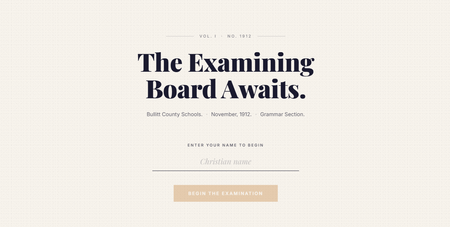
The examining board is waiting. In 1912, Bullitt County students gathered at the courthouse once or twice a year to sit the Common Examination. The local newspaper urged even seventh graders to start preparing early. It was a big deal. For Challenge #549, I didn't redesign the exam. I stepped into it. It starts by asking for your Christian name. Not your name. Your Christian name, because that is what a 1912 Kentucky schoolmaster would have said. That one detail sets the tone for everything that follows. The examiner knows your name and isn't shy about using it. The margin notes are handwritten and pointed. The feedback is sarcastic, whether you are right or wrong. Your result arrives as the front page of the Bullitt County Gazette. Personalised headline, rubber stamp verdict, and Superintendent O. Harned's wax seal. If you score zero, the editors note they have done what they can. Go on then. Submit for marking.Risk Quest: Investigator Training
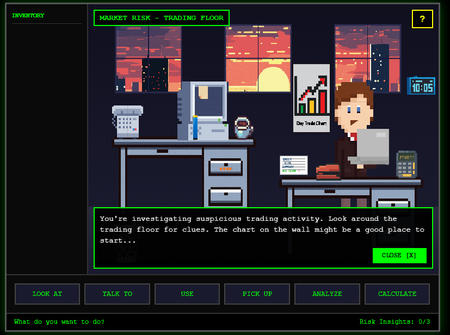
Code Block Experience Inspired by the old point-and-click adventure games, I wanted to build a simulation-style experience that lets learners have fun while actually practicing investigation skills. In this scenario, you step into the role of a newly assigned Risk Investigator trying to figure out why financial projections don’t match real-world returns. Projects like this usually don’t happen. Not because they aren’t valuable, but because they take time, money, and resources that most teams just don’t have. Fast builds are expected. Games are not. So instead of waiting for the perfect conditions, I used Rise Code Blocks, ChatGPT, stock images, and a lot of trial and error to build a playable proof of concept the team could realistically evaluate. The Risk Quest demo puts you directly in the investigation. You explore the environment, pick up and use objects, connect the dots, and report back what you’ve uncovered. If you’re not paying attention, you’ll miss things. That’s intentional. The project is broken into three parts: Risk Quest Demo Play the experience. Be the investigator. Figure out what’s going on. Risk Quest Evolution Walk through how the project evolved from v1 to the current POC. You can see what changed, what stuck, and what ideas didn’t survive contact with reality. Hidden Assets All of the graphics used in the experience and how they were stored and referenced directly in the Code Block as the look and feel evolved. And yes, this whole thing is heavily influenced by nostalgia. Did anyone else play these growing up? Zak McKracken and the Alien Mindbenders, Maniac Mansion, Sam and Max, Indiana Jones and the Fate of Atlantis, and my personal favorite, Monkey Island as Guybrush Threepwood. 😁 Take a look, share feedback, swap a memory or two, and enjoy.578Views11likes3CommentsUsing Time with Intention
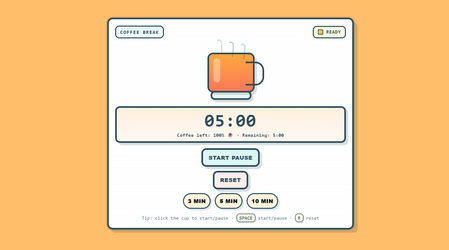
I built a small interactive sequence in Rise to explore time awareness and time management, combining several HTML embeds into a single, cohesive experience. The flow is simple but intentional: First, a timer to build awareness of time passing. Then, a 40-hour work week pie chart, where learners reflect on how their time is currently distributed. Finally, a playful 8-bit coffee break, where the cup slowly empties and ends with a small “Break well taken” badge. All interactions are built with lightweight HTML/CSS/JS, with support from ChatGPT. Prompt The first prompt I used was: I want to create a graphic where users can select how they spend their work time. For now, I have these options, but I’d like to adapt them for someone working in a corporate environment, such as an instructional designer or project manager (e.g. meetings, emails, networking, developing workshop materials, workshop facilitation). I’d like to introduce some kind of HTML-based interaction that allows users to select how they spend their time and then visualise it in a pie chart. From there, the interaction evolved iteratively — refining the structure, adjusting fonts and colours, and improving the overall experience. Idea The original idea for the course was inspired by a real Rise course template: Time Management Essentials. I took the introductory concept and the idea behind the “How I Spend My Time” graphic as a starting point. We often rush through many different tasks during the week, and having tools that allow us to pause and analyse how we use our time can help trigger meaningful reflection. 🚀Course link Hope you all like it — happy to hear your thoughts! 😊466Views10likes1Comment