storyline 360
315 TopicsStoryline 360: Applying Merge Shapes
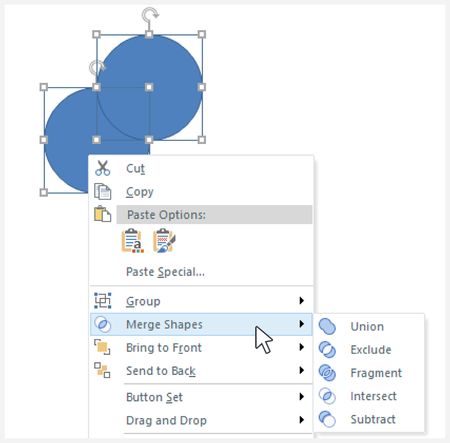
Merge shapes lets you combine basic shapes into custom, powerful designs. Select two or more shapes and apply one of five merge operations: Union Exclude Fragment Intersect Subtract Create Merged Shapes Getting started with merged shapes is easy. Insert and select two or more shapes. Right-click or choose Format in Drawing Tools. Select Merge Shapes. From the drop-down menu, choose the kind of merge operation you want: Union, Exclude, Fragment, Intersect, or Subtract. The resulting merged shape behaves like any other built-in shape and can be moved, scaled, rotated, used in triggers, etc. It can also be merged with other shapes, opening even more design possibilities for your courses.3KViews26likes0CommentsStoryline 360: Improving Experiences With the Accessibility Checker
Whether you're an accessibility novice or expert, the new accessibility checker built into Storyline 360 will help you create more inclusive e-learning. Evaluate your content against key Web Content Accessibility Guidelines (WCAG) in one click and get a thorough report that identifies barriers and offers step-by-step guidance on how to move forward. Finding and fixing accessibility issues has never been easier. Note: While the accessibility checker offers a practical starting point, no automated tool can guarantee full compliance and conformance with accessibility guidelines. For the most complete results, pair the accessibility checker with manual testing. Open the Accessibility Checker Get started with the accessibility checker using either of the following methods: Go to the View tab on the ribbon and select Accessibility Checker. Or, go to the status bar at the bottom of the app and select Accessibility Issues. The Accessibility Checker pane opens and offers two main views: The Summary has interactive tiles to review according to WCAG criteria and complexity. The All Issues option lists the scanned results, accessibility impact summaries, links to the corresponding WCAG criteria, and resolution recommendations. Navigate the Results Click the arrow icon next to each issue's description to expand or collapse its content. All the instances display in the expanded field. You can: Click a line item to display more information about the issue and how to fix it on the right side of the pane. Use the hyperlink in the right pane to jump to the issue's exact location within your course. Filter, Sort, and Manage Issues Choose from any of the following options to refine the information: Click Filter to view the applied filters or to edit the filter criteria. Click Sort to select how you'd like to organize the list—by status, level, issue name, or number of instances—and choose ascending or descending order. Click Skip all instances to skip all instances of an issue. Mark the Show skipped box to display skipped issues on the list. Understand Issue Complexity Each issue is labeled by how it can be fixed: Fix in one click: Applies to simple updates, like the playback speed control, that the accessibility checker can resolve automatically. Just click Fix it for me to apply the change. Fix with AI: Offers the option to use AI Assistant, if it's included in your subscription. For example, you can use AI Assistant to generate suggestions for alt text and captions, then review and edit the result before saving. Note: The Generate alt text and Generate captions buttons appear for all users, but they only work if your Articulate 360 subscription includes AI Assistant. If not, clicking the button will prompt you to learn more about enabling AI features. However, even if you don’t have AI Assistant, you can still fix these issues manually by entering your own alt text or captions. Manual Fix: Requires your input to resolve. The accessibility checker provides clear instructions and links to the relevant WCAG guidelines to help you make the best decisions. Scan Automatically The accessibility checker supports up to 15 key WCAG criteria with various conformance levels that cover 24 different violations. It automatically scans your course when you open or edit it in Storyline 360, so the report is always current. You can also click Refresh to scan your content again. The scan results only show issues relevant to your content. For example, a "missing captions" violation won't display in courses without audio or videos. Choose a Docking Option Click the Redock icon to move the floating pane below your timeline. Use the Pin icon to keep the scanned results visible. Click the Undock button to use the floating pane, which you can move to another monitor to have more room to work. Publish When you publish your course, we'll remind you about any unresolved accessibility issues. You can click Review to open the accessibility checker floating pane. Skipped items won't be included, so use the Show skipped option in the accessibility checker to review anything you chose to skip earlier. Understand Compatibility The accessibility checker is exclusive to the May 2025 update and later for Storyline 360. Project files with hidden accessibility issues won't open in earlier versions of Storyline 360. To restore compatibility, click the "Restore" or "Restore all instances" option to reveal all skipped accessibility issues.6.2KViews24likes0CommentsStoryline 360: Corner Radius Formatting
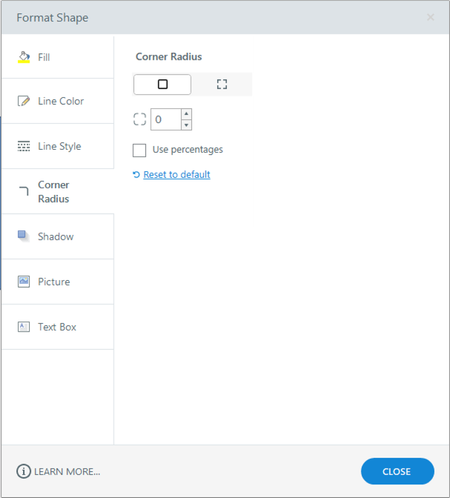
This user guide covers the corner radius options on the Format Shape/Format Picture window. These options control the appearance of rectangle shapes, captions, and buttons. (See this user guide for ways to access the formatting window.) Border/Corners Icon Select the Borders icon to modify all four corners with the same value or the Corners icon to modify each corner independently. Corner Value Enter the value(s) in pixels or select Use percentages to enter percent values. You can also use the arrows to adjust the value. To reset the corners to their default values, click Reset to default. Rounded rectangles default to percentage values. You can round all corners of a shape by dragging any of its sizing handles. You can also adjust one corner of a shape by pressing the Alt key on your keyboard and dragging the corner. When you change the corner radius in a shape’s normal state, those dimensions get applied to other states. However, when you change the corner radius in a shape’s state that isn’t the normal state, the new dimensions are only applied to that state.2KViews8likes0CommentsStoryline 360: Accessibility Checker Covered Issues
When you create a new Storyline course or edit an existing one, the accessibility checker automatically scans your course content for the covered issues listed in the table below and displays any that apply to the course. You’ll also get clear, actionable guidance on how to fix the issues found. This table will be updated and expanded as we add new covered issues to the accessibility checker. Note that not every issue listed here will appear in every course. Checked Issue Name Description WCAG Criteria Custom alt text added Objects should have custom alternative text (alt text). 1.1.1 Non-text Content (Level A) Captions added Audio or video content should have closed captions. 1.2.2 Captions (Prerecorded) (Level A) Skip navigation shortcut enabled The skip navigation shortcut should be enabled. 2.4.1 Bypass Blocks (Level A) Interaction accessible Projects should have drag-and-drop interactions and/or likert scale questions that are accessible. 2.1.1 Keyboard (Level A) Slides advance by user Slides should be set to advance by user. 2.2.1 Timing Adjustable (Level A) Play/pause button enabled The play/pause button should be enabled in the player properties. 2.2.2 Pause, Stop, Hide (Level A) Playback orientation unrestricted The responsive playback settings shouldn't be restricted to a single orientation. 1.3.4 Orientation (Level AA) Text styles defined Text elements should have defined styles, such as heading levels. 1.3.1 Info and Relationships (Level A) Background audio pauses when video plays The background audio should pause while learners watch video content on a slide. 1.4.7 Low or No Background Audio (Level AAA) Background audio volume lowers when slide audio plays The background audio volume should lower when the slide audio plays. 1.4.7 Low or No Background Audio (Level AAA) Marker animations disabled Markers shouldn't have animations. 2.3.3 Animation from Interactions (Level AAA) Clickable objects are 24 pixels wide by 24 pixels tall or larger Interactive objects like buttons should meet the minimum size guidance of 24 pixels wide by 24 pixels tall. 2.5.8 Target Size (Minimum) (Level AA) Accessible video controls enabled The accessible video controls should be enabled. 1.4.2 Audio Control (Level A) Video autoplay disabled Video content shouldn't be set to play automatically. 1.4.2 Audio Control (Level A) Text upgraded Project should use upgraded text. 1.4.12 Text Spacing (Level AA) Accessibility controls enabled The accessibility controls should be enabled. 1.4.4 Resize text (Level AA) Slide title defined Slide titles should have distinctive names. 4.1.2 Name, Role, Value (Level A) Slide title distinctive Each slide should have a distinctive title. 4.1.2 Name, Role, Value (Level A) Scene title distinctive Each scene should have a distinctive title. 4.1.2 Name, Role, Value (Level A) Scene title defined Scene titles should have distinctive names. 4.1.2 Name, Role, Value (Level A) Generated captions reviewed AI-generated captions should be reviewed for accuracy. Recommended Font is 12 points or larger Font sizes should be 12 points or larger. Recommended Playback speed control enabled The course playback speed control should be enabled. Recommended Alt text is less than 150 characters Alternative text (alt text) for objects shouldn't exceed the recommended limit of 150 characters. Recommended1.3KViews6likes0CommentsStoryline 360: New Project Accessible Template
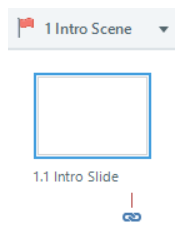
We want you to be able to create accessible e-learning courses effortlessly. Starting with a new, issue-free project template is the right way to begin. In the May 2025 update for Storyline 360, we changed the defaults for new projects to prevent the following five common accessibility issues: Scene title defined. Since scene titles should have distinctive names to give screen reader users context, we changed “Untitled Scene” to “Intro Scene” to give your project a clearer starting point. Slide title defined. Slide titles should also have distinctive names so screen readers know what to expect from the slide content. We renamed “Untitled Slide” to “Intro Slide” to simplify organizing your content. Play/pause button enabled. To give learners control over course playback, the play/pause button should be enabled. We enabled the play/pause button by default in the player controls so learners can start and stop content as needed. Playback speed control enabled. The course playback speed control should be enabled to empower learners to explore content at their own pace, so we also turned it on by default. That way, learners can choose slower or faster playback for better understanding. Text upgraded. New projects now start with upgraded text, which includes text autofit improvements and accessible text. Learn more about upgraded text. This change helps screen readers interpret content correctly, ensuring readability for all learners.2.2KViews4likes0CommentsStoryline 360: Hiding the Player Frame for a Chromeless Design
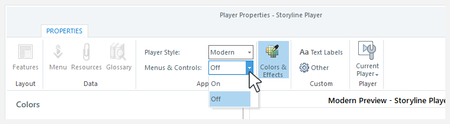
Want to turn off all the player features and hide the player frame to give your course a chromeless look? Storyline 360 can help with that! Here’s how. How to Hide the Modern Player How to Hide the Classic Player How to Hide the Modern Player It’s super easy to hide the modern player frame. Just go to the Home tab on the Storyline ribbon, click Player, then set the Menus & Controls option to Off. That’s it! Your course won’t have a player at all. You'll see a solid background color behind your course. You can change the page background color on the Colors & Effects tab in your player properties. When you turn off the menus and controls, it overrides the previous, next, and submit buttons for each slide in your course. And since your slides won’t have any built-in navigation buttons, be sure to add your own custom navigation features, such as buttons, links, or hotspots. How to Hide the Classic Player The Menus & Controls property described above only applies to the modern player. It’s grayed-out for the classic player. You can still hide the classic player frame. It just takes more work than the modern player. Follow these steps. Step 1: Turn Off the Player Features Go to Home tab on the Storyline ribbon and click Player. Go to the Features tab on the ribbon and uncheck all the player options. Step 2: Make the Player Border Transparent Also in the player properties, click Colors & Effects on the ribbon. Click the link to Show advanced color editing. From the Edit item drop-down list, select the following items and make them 100% transparent. Base >> Main Background Base >> Main Border Base >> Slide Background Step 3: Turn Off the Previous, Next, and Submit Buttons for Each Slide By default, each slide in Storyline will either have previous and next buttons or a submit button. You'll need to turn them off to make your player completely invisible. Go to Story View. Press Ctrl+A twice to select all the slides in your course. Uncheck the Prev, Next, and Submit boxes in the slide properties panel, and make sure all the player features are also unchecked. Be sure to add your own custom navigation features to each slide, such as buttons, links, or hotspots.1.9KViews3likes0CommentsStoryline 360: Adding Web Objects
Web objects are a powerful way to embed web-based resources right into your Storyline 360 courses. Take advantage of web-based applications, games, videos, reference materials, and more—whether they're online or stored on your local computer. Adding Web Objects Tips for Working with Web Objects Adding Web Objects Go to the Insert tab on the ribbon and click Web Object. Depending on the location of your web content, do one of the following: Your web content is online: Type the URL in the Address field. Your web content is on your local computer: Click the Browse button, navigate to the folder that contains your web content, then click OK. Tip: There must be a file called index.htm or index.html in the folder you select, and all supporting files for the web content to function must be in the same folder. Storyline imports all files from the folder where the index file is located. Click Test Link to make sure your web content launches correctly. Check the Load automatically box to load your web content without learner interaction. Uncheck the box to load it when learners click it. Tip: For a web object set to load automatically, give its placeholder a meaningful image so learners know what it is. Right-click the web object placeholder and select Replace Picture. Browse to the image you want to use and click Open. If you change your mind about the image you added, right-click it again and select Reset Picture. Decide how the web object should appear. Use the Display in drop-down to choose either Slide or New browser window, then choose from the following options, depending on your choice: Slide: Check the Scale with slide box to scale your web content with the slide. Note that scaling web content can cause blurriness. Uncheck the box to prevent scaling when you need text and images to remain sharp. New browser window: Decide how the window will look: Use the Window Size drop-down to select a size. Choose Custom to enter the window's width and height in pixels. Use the Browser Controls drop-down to manage controls for the new window. Select Default to use the same controls as the parent browser window. Choose None to not use controls. Click OK when you're done. The web object placeholder will fill the slide, but you can use its sizing handles to resize it. You can also drag the web object placeholder to where you want it to display. Tips for Working with Web Objects If your web content is located on the internet or an intranet, learners will need the proper security permissions to access it. Also, make sure that your web content starts with https rather than http (assuming the hosting site supports secure https content). See this article for details. Otherwise, web objects won't work for them. Web objects can't be previewed. To view web objects in your course, publish for Review 360, Web, or LMS/LRS, then upload the published output to a server. You Might Also Want to Explore: Editing Web Objects10KViews3likes0CommentsStoryline 360: Replacing Fonts
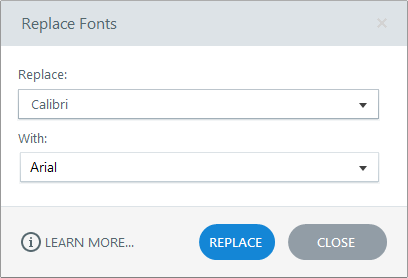
Quickly find and replace fonts throughout a project. From Slide View, go to the Home tab on the Storyline ribbon, click the drop-down arrow beside Find/Replace, and choose Replace Fonts. Use the Replace drop-down list to select the font you want to replace. You’ll only see the fonts currently in use in your project. Then use the With drop-down list to choose a new font. Click Replace. If you want to replace another font while the Replace Fonts window is still open, repeat steps 2-4. When you’re done, click Close to exit the window.7.1KViews2likes0CommentsStoryline 360: Publishing a Course for Web Distribution
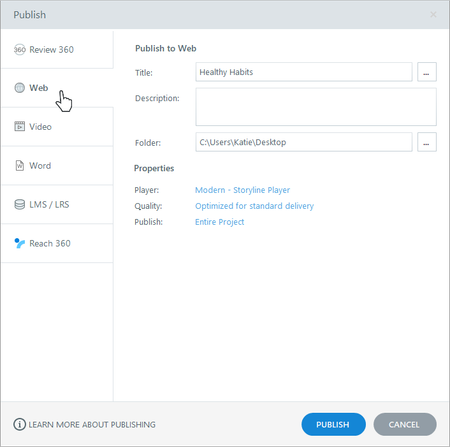
When you want learners to access a Storyline 360 course over the internet or a private intranet, and if you don’t need to track their progress, then web publishing is for you. (If you do need to track learners’ results, publish for LMS/LRS.) Enter Title, Description, and Folder Location Enter Additional Project Info (Optional) Adjust the Player Properties and Quality Settings Choose to Publish a Slide, a Scene, or the Entire Course Publish Distribute Your Published Course Step 1: Enter Title, Description, and Folder Location Go to the Home tab on the ribbon and click Publish. When the Publish window appears, select the Web tab on the left. Enter the Title the way you want it to appear in your published output. (If you have a title placeholder on the first slide, the title defaults to the text entered in that title placeholder. If you don’t have a title placeholder on the first slide, the title defaults to the name of your project file. You can change the title of your published course here without affecting the name of your project file or the title placeholder on the first slide.) The maximum length for a project title is 80 characters; the maximum length for each output folder name is eight words. Use the Description field to document the purpose of your course. It won’t appear in your published output. Use the Folder field to choose where you want to publish your course—for example, your computer desktop. Click the ellipsis button (...) to browse to a location. Storyline 360 will create a new folder in that spot with all the files needed to operate your course. Important: Always publish to your local hard drive. Publishing to a network drive or a USB drive can cause problems with your published output due to latency. After publishing to your local hard drive, upload the output to a web server for testing and distribution. Step 2: Enter Additional Project Info (Optional) Click the ellipsis button (...) next to the Title field to define additional project information. Currently, this information is for your reference only. It won’t be visible in your published output. The Title and Description fields are the same as those on the Publish window (see the previous step). The image below the Title field is the course thumbnail. By default, Storyline 360 uses an image of the first slide in your course, but you can choose a different image. Just click the hyperlinked text below the image, then select a different slide or click Picture from File to choose an image on your hard drive. Enter values for Author, Email, Website, Duration, Date, Version, and Keywords if you’d like. The Identifier applies only to content published for LMS/LRS. When you’re finished customizing the project information, click OK to return to the Publish window. Step 3: Adjust the Player Properties and Quality Settings Use the Properties section of the Publish window to make last-minute changes to your course player and quality settings. The Player property shows the name of the player currently assigned to your project. (The player is the frame around your slide content.) To make adjustments to your player, click the player name to open the player editor. The Quality property lets you choose adaptive or static video quality and control the compression settings for audio clips, static videos, and JPG images. The quality settings default to whatever you used the last time you published a course. To change them, click the Quality property, make your adjustments, and click OK. There are now two video quality options. Select Adaptive to automatically adjust the video quality (high, medium, or low) to the learner’s internet speed and prevent buffering. Learn more. Choose Static to deliver videos with the same quality to all learners, which could cause buffering. Drag the Static slider to change the video compression. Note that higher values give you higher-quality output but also larger file sizes (which means longer download times for learners with slow connections). Lower values give you smaller file sizes and faster download times, but the quality will be lower as well. Drag the Audio Quality slider to adjust the compression settings Storyline 360 uses for audio. Mark the Optimize audio volume box to normalize audio throughout your course for consistent volume across all slides. Tip: If your course audio already has consistent volume, you can speed up the publishing process by unchecking this option. Drag the JPG Quality slider to adjust the compression settings Storyline 360 uses for JPG images. Click Reset to standard optimization to use the default settings: adaptive video quality, audio bitrate of 56 kbps, and JPG image quality of 100%. Step 4: Choose to Publish a Slide, a Scene, or the Entire Course By default, Storyline 360 will publish your entire course. However, you can now choose to publish a specific scene from your course or even just a single slide. This is helpful when you want to publish multiple courses from the same project file. Just click the Publish property, then choose the entire project, a single scene, or a single slide. Step 5: Publish When you’e finished making selections, click the Publish button. When the publishing process is complete, you’ll see the Publish Successful window with several follow-up options. View Project This launches the published course in your default web browser. Important: Since your files have been prepared for web delivery, you might encounter unexpected behavior when viewing the course on your local hard drive. It’s best to upload your published output to a web server for proper testing. Email This opens a new email message with a zipped file of your published course attached. This option is helpful if you need to send your course to a web server administrator for deployment. We don’t recommend emailing a published course to learners. Security restrictions on their computers will prevent some features in your course from working properly. Upload the course to a server instead, then give learners a link to the story.html file. FTP This opens a window where you can enter your FTP credentials and transfer your output to a web server. Zip This creates a zipped version of your course files in the same location where your course was published. Open This opens a file viewer where you can see the files Storyline 360 just created. After you move the files to a web server, send learners a link to the story.html file, which is the file that launches your course. Step 6: Distribute Your Published Course Now that you’ve published your course, it’s time to upload it to a server and give it a test run. Then send learners a link to the story.html file.16KViews2likes0CommentsStoryline 360: Importing Slides from PowerPoint
Import PowerPoint presentations into Storyline 360 to save time and build on what you already have. It's a quick way to accelerate course development, especially when subject matter experts create content for you in PowerPoint. Tip: Most PowerPoint features are supported in Storyline 360, but some aren't. Read this article for details. Importing PowerPoint Slides First, do any of the following: Click Import on the Storyline 360 start screen and select Import PowerPoint. Go to the File tab on the ribbon, scroll to Import, and click PowerPoint. Go to the Home tab on the ribbon, click New Slide, scroll to Import, and choose PowerPoint. Go to the Slides tab on the ribbon, click New Slide, and choose PowerPoint. Browse to the PowerPoint file you want to import and click Open. Tip: If you're importing a PowerPoint file that includes Presenter resources (such as audio), be sure the *.ppta file is located in the same folder as the PowerPoint file. Otherwise, Storyline 360 will import only the PowerPoint slides, not the corresponding Presenter resources. If you opened the wrong PowerPoint file or want to select a different one, click the ellipsis button (...) in the upper right corner to browse for another file. Storyline 360 will display thumbnail images for all slides in the presentation. Select the slides you want to import. By default, all slides will be imported unless you choose otherwise. You can tell which slides are selected by their blue outline. To select or deselect a slide, just click it. The blue outline will either appear or disappear to indicate its status. You can also click Select All or None in the upper right corner to quickly select or deselect all slides at once. Use the Insert into scene drop-down at the bottom of the window to choose where the PowerPoint slides should appear in your course. You can insert them into a new scene, which is the default option, or you can choose an existing scene. If you choose a new scene, use the Scene field to give it a name. Click Import to complete the process. Tip: If your presentation includes Quizmaker quizzes or Engage interactions and you encounter an error message that one or more of them can't be found, read this article for solutions.7.8KViews2likes0Comments