Forum Discussion

SL3 issue: "Zoom Picture" is adding a grey border around the image
"Zoom Picture" is adding a grey border around the image.
That is an actual screenshot showing the border it has added.
61 Replies
- BrengreLITTYCommunity Member
Thanks for sharing the file, Bérengère.
Since the picture has been rotated, the zoom does appear in the wrong place for this image. It's based on the original image. If you look at the size dimensions, it still holds the original image details and not the rotated version.
If you rotate the image prior to importing, it works as expected.
Check out my addition to your file attached.
- BrengreLITTYCommunity Member
Thank you Leslie. I wrote that the picture has been rotated, in the comments, on the right of my file, thanks. I know it is because I rotated it. Once again, it's not our job to deal with the bugs of the software. It did work in previous versions of SL.
I'll quote a previous comment: "I'm starting to be really tired, always needing to try to find a detour to get around almost on each bug I'm facing instead of you resolving them in the first place.". What is the point of having a tool to zoom if we have to import the pictures at the exact size they will appear in the slide ? What the point of having a tool to rotate pictures if you cannot use it without generating various bugs ? Idem for cropping ? Hi Bérengère,
I can understand how frustrating it is to deal with these small bugs, and I appreciate you reporting it to us. I've filed it with our team using your example and Review 360 link as those were helpful. I'll keep you posted here with any updates on additional information or fixes.
Great news, folks! We fixed the issue you reported where inserting an image and adding a Zoom to it would cause a grey border to appear.
Here's how you can update Storyline 360 to see all the latest features and fixes. If this problem resurfaces, please record a Peek 360 screencast for me, and I'll be happy to help!
- MarkCairnsCommunity Member
Hi Katie,
Has this update been rolled out yet? I have the April 11th update and the issue is still occurring.
Maybe a new version will be available in the morning.
Thanks.
- BrengreLITTYCommunity Member
- MattLangCommunity Member
That’s great news. Does it also work for Storyline 3?
Hey folks, thanks so much for replying back. I'm seeing the gray border around images with zoom in Storyline 360 and Storyline 3, so we need to take a second look at this. I'll keep you posted on what I find out.
- ShawnaNaklic915Community Member
Hi Alyssa,
I had previously experienced the grey outline issue that others have mentioned, but this was remedied by the recent update.
I am, however, experiencing a different but related issue with an outline appearing on one side of an image only.
I've attached two images - in build mode, you'll see there is no outline. I've tried multiple different versions of the image, and ensured that there is no line on that side.
Preview image shows how the image appears in preview. It also looks like this when published to Review 360 or HTML.
Has this behaviour been reported?
Thanks in advance!
Shawna
Hi Shawna,
That looks similar to the issue we still have open where a grey border or line appears around an image if it has the zoom picture option enabled. We'll let you know here as soon as we have more info on this issue!
- RyalBird-1673f6Community Member
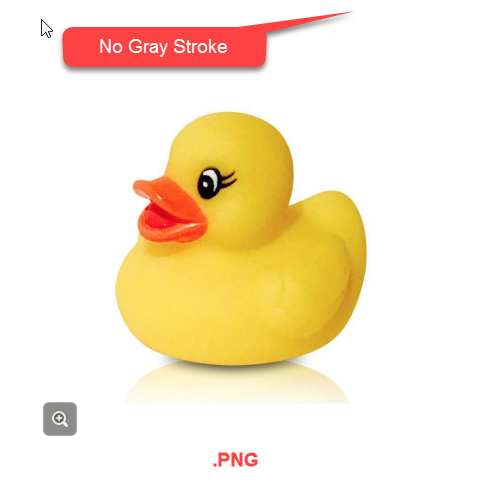
Hi folks, I found a workaround to this issue. Instead of using a .JPG, or flattened image:
- In Photoshop, I first change the default 'Background' layer to a normal layer by double-clicking on that layer
- Increase the canvas size (NOT image size) of the image by about 10px on each side (now you should see the transparent BG represented by a gray/white checkerboard {in Photoshop} around the edges)
- Save it as a .PNG (with a transparent background)
- Import into StoryLine and the gray outline no longer shows on a zoom image.
In summary, I basically have an image now that's on its original white background, but now with a 10px transparent border.This is kind of time-consuming and I wish Articulate had fixed this by now, but until then.
Please see attached screenshots.
- GregCebuliak-9eCommunity Member
Hi Ryal,
the grey stroke bug remains, but your workaround worked perfect! Thanks for taking the time to share a solution :)
Cheers,
Greg
- PeterGalvinCommunity Member
Suddenly, for the first time in my projects, I am seeing this same issue and not why. I am running 360 v.3.29.19305.0.
Hello Peter and welcome to E-Learning Heroes :)
This is still an open issue with our team.
I wanted to share some information on how we define bugs and how we tackle them when they occur.
This conversation is attached so that we can share any updates with you here.












Related Content
- 3 months ago
- 3 months ago
- 6 months ago