Forum Discussion

Adding scrollbar to text entry field in Storyline 360
I have some courses that I originally built in Storyline 2. Some of the slides contain text-entry fields that gain scrollbars once the text begins to overflow.
I have recently moved these courses over to SL360 and the text-entry fields no longer gain a scrollbar, instead the text runs out of the field (see pic).
Is there a way to easily add scrollbars back on to the text-entry fields that I'm missing?
This also happens in a newly created SL360 course so isn't related to converting SL2 to SL360.
Thanks!
Hi Everyone!
I'm happy to share that we just released a new update for Storyline 360!
In version 3.107.35958.0 we included essential fixes and new features. One of the bugs we’ve fixed is:
- A scrollbar didn't appear as expected when text overflowed
Launch the Articulate 360 desktop app on your computer to take advantage of this update, and click the Update button next to Storyline 360. You’ll find our step-by-step instructions here.
Please let us know if you have any questions!

40 Replies
Thanks David for submitting those and continuing to share feedback and ideas with our team!
The AMP was designed specific for tablets, and with the new responsive player available for Storyline and Studio 360 content, most folks have been using that instead of the AMP.
As for the scroll bar issue you're seeing, are you using the modern or classic text in those upgraded projects? If you can share one of those sample .story files I'd love to give it a test!
- DavidTaitSuper Hero
Hi Ashley, as always thanks for taking the time to reply.
I have attached a stripped down .story file here that shows the points we're discussing.
Re: scrolling: This file uses classic text but I tried it in Modern Text too but nothing changed.
If you're interested you will also see the variable reference shrinkage we've been discussing here.
There is one other thing I've just stumbled across that I'd like to draw your attention to. When printing the screen from an iPhone or iPad, whether I use Javascript (as shown in the attached file) or the browser's built-in print function, the print dialogue dispays the following regardless of the orientation of the device and inspite of the settings allowing Portrait or Landscape viewing.
Thanks again for your help!
Hi David,
Thanks for a file - even a stripped down one! Now through each of the things in your display.
1. The text entry with the scroll bar - I saw the same thing in your project file, even when I duplicated the text entry box. Oddly enough, the odd scroll bars disappeared when I changed your story size. So here's what I tried:
- Creating a new project with the same dimensions, story size, colors, etc. - Couldn't reproduce it
- Importing into a new project file with the default set up - Couldn't reproduce it
- Importing into a new project that is set to match your original story size - Reproduced
So there is something in the custom story size and this project itself that's causing it. Can you tell me any more about how you created this file, how you added the text entry, changed the text entry, anything that seems out of the ordinary? Also, I know you've been using Articulate for some time, but always worth checking the best practices here about working locally.
2. The variable reference shrinking, I know you opened up a support case for that too! So I'll follow along in your case, but one thing I did spot was it only occurred to me in your file when the font size was set below 15 pts.
3. For the printing issues, I also see you started a support case on that too! I'll touch base with my team on that as well.
- Marcela-0643b13Community Member
Hello, I have run into the issue that the scroll bar is not appearing on my text entry boxes. I have made my text boxes a size of 36 x 173. I am able to enter text, hit the entry box to add a new line, but no scroll bar appears even after entering more text than the size of the box. If I change the text box size to 380 x 37, I can enter text, however, the text is not wrapping (the text entry box is not expanding) and nothing happens when I hit enter to start a new line.
I have added a scroll bar manually, but the text box has to already be larger than the scroll bar in order for the scroll bar to work, which I do not want as I want the scroll bar to only appear if they enter more text than the visible on the text box.
- Marcela-0643b13Community Member
I forgot to mention, I am currently using v3.17.16188.0 for Storyline 360.
Hi Marcela,
I know our team was investigating an issue where a text entry box that is larger than 60 px high doesn't wrap or create a scroll bar, but it sounds like you're seeing that a scroll bar is missing no matter what?
It would be helpful to take a look at your .story file to confirm if it's the same thing and check all the properties and settings you're using. Can you share a copy with us here?
Marcela, just a note. I was able to reproduce the missing scrollbar with modern player enabled. When I switched to classic player, my scrollbar appeared. Do you get the same result?
Thanks!
- Marcela-0643b13Community Member
Hi Ashley and Crystal
Thanks for your responses.
Yes, I was using the modern player. Changing the player to classic makes the scroll bar appear. However, if my text box is set up as a single line (31px), it does not wrap the text, does not start a new line when I enter, or add a scroll bar, regardless of classic or modern player. Furthermore, none of the autofit options for the text box make any difference.
Please advise if you still need me to send a sample.
Hi Marcela,
If you have a text entry that is set up to only a single line, Storyline won't expand the box as you continue typing or try to navigate to a new line. You'll see that the line of text continues to expand, and the user can keep typing, but it all remains on one line.
When using the Enter key:
- If the text-entry field is tall enough to accommodate more than one line of text, the Enter key will add a line break (return), so the learner can start a new paragraph. For example:
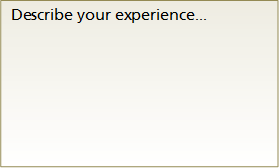
- If the data-entry field is only tall enough for a single line of text, the Enter key will assign the learner's response to the variable. In other words, it will submit the learner's response. For example:

The issue with the scrollbar not appearing for a larger text entry field that can accommodate multiple lines of text is something we reported to our team, so we'll keep you posted on that here. It's worth noting that you can still scroll in that field, you just won't see a scrollbar.
Hope that helps clarify the setup, and we'll keep you posted on that other issue here.
- If the text-entry field is tall enough to accommodate more than one line of text, the Enter key will add a line break (return), so the learner can start a new paragraph. For example:
- DaynWilkinsCommunity Member
Hi Ashley
The scroll bars are still not appearing in the Modern player, but they are in the Classic player in HTML5 and Flash. Any news on a fix for this?
Thanks.




Related Content
- 10 months ago
- 10 months ago
- 10 months ago
- 9 months ago