articulate 360 teams
255 TopicsStoryline 360 Unable to Restrict skipping in a quiz
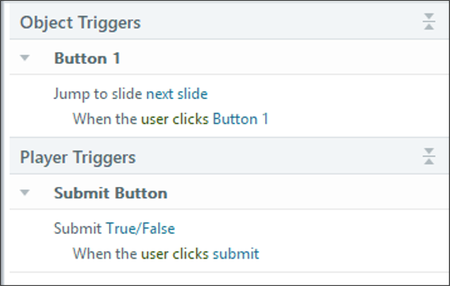
Hi I have a Storyline 360 Project which includes a Quiz Bank with 230 questions being randomised. I followed this discussion Storyline 360 - Using custom navigation buttons with a quiz review which included these triggers for this and it worked and from 2nd slide: Now, I need to prevent them skipping questions, I have searched and followed the instructions, e.g. using restriction in the player but trying to make my custom Next button to work with a trigger, isnt working. Please help, thank you in advance. Thanks Margaret111Views0likes7CommentsAssign a title to different units for test results pages
I have created a curriculum for direct care workers in Storyline. This curriculum contains 12 units. When the learner successfully passes a quiz/test, they must print out the results page to give to their employer. The State requires the name of the unit at the top of the results page. I have created text variables in the triggers panel and assigned each unit a variable name. It's still not working when I test. I think the problem is when I enter the java script in the .report Anyone have the exact language I need to accomplish this?118Views0likes5CommentsArticulate Rise AI Tutor Defaults to ON - Concerns
Hi everyone, we are very concerned that the AI Tutor publishing feature is defaulted to ON. For our enterprise license, this is very concerning as we have no way to manage the use other than to advise our seats to not use it unless approved by their legal team. We have no way to track if groups are using it when they are not permitted, we have no way to turn it off administratively or to control who is using it. We were able to go through a process of approval for the internal AI features that are visible and available to our developers, but this is actually an end-user-facing AI function - which is outside of the scope of our original approval. This opens us to liability issues and frankly puts into question if we have to drop the use of AI entirely just to manage this vulnerability. How are you managing your developers utilizing the AI Tutor?Solved162Views3likes7CommentsStoryline 360 drag-and-drop issue: object moves away from cursor after state change
Hi everyone, I am having an issue with a drag-and-drop interaction in Articulate Storyline 360. I have a draggable object with two states: Normal: approximately 6 × 48 px Drop Correct: approximately 1 × 328 px When the object is dropped correctly, its state changes from Normal to Drop Correct, so it appears as a full-height installed membrane. Later, I want the user to drag the material back to its original position. When the user starts dragging the object and I change its state from Drop Correct back to Normal, the visible object is no longer under the mouse cursor. There is a noticeable distance between the cursor and the object. What I would like is: When the user starts dragging the dropped object, it changes back to the Normal state. The centre of the Normal-state object should immediately appear under the mouse cursor. The user should then be able to drag it normally back to its original drop target. Is there a native Storyline method to reset the drag anchor or make the object's centre align with the cursor after changing states? If not, is there a reliable workaround using separate objects, triggers, or the Storyline JavaScript API? I have attached screenshots/video showing the behaviour. Thanks.187Views1like10CommentsCannot Open 360 Degree Image Editor
Hello all, This issue has been persisting since September 20. My project has a few slides that contain 360 images, and when I originally added them (a few months ago), everything works just as expected. I now need to make some changes with the marker in the 360 degree images, and I cannot open the 360-degree image editor to make those changes. SL stuck loading that editor with the "..." forever loading and the image greyed out. When I cannot wait anymore and close it out, SL prompted me to "Save changes" even though no changes have been made. My images were kept in OneDrive (which I sync locally to my OneDrive), and I have tried downloading those images to the Download folder, and try replacing the old one, that solution does not work either. Additionally, when I tried replacing the image with the exact same file, the image was not rendered corretly when I inserted it (even when the image was 2:1 aspect ratio). When I put the project in Preview, then the images render fine in that mode, but this was not the behavior that I am used to. A 16:9 aspect ratio image was inserted and it was not warped the same way in the edit mode (screenshot included). I also have uninstalled SL and make all necessary updates. Can someone help? I attached the SL sample with my images. Thank you so much!Solved140Views0likes8CommentsRetrieve Reports from"Survey" Integrated in Rise Courses
Hello everyone, I have created a survey questionnaire using the "Survey" feature in Rise (not Storyline). I followed the instructions to retrieve the analytic report after learners completed the survey but responses are nowhere to be found. Can you anyone please further assist me on this issue? I appreciate you! Best, Jonathan183Views2likes6CommentsStoryline SCORM export suddenly much larger than the Storyline project
Hi everyone, I’m having a strange issue with a Storyline 360 project and I’m hoping someone can help me understand what’s happening. I have a Storyline project that was originally 206 MB. When I published that version as SCORM, the exported SCORM package was 246 MB. I needed to get the SCORM package below 230 MB for our LMS, so I started compressing the images within the project. After compressing and replacing the images, I managed to reduce the Storyline project file from 206 MB to 196 MB. However, when I published this new version as SCORM, the package unexpectedly increased to around 270 MB. So the sequence is: Storyline project: 206 MB → SCORM: 246 MB Compressed/replaced images Storyline project: 196 MB → SCORM: ~270 MB What is particularly strange is that when I checked the published SCORM files, I found that the images were actually being increased in size during the publishing process. For example, I had an image that was 104 KB in the Storyline project. The Media Library also showed it as 104 KB. However, when I located that same image in the exported SCORM package, it was around 3 MB. I found this happening with a lot of the images — the file sizes in the published SCORM were significantly larger than the corresponding images in the Storyline project. I've also checked the Media Library and the largest images currently in the project are around 2.1 MB, so there doesn't appear to be one particularly large asset causing the increase. I extracted the SCORM package to investigate further. The extracted package is around 300 MB, while the story_content folder is only 6.9 MB, so the majority of the size appears to be coming from elsewhere in the published output. The really strange thing is that the SCORM export was working fine earlier today. The original 206 MB project exported to 246 MB. It was only after I started compressing and replacing images that the SCORM output started increasing to around 270 MB. I'm running Storyline 360 on Windows through Parallels on a Mac. Has anyone experienced anything similar, where images are becoming significantly larger when Storyline publishes them to SCORM, even though the source images in the Storyline project/Media Library are much smaller? I'm trying to understand why Storyline is increasing the image sizes during publishing and what could be causing the SCORM package to jump from 196 MB to 270 MB. Any advice would be massively appreciated! Thanks!94Views0likes2CommentsMajor AI Assistant Workflow Friction in Rise 360: Impact on Recent Updates
Hi E-Learning Heroes Community & Articulate Team, I am sharing feedback regarding the recent updates to the AI Assistant features in Rise 360. Even as a certified user, these recent changes to the interface and functionality have introduced major friction into my authoring workflow and are severely slowing down production: Top AI Menu Toolbar Restrictions: The main AI toolbar button at the top is now only Update text across your course or for specific lessons or blocks. Previously, this button opened a comprehensive drop-down list featuring all available AI actions in one central location. Now, that list is gone, and those options have been scattered throughout different areas of Rise. Instead of having a single, efficient menu, I now have to hunt through the entire interface just to find tools that used to be readily accessible in one place. Block Background Image Swapping Glitches: Swapping out the default mountain background visual on blocks has become frustratingly unreliable. It often takes multiple attempts, rather than a single attempt like prior, to replace the generic mountain photo with a custom image when setting up background visuals for block components. Reduction in Generated Image Variations: The AI image generation tool now yields only a single image option per attempt, down from the four distinct variations we used to receive. Storyline still provides four generated image options to choose from, but Rise 360 now yields only a single image option per attempt. This reduction requires repeatedly generating images from scratch, making the search for appropriate visuals far more time-consuming. Getting four options previously allowed us to quickly compare compositions and select the best fit. Loss of Image Prompt History: The system no longer saves, displays, or retains the AI prompt used to generate an image. Previously, we could easily open an existing generated image, view the exact prompt, and copy/paste it to adapt for subsequent images. Articulate needs to add prompt history retention to Rise and Storyline for images so we can iterate on past prompts and keep generated images aligned with the same brand/theme family across a course. These changes are directly impacting authoring speed, visual brand consistency, and daily productivity. Has anyone else encountered these friction points or found effective workarounds? I strongly urge the product team to consider restoring prompt history retention, four-option image generation, and the centralized drop-down menu for AI toolbar controls.538Views5likes10CommentsText formatting changes after importing translated word doc in storyline 360
Hi Team, I am using latest version of storyline 360 (i.e. v3.125.....). I have exported a course in word doc and translate it in French and imported in same file. 80% of text formatting got changed like white button text got black, Notes text having white color got gray, size of title texts reduced drastically. This is very unusual this time. I never experience such major changes in last 6-7 years. Can you please check if this is due to some version updates or something else? I tried downgrading the version to V3.120 but same issue appears.Option for multiple Rise quizzes to report to the LMS
Rise does not allow this functionality - multiple quizzes within a Rise course reporting to the LMS. It only allows course tracking based on 'course completion' or based on a 'quiz result' from a single quiz only. Wouldn't it make sense to allow tracking on all quizzes (either separately or combined)? What is the point of allowing multiple quizzes, if only the results for one can be tracked? If we as developers cannot track all quizzes then we may as well just use Knowledge Checks. A KC may be nice for the learner, but doesn't provide any data to the developer. The answer data (questions and learner selection regarding answer options) from all quizzes surfaces within the LMS report, so why can't the score % data? Articulate, surely this is something to consider in 2026 for Rise 360? Thanks.226Views5likes7Comments