review 360
1394 TopicsComments Disappearing After Submission in Review 360
Hi, I’m experiencing a problem with Review 360 where reviewers are posting comments, but these seem to disappear very quickly after being posted. While the reviewer believes they have submitted their review, I’m left with an empty review course. I’ve confirmed that this has happened with two different people on the same course. They have checked the review links, and the comments are also not showing up for them. What makes it even stranger is that other people have been able to successfully post their comments on this course. For these comments, I’ve received notifications in my email, but I’m not notified about the disappearing ones. I’ve already seen multiple threads regarding this issue on this forum, but no fix is mentioned anywhere. I’ve tried enabling resolved comments, turning comments off and on again, but to no avail. Review 360 - Feedback disappeared | Articulate - Community Review 360 comments missing | Articulate - Community Missing Feedback in Review 360 | Articulate - Community Comments in review link are not saved | Articulate - Community At this moment, the unreliability of Review 360 means we cannot send courses out for review. Do you have any possible fixes? Thanks!3.2KViews3likes75CommentsNew in Review 360: Request Review
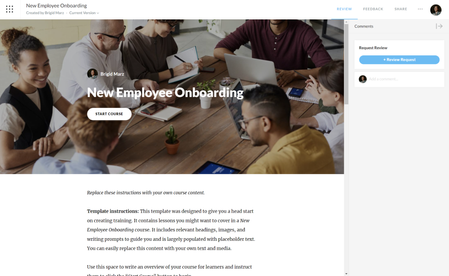
Are you sick of chasing down stakeholders to get them to review your courses? If so, you’re going to love being able to request and track reviews directly in Review 360. This handy new option will you save time—and headaches—by eliminating the need for endless back and forth with your stakeholders about where they’re at in the feedback process. Here’s how it works: When you open a course in Review 360, you’ll see an all-new Review Request button. Once you’ve selected that button, simply add stakeholder email addresses, share any additional information they might need, choose a due date, and hit Send Request. From there, Review 360 saves you time by taking over the notification process. It will email reviewers about your project right away. And if you add a due date, it’ll automatically send reminder nudges to your reviewers just before, on, and after that date if they haven’t finished looking over your course. And that’s not all! You and your stakeholders can now easily see where everyone is in the review process right within Review 360 thanks to the status labels that appear next to each reviewer’s name. So you won’t need to email stakeholders to check up on them because you’ll already know what’s going on. If you’re an Articulate 360 subscriber, you can access this new feature immediately in Review 360. And if you don’t have Articulate 360 but want to try out this feature, you can start a free 30-day trial. For more detailed information about this feature, check out this helpful article: Review 360: Request Review. So let us know what you think of this new Review 360 feature in the comments below. The Review 360 TeamSolved3KViews0likes105CommentsIntroducing Annotated Screenshots in Review360
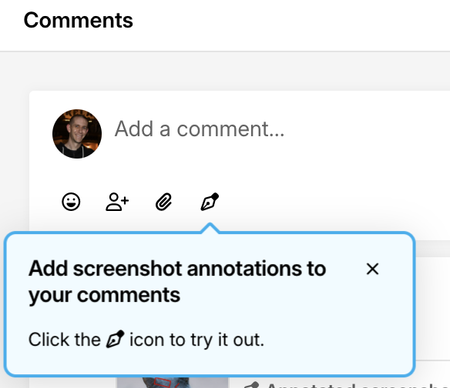
We've added Annotated Screenshots to Review 360, which improves how reviewers provide feedback to course authors. This feature enables reviewers to add annotations directly onto screenshots of course content. Reviewers can capture images while giving feedback and use various tools to mark them up—including text, boxes, lines, highlighting, and freehand drawing. Each annotated image connects to its related comment, making it easier for authors to understand exactly what needs changing. How to use this feature.2.8KViews20likes23CommentsStoryline audio stops working on random slides
I’ve been working with Storyline for some time, but this time I’ve encountered an issue where I’m unable to identify any clear cause or logic behind what’s happening. I currently have four modules published from Storyline, both for SCORM and Review. During the review process, one of my colleagues commented that a particular slide did not have audio. However, when I checked, the audio was present on the slide timeline and played correctly on my end in both Review and Preview. Another co-worker of mine also confirmed that the audio worked for her. 🙃 I then published the module to SCORM and uploaded it to Moodle. While conducting final testing, I noticed that a few slides are experiencing the same issue. The audio does not play when the slide starts. To make the audio work, I either need to: go back to the previous slide and return to the slide, or let the slide timeline finish (in restricted mode), then drag the timeline back to the beginning, at which point the audio starts playing. I would prefer not to create a trigger on every slide to play the audio, as the audio should automatically play when the slide timeline starts. Additionally, most of the slides are working correctly, and only a few slides are affected, which makes it difficult to determine the cause. if anyone has encountered similar issues and have some suggestions or tips on how to fix this. I would greatly appreciate the help!!!Solved2.4KViews0likes63CommentsReview 360 (storyline) issues today?
Hi, Has anyone else had issues with Review 360 over the last few days? The review links keep kicking out my SMEs when they're review courses (forcing them to start all over again). Now, I can't publish to Review 360 from Storyline. I've submitted a ticket. It appears to be part of a larger issue, as it's affecting my colleagues across Canada. I've attached the message I'm getting when I try to publish to Review 360. I have tried publishing it to a new review linkSolved2.4KViews1like37CommentsMajor Storyline Audio Playback Issues
I have recently been receiving a lot of feedback from my course testers that there have been issues with audio not playing, audio only partly playing, incorrect audio playing or layer audio overlapping when they visit the slide initially, however when they return to the slide the audio works as designed. Even weirder, two people may be testing the exact same package and will experience completely different audio glitches and some testers experience no glitches at all. These tests have been done on both Review360 and in SCORM 1.2 and 2004 on our LMS. It has been tested in both Edge and Chrome. There are no issues with the timeline and the audio is not attached to any triggers. I've been using Storyline for around a decade now and have never encountered an issue like this. From looking at the forums here it seems that a number of people are having similar issues, with no solutions provided or any update/explanations as to why this may be occurring. This is incredibly frustrating, as it means nothing can get past quality control and be provided to clients. Has anyone experienced this and found a fix?Solved2.4KViews7likes60CommentsNew in Review 360: Team Folders
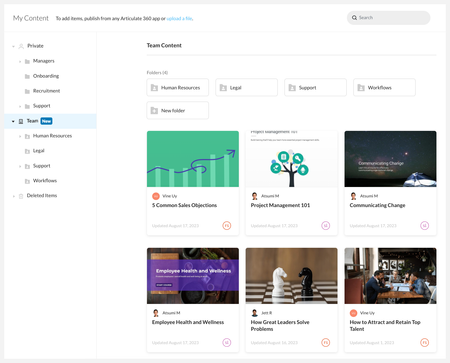
We're ecstatic to launch Review 360 team folders for Articulate 360 teams. Now any seatholder can manage and publish new versions of the same Review 360 items, making it easier than ever to collaborate on multiple projects. When you launch the Review 360 dashboard, you'll see three main sections in the sidebar: Private, Team, and Deleted Items. After you publish your content to Review 360, you'll find it in the Private directory. When you're ready to share it, move it to the Team directory, where every team member can access it. Want to share your content with only a few people? No problem! Create a folder under the Team directory, give it a name, then select who you want to share it with. If "Everyone" shows as an editor, hover over it and click the trash icon to remove it. Once your content is in the Team directory, members with access will see it listed when publishing a new version of an existing item to Review 360. If you’re an Articulate 360 teams subscriber, you can access this new feature immediately in Review 360. And if you don’t have Articulate 360 but want to try out this feature, you can start a free 30-day trial. For more detailed information about this feature, check out our user guide: Review 360: Share Items with Team Folders.1.9KViews0likes72CommentsReview 360
Hello, During several reviews in Review 360, my SMEs and I noticed that comments left in the Comments box do not directly align with the referenced section while in Review 360. In other words, because of the scrolling feature, it's sometimes challenging to locate the actual area of concern in the course that needs attention. Is there a way to make the Comment box and the area of concern static on the page?1.7KViews1like3CommentsUploading SCORMS or HTML5 from other builders for use in Rise 360 Course?
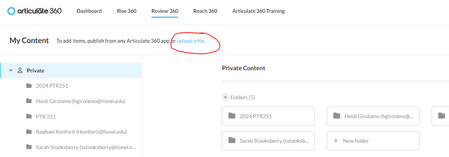
I have a scorm built in a different platform that I want to embed in a lesson in Rise 360. A google search says this is possible. " AI Overview Yes, you can upload SCORM files from another platform to Articulate Rise 360, as long as the file is exported in the correct format: SCORM format: Rise 360 supports SCORM 1.2 and any edition of SCORM 2004. Export location: Save the exported training to an easy-to-access location on your computer. Export tool: If you're importing Rise 360 training, use the Export to Rise.com tool in Rise 360. " However, when I try to upload the scorm to Review 360, I get this: Has anyone had success doing this? Thanks for any info. V1.7KViews0likes1Comment