Forum Discussion

How can I start a motion path where it ended in a previous slide?
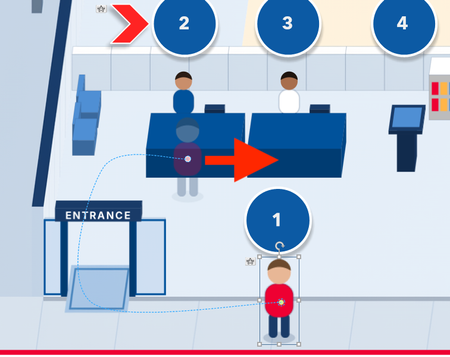
- 21 days ago
CJLu Here are the steps:
1. Duplicate your first slide as your second slide, which you have already done in your uploaded file.2. Add a straight-line motion path to the icon.
3. Move the endpoint of the straight-line motion to the position you need.
4. Move the start point of the straight-line motion to the position where the curved motion path ended.
5. Delete the trigger for curved motion in your second slide and that's it.


You want the curved path to be straight? Do you mean that on slide B, you want a curved path instead of the straight one?
You can duplicate the slide, delete the linear path, and select a different one (arc, freeform, etc.). It will start from the initial position of the icon.
I want the curved path from slide A to be a straight path in slide B. And I want the straight path in slide B to begin where slide A's curved path ends.
- AaronBurgessAU21 days agoCommunity Member
I've done this. It's probably not the best method, but I will place a copy of the same character down roughly where I think the path will end. I make that character say 80% transparent and turn it's brightness to -100% to make it easier to compare positioning. And then I run the slide for testing.
The character off screen has the motion path. I've placed a modified copy of that character at the end of that path.
Then I see how far off I am. The modified character looks like it's about 4x4 pixels off. Once I've got it spot on (through testing) I simply Copy and Paste Special the modified character to the new slide. I can then undo the transparency and brightness, and add what ever new animation path I want.

Related Content
- 1 year ago