Forum Discussion

Audio-Button functions and states within selfbuild WBT menue and options
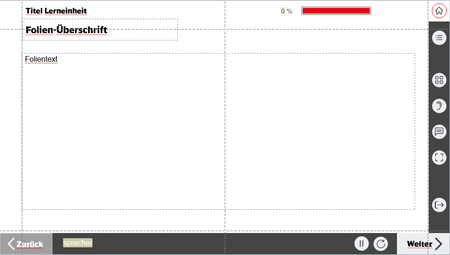
- 6 months ago
Ann-Katharin105 Make sure the volBtn object ID across all scripts matches the volBtn object ID in your current project. You may also want to use this script when the timeline starts to reference the object ID only once, and then execute JavaScript to call the toggleVolume() function when the volBtn and Hotspot Audio are clicked.
Execute JavaScript when the timeline starts on this slide:window.syncVolumeUI = function() { const volBtn = object('6K0zFZzoRzO'); // replace with current ID const currentVol = DS.appState.currentVolume(); setVar("volumeOn", currentVol > 0); volBtn.state = (currentVol > 0) ? "Normal" : "_default_Selected"; }; window.toggleVolume = function() { const currentVol = DS.appState.currentVolume(); const newVol = currentVol > 0 ? 0 : (DS.appState.lastVolume || 1); DS.appState.setVolume(newVol); window.syncVolumeUI(); // Update UI after toggling }; syncVolumeUI();Execute JavaScript when the use clicks volBtn and Hotspot Audio:
toggleVolume()This is a simplified approach to avoid the risk of forgetting to add the object ID in multiple scripts.

One of the main challenges was ensuring that both the button and the menu label were clickable while triggering the same action, toggling the audio (mute/unmute) and updating the button’s visual state accordingly. It was important to keep both elements synchronized so they consistently reflected the current audio button state.
Another key requirement was preserving the user’s selection when navigating between slides. If the audio was turned on or off, that preference needed to persist, with the ear icon updating appropriately (crossed out when muted and normal when unmuted) each time a new slide was loaded.
Since the global volume was managed through JavaScript, I integrated the Storyline object reference into the same script to access and control the audio button states. This allowed the interface to update dynamically based on whether the global volume was on or off. Additionally, I created a custom variable, volumeOn, set to true by default and toggled as needed to track and control the audio state across the entire course.
The only obstacle I encountered was related to a grouped object consisting of an ellipse shadow and the actual audio (ear) icon. Because the elements were grouped, it was difficult to target and control the icon independently using object references, due to how Storyline handles grouped objects on load. Rather than spending excessive time trying to work around this limitation, I chose a more efficient approach: I recreated the icon as a single element and separated the shadow into its own object, which is only visible on hover. The visual difference compared to the original design is minimal and barely noticeable.
There are a total of three scripts on the Slide Master (two on the base layer and one on the menu layer), all labeled “Added by Nedim” for easy identification. Please test the attached project and let me know how it performs.
- Ann-Katharin1056 months agoCommunity Member
Thanks a lot, Nedim, for reaching out and helping that fast! The way you solved it was very smart and impressive - starting alone with by the step with separating the grouped elements in the button and creating a shadow element controlled by a trigger to change state.
Your SL file is running as it should; all requirements function as wished. Also tested it with adding a video in slide 3.2. Works really fine :)
The thing is now, that by incorporating your variable volumeOn, the elements of the button as well as your triggers and Javascripts on base layer and first layer of Master view slide in my unscrubbed bigger SL file, it still doesn't work to one point: Everytime, I want to mute the audio volume by using the Hotspot in the expanded menue, the audio mutes (so fas so good) but the icon state doesn't change accordingly.
Somehow the menue/text label Hotspot seems to not communicate with the button state.
I don't know the reason for sure since I really just copy pasted all your work without changing or forgetting something (checked also with two other colleagues). Therefore I want to break down once more what you did to make sure I got everything:
1. Adding this variable
2. Using these 2 elements (ungrouped) for the button:
with the states as the following
3. Setting the triggers on the element volBtn (icon-part of the button) to first control the shadow appearance while hovering and secondly running the JS to control the audio un/mute as well as the state of the button
4. Setting the trigger on the base layer to identify the current Volume and sync with the button state:
5. Go to the next layer and adding only this Javascript to the Audio-Hotspot:
Since posting about my struggle with the audio button I also stopped working on the SL file. So there should not be any other trigger/variable etc. interfering with the setup you built.
I am using the latest version von SL 360 (from 31st March) if that makes it easier to track down the error - even though that shouldn't be the cause since your file is functioning without problems.
Do you have a clue why it's not working, what I did wrong (or what I might have forgotten after all) - or what the cause could be?
- Nedim6 months agoCommunity Member
Ann-Katharin105 Make sure the volBtn object ID across all scripts matches the volBtn object ID in your current project. You may also want to use this script when the timeline starts to reference the object ID only once, and then execute JavaScript to call the toggleVolume() function when the volBtn and Hotspot Audio are clicked.
Execute JavaScript when the timeline starts on this slide:window.syncVolumeUI = function() { const volBtn = object('6K0zFZzoRzO'); // replace with current ID const currentVol = DS.appState.currentVolume(); setVar("volumeOn", currentVol > 0); volBtn.state = (currentVol > 0) ? "Normal" : "_default_Selected"; }; window.toggleVolume = function() { const currentVol = DS.appState.currentVolume(); const newVol = currentVol > 0 ? 0 : (DS.appState.lastVolume || 1); DS.appState.setVolume(newVol); window.syncVolumeUI(); // Update UI after toggling }; syncVolumeUI();Execute JavaScript when the use clicks volBtn and Hotspot Audio:
toggleVolume()This is a simplified approach to avoid the risk of forgetting to add the object ID in multiple scripts.
- Ann-Katharin1056 months agoCommunity Member
Thank you again, Nedim! That must seem so obvious! Just discovered that I can find out about the object ID via accessibility features. I inserted the ID given by SL in my file in every script and now it works just fine. Thanks a lot! You were a great help and I learned so much from you.
Related Content
- 5 months ago
- 1 year ago